You don't need antivirus software, a paid VPN, or a single downloaded app to lock down an Android phone. Almost everything that protects it is already sitting in Settings—switched off or ignored.
I write about the Android operating system for a living, and even I'd left half of these settings untouched until I sat down to write this guide. I know better, and I still put it off because the easy, boring stuff never feels urgent until the day someone breaks through your security.
And when that day comes, the tactics are never as dramatic as the headlines make them sound. Nobody's decrypting your bank app at the coffee shop or using a high-definition scan of your fingerprint to get into your phone. The vulnerabilities that people leave are, boring ones, like a login you forgot to kill or a permission you never should have granted.
The fixes almost feel too easy, and most take a minute or two. I got through the whole list on my own Galaxy Z Fold5 in a single afternoon.
Let’s dive in, and I’ll cover which security measures you should turn now, the order I'd tackle them in, and how to take each step on your own.
1. Run the Google Account Security Checkup first
The single highest-value thing you can do for your phone's security lives on the web, not on your phone. Google's Security Checkup scans your entire account and shows you every weak spot on one screen.
Go to myaccount.google.com/security-checkup on any browser and sign in. You'll get a list ranked by color. Green means you're fine, yellow flags something important to review, and red means fix it now.
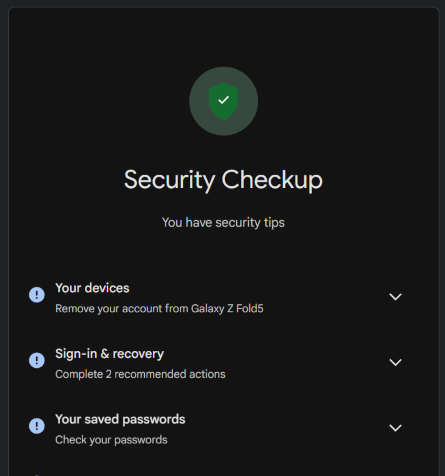
Image: Scott Houghton | WhistleOut
Work top to bottom and clear the red items first. The three that matter most:
- Turn on 2-Step Verification: When you set it up, skip the text-message codes if you can. Those can be intercepted through SIM swapping. An authenticator app like Google Authenticator or a phone prompt is stronger protection.
- Add a passkey: A passkey replaces your password with your fingerprint or face. There's nothing to type, which means there's nothing to phish. Google now treats passkeys as the recommended everyday sign-in method, and honestly, it's faster too.
- Check "Your devices" and prune the junk: I found a Pixel I traded in two years ago still signed into my account. If you see a device you don't use or don't recognize, sign it out. The same goes for the "third-party access" list (all those apps you signed into with Google and forgot about).
Set a reminder to do this every few months. It takes two minutes, and it's the closest thing to a green checkmark of peace of mind you'll get.
Stop the spam while you're at it
Most phone scams don't start with a hack. They start with a text or a call you shouldn't have answered. These guides cover your options.
2. Clean up your app permissions
App permissions decide what each app on your phone is allowed to see and do, and most people grant far more than they realize. That third-party flashlight app does not need access to your contacts.
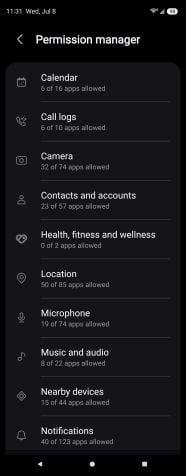
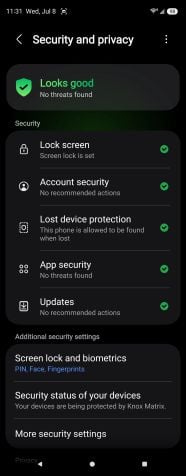
Android tucks your privacy controls into a couple of menus. The Permission manager shows exactly which apps can access your camera, location, and microphone, and the Security and privacy page gives you a quick health check.
Image: Scott Houghton | WhistleOut
Android gives you two tools for this: Permission manager, which sorts everything by permission type, and a security and privacy dashboard, which shows you a timeline of which apps used your camera, microphone, and location in the last 24 hours. Both can be found by opening Settings > Security & privacy > Privacy.
5 permission settings worth considering
None of them takes more than a tap or two.
- Ask every time: Forces untrusted apps to request sensitive access on each use instead of keeping a permanent pass.
- Approximate location: Hands apps your general area instead of your exact spot, which is plenty for weather and most other apps.
- Auto-remove unused permissions: Strips access from apps you haven't opened in months. On by default, so it’s best to leave it.
- Accessibility access: Legitimate apps rarely need it, so revoke it from anything you don't recognize.
- Device admin access: Only Find Hub and a work profile belong here. Treat anything else as a red flag.
For a more detailed guide on what privacy permissions to change and how, take a look at our guide to managing app permissions on Android.
3. Hide sensitive apps with Private Space or Secure Folder
Private Space is a built-in Android feature that hides sensitive apps behind a separate lock, like a phone within your phone. It arrived with Android 15, and it's the cleanest way to keep certain apps out of sight.
Anything you put in Private Space disappears from your main app drawer, recent apps, notifications, and search results when the space is locked. It's essentially a second, sandboxed profile living quietly on your device.
Here's how to set it up on a Pixel and most stock Android phones:
- Open Settings > Security & privacy.
- Under Privacy > Private space, authenticate with your screen lock.
- Sign in with a separate Google account (optional). This is the move if you want true separation, because the apps inside get their own account, browsing history, and app data.
- Set a lock for the space. I'd use a different PIN or your fingerprint.
- Add apps by installing them from the Play Store inside the space.
To open it, scroll to the bottom of your app drawer and tap the lock icon. To really make it disappear, go into the Private space settings and turn on Hide private space. After that, it won't appear in your drawer at all, and you'll need to search for Private Space to bring it back.
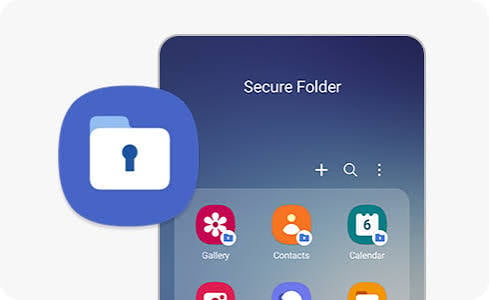
Image: Samsung
If you're on a Samsung, you won't find Private Space at all. Samsung skipped it in favor of Secure Folder, a separate encrypted space on your Galaxy, locked with its own PIN or fingerprint and sealed by Samsung Knox. Anything you move inside, from apps and photos to files and notes, stays hidden from the rest of your phone—so it never turns up in your gallery or app drawer. Apps inside also run as separate copies, so you can clone one and keep a second, work-only messaging account without carrying a second phone.
- Set it up under Settings > Security and privacy > More security settings > Secure Folder.
- Sign in with your Samsung account, pick a lock method, then open the folder and tap the plus icon to add apps.
4. Lock down your phone before you use public Wi-Fi
Public Wi-Fi is safer than it used to be, and most of the scary advice you've read is out of date. Google found that its Chrome users spent over 95% of their browsing time on HTTPS-secured pages. So even if someone wants to use an unsecured page to crack someone's security, most web users probably won't end up on it. And nobody's plucking your bank password out of the air at the airport the way they might have a decade ago.
The risk didn't disappear, though. It just evolved. The most common attack that still works is called The Evil Twin. With The Evil Twin, someone sets up a hotspot with a familiar-looking name like "Airport_Free_WiFi" or "Starbucks_Guest." You connect your phone to it, and your traffic now flows through their equipment. From there, they can serve you a login or payment page that looks identical to the real one, and anything you type into it—your password or your card number—lands straight in their hands instead of going to the site you thought you were on.
Here’s what I suggest you do when logging on to a public Wi-Fi network:
- Verify the network name. Ask the barista or the front desk for the exact Wi-Fi name. "CoffeeShop-Guest" and "CoffeeShop_Free_WiFi" are not the same, and one of them might be a trap.
- Turn off auto-join for public networks and forget them when you leave. On Android, tap the network, then forget it. That stops your phone from silently reconnecting to an evil twin next time you're nearby.
- Save the sensitive stuff for later. Use your cellular data or wait until you’re home to access banking, shopping, or anything with a password worth stealing.
- Never click past a certificate warning. If your browser throws up a security or "not secure" alert, disconnect. That's your phone telling you something's wrong.
You don't need to be paranoid. You just need to stop letting your phone trust strangers on your behalf.
The best defense here is not needing public Wi-Fi in the first place. If you're forever hunting for free Wi-Fi, a plan with more data often costs less than you'd expect, so it's worth seeing what’s available to help strengthen your phone’s security. Here are some of our favorites that offer plenty of data:
|
Visible

$25 Visible Plan
$25.00/mo
Taxes & Fees included
|
|
Mint Mobile

Unlimited Data Plan
$10.00/mo
$60 for 6 months of service
|
|
US Mobile

Unlimited Starter Plan
$25.00/mo
|
|
Metro by T-Mobile (MetroPCS)

$55 Unlimited Plan
$55.00/mo
with AutoPay. Taxes and regulatory fees included.
|
5. Set up Find Hub so you can find a lost or stolen phone
Find Hub is Google's tool for locating, locking, and erasing a lost Android phone, and it's already switched on the moment you add a Google account. It's the feature formerly called Find My Device, renamed but working the same way.
The catch with recovery tools is that the best ones only help if you enabled them before the phone went missing. So do this now, or verify it’s turned on, while you're thinking about it.
Open Settings > Google > All services > Theft protection.
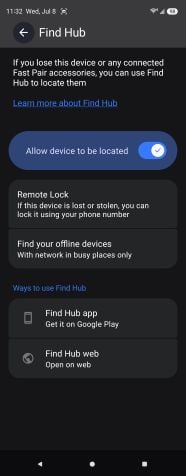
Image: Samsung
Here’s what to turn on:
- Theft Detection Lock uses the phone's sensors and AI to detect a classic grab-and-run motion and automatically lock the screen.
- Offline Device Lock locks the phone if a thief yanks it offline to dodge tracking.
- Remote Lock lets you lock the screen from any browser at android.com/lock using just your phone number. Add a security question here too.
If your phone does go missing, open the Find Hub app or go to android.com/find on any device and sign in. You'll get three options:
- Play Sound rings your phone at full volume for five minutes, perfect for the "it's somewhere in this house" panic.
- Secure device locks it, signs you out of your Google account, pulls your cards from Google Wallet, and can show a message with your number on the lock screen.
- Factory reset wipes it as a last resort, though once you do that, you can't track it anymore.
Find Hub can locate a phone even when it's offline, using a giant crowdsourced network of nearby Android devices over Bluetooth, all end-to-end encrypted so nobody, including Google, sees where your phone is except you.
Do this before you lose your phone
Both take two minutes while it's still in your hand.
- Back up your phone. This action protects your data and ensures a remote factory reset doesn’t destroy your only copy.
- Save your IMEI number. Dial *#06#, write it down, and keep it somewhere that isn't the phone. It's the first thing the police and your carrier will ask for when you lose your phone.
Android privacy and security: FAQ
Is Private Space the same as Secure Folder?
Not exactly, Private Space is Google's built-in feature on Android 15 and later, while Secure Folder is Samsung's own version, backed by Knox security. The gap between them has mostly closed. As of One UI 8, Samsung rebuilt Secure Folder on Google's Private Space technology, so the two now behave the same way underneath. The only difference is that Private Space can be linked to a separate Google account, whereas Secure Folder can't.
Can Android lock individual apps without a third-party app?
Google has been developing a native App Lock, but it hasn't shipped in the stable release yet. Your built-in options today are Private Space, app pinning, or a manufacturer's own app lock if you're on Samsung, Xiaomi, or OnePlus. Many apps, including WhatsApp and banking apps, also have their own biometric lock in the settings.
Do I still need a VPN on public Wi-Fi in 2026?
You don’t need a VPN as much as the scary stories suggest, but one still helps. Because most web traffic is now encrypted with HTTPS, nobody's easily reading your passwords on a coffee shop network. A reputable VPN still protects your metadata, hides your activity from the network, and covers the older, unencrypted traffic that some apps leak. So it's worth having if you often connect to public Wi-Fi.
How often should I run the Google Security Checkup?
Every 2–3 months is plenty for most people. Set a recurring reminder because the checkup takes about two minutes and catches new issues, such as a forgotten device login or a stale app permission. If you ever suspect your account was accessed, run it immediately and sign out of every device you don't recognize.
Does hiding apps in Private Space actually hide them from everyone?
Once hidden, Private Space won't appear in your app drawer, and its apps won't appear in your notifications, recent apps, or search results while it's locked. Someone would have to know the feature exists and search for it by name to even find the secured entrance.
Scott Houghton
Jr. Staff Writer

Thousands of cell phone plans unpacked. All the facts. No surprises.