Stolen Device Protection requires Face ID or Touch ID, with no passcode fallback, for sensitive actions when your iPhone is away from familiar locations. Sensitive actions can include things like:
- Changing your Apple Account password
- Signing out of your Apple Account
- Changing your iPhone passcode
- Viewing saved passwords or credit cards
Stolen Device Protection might already be turned on for you by default, but if it isn't, you can enable it yourself in Settings. It's one of several iPhone safety features Apple has added in recent years to specifically address device theft, rather than just device loss.
What is iPhone Stolen Device Protection?
Stolen Device Protection is a security feature designed to protect your iPhone if it's stolen by someone who already knows your passcode. It does this by adding Face ID or Touch ID requirements, with no passcode alternative, to sensitive actions like changing your Apple Account password or turning off Find My.
For the most sensitive changes, it also adds a Security Delay: a mandatory one-hour wait between two separate Face ID or Touch ID scans before the change is allowed to go through. That process looks like this:
- One successful Face ID or Touch ID scan
- A one-hour wait
- A second successful scan before the change goes through
These extra requirements only apply when your iPhone is away from familiar locations like home or work, unless you set Require Security Delay to Always, which applies them regardless of location.
Stolen Device Protection is available on any iPhone running a current version of iOS. You should also note that this feature is mainly designed to protect your physical iPhone. If you have concerns about things like location tracking, what apps have access to your data, or want to see who you're sharing photo albums with, Safety Check can help you secure your device's digital presence.
How to turn on Stolen Device Protection on iPhone
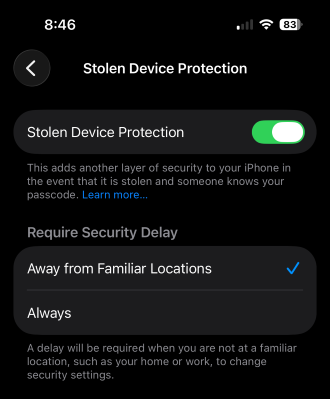
Image: Max McCaskill
Before you can turn on Stolen Device Protection, your iPhone needs the following already set up:
- Two-factor authentication on your Apple Account
- A device passcode
- Face ID or Touch ID
- Significant Locations turned on in Location Services
- Find My turned on (you won't be able to turn it off while Stolen Device Protection is active)
Once those are in place, here's how to turn on Stolen Device Protection:
- Open Settings and tap Face ID & Passcode (or Touch ID & Passcode).
- Enter your passcode.
- Scroll down and tap Stolen Device Protection.
- Tap to turn the feature on.
- Under Require Security Delay, choose Away From Familiar Locations or Always.
If you don't see Stolen Device Protection listed, check that everything above is set up first, since the feature won't appear until it is.
What actions are protected by Stolen Device Protection?
Not every protected action carries the same requirement. Some only need a single Face ID or Touch ID scan, while others trigger a full Security Delay, requiring two separate scans an hour apart.
Actions that require Face ID or Touch ID
These actions require a single successful Face ID or Touch ID scan, with no one-hour wait attached:
- Viewing saved passwords or credit cards
- Using payment methods saved in Safari
- Turning off Lost Mode
- Opening a locked app
- Erasing all content and settings
- Applying for a new Apple Card
- Setting up a new device using your iPhone, or setting up an eSIM
Actions that require a Security Delay
The following actions trigger a full Security Delay when you're away from familiar locations:
- Changing your Apple Account password
- Signing out of your Apple Account
- Adding or removing a trusted device, Recovery Key, or Recovery Contact
- Adding or removing Face ID or Touch ID
- Changing your iPhone passcode
- Resetting All Settings
- Turning off Stolen Device Protection itself
Your iPhone can end the delay early if it detects you've arrived at a familiar location, so the full hour isn't always guaranteed to run its course.
The bottom line: Is Stolen Device Protection worth turning on?
Yes, Stolen Device Protection is worth turning on. If your iPhone is stolen by someone who already knows your passcode, it prevents them from locking you out of your own account.
The one-hour delay might be inconvenient the one time you're legitimately changing your password away from a familiar location, but it's a small tradeoff for closing off the fastest way a stolen iPhone turns into a stolen identity.
Max McCaskill
Sr. Staff Writer

Thousands of cell phone plans unpacked. All the facts. No surprises.