
iOS 26 brought a handful of new and updated widgets to improve your iPhone's homescreen.
On the new side, there's an Ambient Music widget for mood-based playback and a Live Radio widget for Apple Music's 24/7 stations. For the updated widgets, the Photos widget gained a 3D effect and color options when using filters, and the Maps widget can now warn you about delays on your regular commute.
Here's what changed and why you should add these new widgets to your home screen.
1. Ambient Music widget: Built-in iPhone mood music
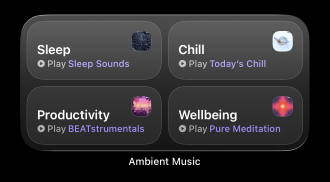
Image: Max McCaskill
Originally added in iOS 26.4, the Ambient Music widget starts a mood-based playlist on your phone with a single tap. This music does not contain words and is specifically designed as background music for activities. Even better, despite being part of Apple Music, it doesn't require an active Apple Music subscription to use.
There are four moods to choose from:
- Chill
- Productivity
- Sleep
- Wellbeing
Each mood has multiple built-in playlists. For example, the Sleep Mood includes Sleep Sounds, Bedtime Beats, Sound Bath, and Piano Sleep. You can also replace any of these with a custom playlist by long-pressing the widget and tapping Edit Widget.
To add the Ambient Music widget:
- Long-press an empty area of your home screen.
- Tap Edit at the top of the screen.
- Tap Add Widget.
- Search for Ambient Music.
- Choose your size.
- Tap Add Widget.
2. Live Radio widget: Your favorite Apple Music radio stations
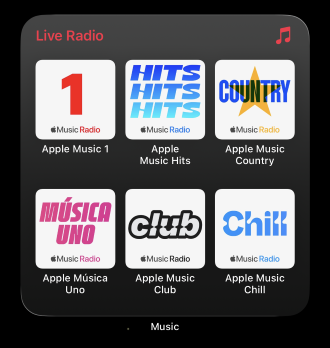
Image: Max McCaskill
The Live Radio widget puts Apple Music's six 24/7 stations on your home screen. This allows you to switch among the most popular music stations with a single tap. Plus, like the Ambient Music widget above, this doesn't require an active Apple Music subscription.
The six stations are:
- Apple Music 1: New releases and interviews
- Apple Music Hits: Pop from the 2000s and 2010s
- Apple Music Country: Top country hits
- Apple Music Música Uno: Latin music
- Apple Music Club: Dance and electronic music
- Apple Music Chill: Relaxing mood music
This widget is only available in a large size, so note that it takes up two full rows on your home screen.
To add the Live Radio widget:
- Long-press an empty area of your home screen.
- Tap Edit at the top of the screen.
- Tap Add Widget.
- Search for Music.
- Select the Live Radio widget from the options.
- Tap Add Widget.
3. Photos widget: Spatial Scenes and Full Color
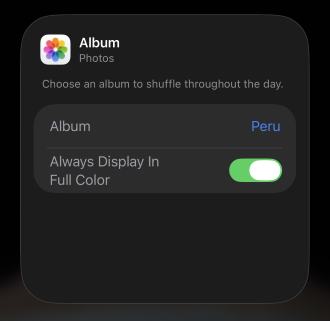
Image: Max McCaskill
iOS 26 adds two new options to the existing Photos widget.
Spatial Scenes applies a 3D parallax effect to your photos. When you move your iPhone, the subject shifts slightly against the background, creating a sense of depth. It's the same spatial technology Apple brought over from visionOS. It works best on photos with a clear foreground subject, but holds up on most shots.
Always Display in Full Color was specifically created for iOS 26's Liquid Glass aesthetic. The new Clear and Tinted icon styles can wash out your Photos widget to match the rest of your home screen. This toggle overrides that and keeps your photos in their original colors regardless of which theme you're using.
To enable either option:
- Long-press your Photos widget.
- Tap Edit Widget.
- Toggle on Spatial Scene Effect and/or Always Display in Full Color.
4. Maps widget: Preferred Routes
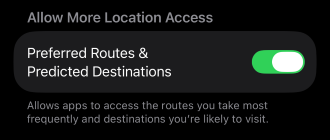
Image: Max McCaskill
The Maps Suggestions widget can now show real-time traffic alerts for your regular routes. If there's a delay on your usual commute, it will give you an alert and an alternative route before you even open the app.
Apple Maps learns your frequent routes over time as long as you have your location enabled on your device. That data stays on your iPhone and isn't linked to your Apple Account.
To set up Preferred Routes in the Maps widget:
- Open the Settings app.
- Go to Apps.
- Select Maps.
- Tap Location.
- Toggle on Preferred Routes & Predicted Destinations.
- Add the Maps widget to your home screen.
If you've never used this setting, the widget may need a few days of regular use before it has enough data to consistently show alternate routes.
iOS 26 widgets: FAQ
Do widgets run your iPhone battery down?
Using multiple widgets at once can drain your battery life more quickly. However, Apple has optimized most widgets to keep the impact minimal. Widgets that constantly update themselves with new information—like the Apple News or Stocks widgets—drain your battery the fastest.
Do I need an Apple Music subscription to use the Live Radio widget?
No, you don't need an Apple Music subscription to use the Live Radio widget. However, you do need an active Apple account.
How do I know if my iPhone is running the latest version of iOS?
To check for a new version of iOS, go to Settings > General > Software Update. If an update is available, it will appear in that section. You can also check our guide to what the latest version of iOS is to see what you should be on.
Can I use iPhone widgets on iPad?
Most iPhone widgets are also available on iPad, especially if created by Apple itself. The Ambient Music, Live Radio, Photos, and Maps widgets are all available on iPadOS 26, which launched alongside iOS 26.
Max McCaskill
Sr. Staff Writer

Find a better phone plan
Thousands of cell phone plans unpacked. All the facts. No surprises.




