If you’ve set your iPhone up properly, you don’t have to worry about what to do when an emergency strikes. Your iPhone is already packed with free features that can handle most of what you'd need to contact help.
iPhones have built-in settings that are designed to keep you connected or share your important information when you can’t. Your iPhone can show a Medical ID to first responders, contact emergency services, and send automatic alerts to your friends or family when you’ve been in an accident. The problem is that none of these features work unless you've turned them on before an emergency strikes.
Here are the emergency iPhone safety features everyone should enable, what to fill out, and what to leave running in the background so your iPhone can get you help when it matters.
Quick checklist: Is your iPhone emergency-ready?
Here are the features you should enable on your iPhone to get help during an emergency:
- Medical ID is filled out with your conditions, allergies, medications, and blood type, and "Show When Locked" is turned on.
- Emergency contacts are added to your Medical ID.
- Emergency SOS is enabled.
- Call After Severe Crash is turned on under Emergency SOS settings.
1. Set up your Medical ID
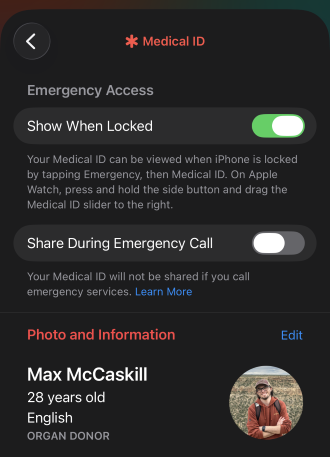
In the event of an emergency, Medical ID puts your critical health information on your Lock Screen, viewable by anyone without needing your passcode. If you're unconscious or can't speak for yourself, this is how a paramedic knows you're diabetic, allergic to penicillin, or on blood thinners.
Here’s how to set up Medical ID on iPhone:
- Open the Health app.
- Tap your profile picture in the top corner.
- Tap Medical ID.
- Fill in your medical conditions, allergies, medications, and blood type.
- Turn on Show When Locked.
Note: If Show When Locked is not enabled, your Medical ID will remain locked and won't appear to first responders. Make sure that it is enabled when setting up Medical ID.
2. Add emergency contacts to your iPhone
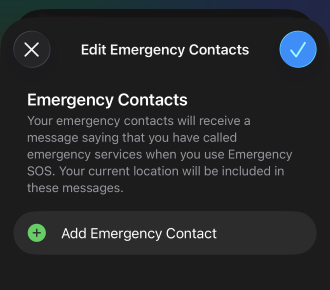
Image: Max McCaskill
Emergency contacts are pre-selected contacts in your phone that are automatically notified when something goes wrong. Features like Emergency SOS, Crash Detection, and Fall Detection can all tie to your chosen contacts.
Your iPhone doesn't wait for you to text them yourself. When you trigger features like Emergency SOS or Crash Detection, your iPhone sends your emergency contacts an automatic text with your current location, and it will continue to update them if you move locations.
To set an emergency contact on your iPhone:
- Open the Health app.
- Tap your Profile picture.
- Select Medical ID.
- Scroll to Emergency Contacts.
- Tap the add button.
- Search for the contact and select their relationship to you.
- Tap Done to save.
3. Turn on and use Emergency SOS

Image: Max McCaskill
Emergency SOS is a feature that automatically calls your local emergency number when you complete a specific action on your iPhone. It’s essentially a built-in panic button. It’s a solid safety feature that’s available around the world, whether you’re at home or traveling internationally. Your iPhone will contact the emergency number based on your location, so you don't need to worry if you don’t know it yourself.
Emergency SOS is on by default on every iPhone, so you may already have this feature and not realize it. That said, you still need to know how to trigger it, because in an actual emergency, fumbling with your phone costs time you may not have.
There are two ways to trigger Emergency SOS:
- Press and hold the side button and either volume button until the slider appears, then slide it.
- Press the side button quickly five times in a row.
In case you’ve previously disabled the feature, to turn on Emergency SOS on iPhone:
- Open Settings.
- Tap Emergency SOS.
- Enable Call with Hold and Release or Call with 5 Button Presses.
Emergency SOS via Satellite
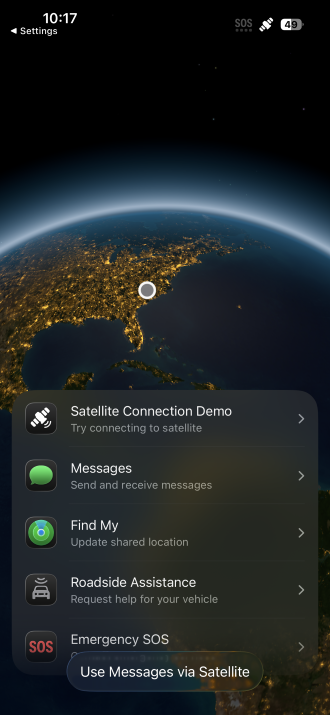
Image: Max McCaskill
If you're off the grid entirely, newer iPhones—iPhone 14 and later—can also support Emergency SOS via Satellite. It's built for places with no service where you’d need to call for help, like a remote trailhead, a national park, or a stretch of highway with zero bars. It can help you contact emergency services or simply get roadside assistance if you’re having car trouble.
No cell signal is required for Emergency SOS via Satellite. You just need a clear view of the sky. Your iPhone will walk you through connecting with satellites in the sky, then have you answer a short set of text-based questions about your situation. Those answers get relayed to a dispatcher who can send help your way.
4. Make sure Crash Detection is turned on
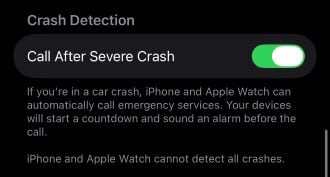
Image: Max McCaskill
Crash Detection uses your iPhone's and Apple Watch’s motion sensors, microphone, and barometer to recognize the specific signature of a severe car crash, and can then call for help even if you can't. It's available on iPhone 14 and newer models.
If your iPhone detects a crash, it sounds an alarm and displays an alert. If you're able to respond, you can cancel it or let it proceed. If you don't respond within ten seconds, your iPhone assumes the worst, places the call to emergency services saying you’ve been in a crash, and texts your emergency contacts with your location.
The feature is automatically enabled on eligible iPhones. That said, some people disable it when doing sports that can accidentally set it off—like skiing or horseback riding—then forget to turn it back on.
To confirm your iPhone’s Crash Detection feature is turned on:
- Open Settings.
- Tap Emergency SOS.
- Make sure Call After Severe Crash is turned on.
Use Fall Detection if you have an Apple Watch
Fall Detection is a bit like Crash Detection, but it runs off your Apple Watch to detect if you have a severe fall. If your Apple Watch senses you rapidly hitting the ground, it taps you on the wrist and displays an alert. If you don’t dismiss the alert or if you remain still, it calls emergency services on your behalf and messages your emergency contacts with your location.
Why do I need iPhone emergency settings?
Your iPhone’s emergency settings are important because they can automatically get you help when you can’t speak for yourself. Most people carry their smartphones with them everywhere they go. It’s extremely helpful that your iPhone can contact emergency services in the event you need it, even if you’re unconscious from a crash.
It’s also important to note that these features aren’t just for a catastrophe. They can be genuinely useful for simple problems too. Maybe you feel dizzy at the gym, and someone grabs your phone to help. One day you may have a flat tire or dead battery in a rural area and need someone to send roadside assistance. These settings aren't just for the worst-case scenario or severe accidents.
However, many of these features do require some basic prep before using them. Luckily, things like filling out your Medical ID and making sure the other features are turned on should take less than 10 minutes. That small time investment will be worth it if you ever have a real emergency.
iPhone emergency settings: FAQ
What is Medical ID on iPhone?
Medical ID is a feature in the Health app that stores your critical health information, including conditions, allergies, medications, and blood type. It makes this information accessible for first responders from your Lock Screen without a passcode. It also holds your emergency contacts, which get notified automatically if Emergency SOS or Crash Detection is triggered.
What is Emergency SOS on iPhone?
Emergency SOS is a built-in way to quickly call local emergency services from your iPhone. It is activated by holding the side button and a volume button and then activating the slider. Or you can activate it by pressing the side button five times. It automatically dials the correct emergency number based on your location and can text your emergency contacts once the call ends.
Can emergency responders see my Medical ID if my phone is locked?
Yes, emergency responders can see your Medical ID as long as you've turned on Show When Locked in your Medical ID settings. Anyone can tap Emergency on your Lock Screen, then Medical ID, and view your health information without needing your passcode.
How do I add or call an emergency contact on iPhone?
To add an emergency contact on iPhone, open your Medical ID in the Health app and select your preferred contacts. Your iPhone will automatically call your emergency contacts on your behalf if features like Crash Detection or Emergency SOS are triggered.
Max McCaskill
Sr. Staff Writer

Find a better phone plan
Thousands of cell phone plans unpacked. All the facts. No surprises.





.jpg?w=280&h=280&usm=20&usmrad=0.8&fit=crop "Cox Mobile Black Friday and Holiday Deals")