
To move your eSIM to a new phone, all you have to do is use your phone's built-in transfer tool. You can either scan a QR code or confirm the transfer on your old phone, and your eSIM automatically switches to the new one with the same phone number. If you're new to eSIMs, our eSIM guide covers the basics. Just make sure you finish a few quick checks before you start.
I swapped my Visible eSIM from an iPhone 11 to a Samsung Galaxy S24 FE, and it was quick and super easy. The whole thing only took a few taps and steps to get through. With Visible, you can always switch it back to another phone, but you have to give it a day or two first.
Make sure you have your account details ready to log in online, too, because that makes the whole process a lot smoother.
Complete these checks before you transfer your eSIM
These quick checks help your eSIM transfer go through on the first try, so run through them before you start.
- Connect both phones to Wi-Fi.
- Update both phones to the latest software for both iPhone and Android.
- Make sure Bluetooth is turned on.
- Sign in to the same Apple Account on both phones if you're moving between iPhones.
- Set up a screen lock on both phones and update Google Play services if you're moving between Android phones.
- Make sure your number or eSIM isn't locked by your carrier.
Choose the easiest transfer method for you
- eSIM Quick Transfer: Your new phone pulls your number straight from your old phone while they sit side by side. This is the fastest method and the one the steps below use.
- QR code: Your carrier sends you a QR code by email or in its app, and you scan it with your new phone. This works on any eSIM phone, so it's your backup if Quick Transfer doesn't show up.
- Carrier app or website: You sign in to your carrier's app or website and move your line to the new phone from there. This is the method to use if your old phone is lost or broken.
Transfer your eSIM to a new iPhone
Here's how to transfer your eSIM to a new iPhone in seven simple steps with eSIM Quick Transfer. You won't need to contact your carrier as long as it supports Quick Transfer, and with iOS 26 or later, you can move more than one number at a time.
- Open the Settings app on your new iPhone.
- Tap Cellular.
- Tap Set Up Cellular or Add eSIM.
- Tap Transfer From Nearby iPhone, or choose your phone number if it appears in the list.
- On your old iPhone, tap Transfer, or enter the verification code shown on your new iPhone.
- Wait a few minutes for your plan to activate. If a banner says Finish Setting Up Your Carrier's Cellular Plan, tap it and follow your carrier's steps.
- Make a test call to confirm your service works.
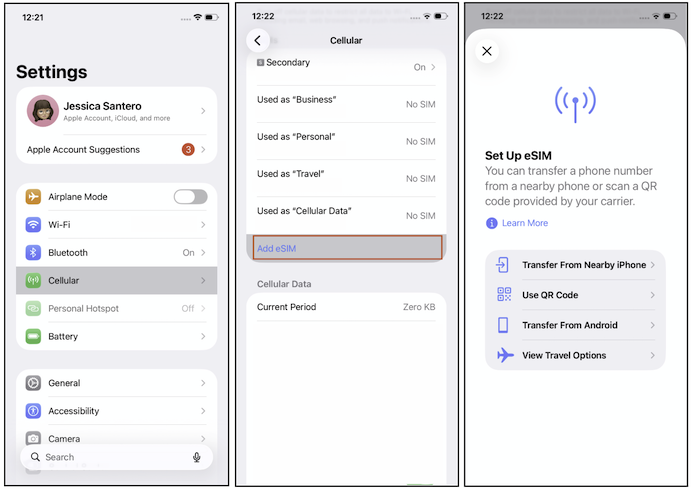
Image: Jessica Santero | WhistleOut
Once your new iPhone is active, your old iPhone's SIM shuts off automatically.
Find a better deal on your next iPhone
eSIM Quick Transfer works on any iPhone XS or newer, so you can move your number to pretty much any iPhone you buy. Before you pick one, check out the best iPhone deals available right now.
- 6.1 inch display
- Rear Cameras: 48MP, 12MP
- Front Camera: 12MP

- 6.3 inch display
- Rear Cameras: 48MP, 48MP, 48MP
- Front Camera: 18MP

- 6.9 inch display
- Rear Cameras: 48MP, 48MP, 48MP
- Front Camera: 18MP


Transfer your eSIM to a new Android phone
Here's how to transfer your eSIM to a new Android phone in seven simple steps with the built-in Transfer SIM option.
- Open the Settings app on your new phone.
- Tap Connections.
- Tap SIM manager.
- Tap Add eSIM.
- Tap Transfer SIM from another phone.
- On your old phone, confirm the transfer with your PIN or screen lock.
- Follow the prompts, then make a test call to confirm your service works.
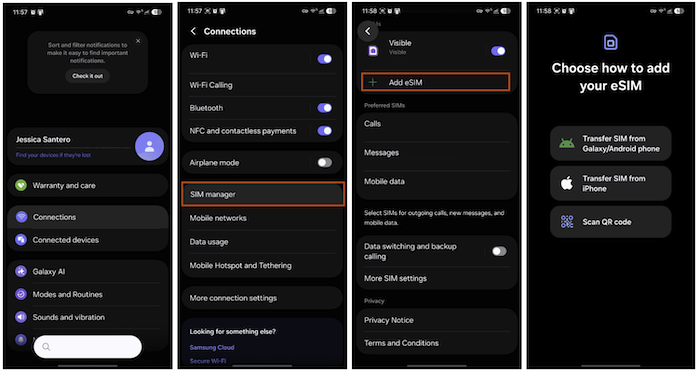
Image: Jessica Santero | WhistleOut
These steps also work on a Google Pixel, and the only difference you'll find is the menu names. On a Pixel, go to Settings > Network & internet > SIMs > Add SIM, then tap Transfer SIM from another device. Other Android brands use similar menus, though the names can vary slightly. If your new phone has more than one SIM, set the new eSIM as your default for calls and data in the same SIM settings menu.
Shop for your next Android phone
Your eSIM moves to any newer Galaxy or Pixel in just a few taps, so you're free to pick the phone that fits you best. Check out the best Android phones to compare your options.
- 6.7 inch display
- Rear Cameras: 50MP, 2MP
- Front Camera: 16MP
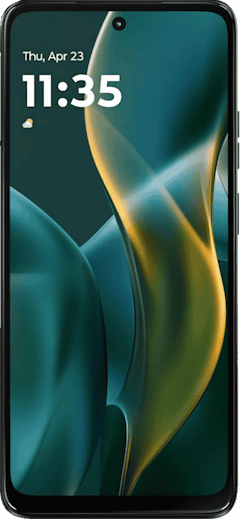
- 6.7 inch display
- Rear Cameras: 50MP, 2MP
- Front Camera: 32MP
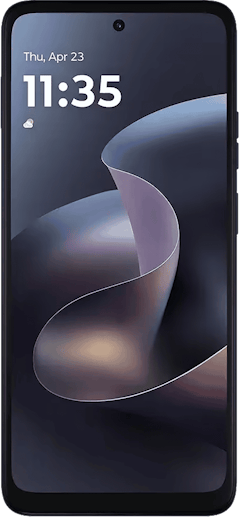
- 6.7 inch display
- Rear Cameras: 50MP, 8MP, 2MP
- Front Camera: 13MP
Once your number works on the new phone, our guide on how to delete an eSIM walks you through clearing the old one before you sell or trade it in.
Transfer your eSIM through your carrier
Your carrier's app or website is the way to go when your old phone is lost or broken or the transfer option won't appear. Keep your new phone's IMEI and EID handy, which you'll find in your phone's Settings under About.
T-Mobile eSIM transfer
Here's how to transfer a T-Mobile eSIM, including one from a lost phone, in the T-Life app. Turn off SIM Protection first, or you'll get an error.
- Open T-Life, select the Account tab, and choose the line you want to move.
- Tap SIM transfer or activation, then tap Get Started.
- Enter your new phone's IMEI and choose to activate an eSIM.
- Enter your new phone's EID, review the change, and tap Activate.
- Reply to the confirmation text if T-Mobile sends one.
- Connect your new phone to Wi-Fi and scan the QR code.
Switching between iPhone and Android
If you're transferring to or from an iPhone and an Android, the following steps might be different. Both phones need recent software (iOS 26 or later, or iOS 26.3 or later when you're leaving the iPhone), and your carrier has to support the transfer. AT&T, Cricket, T-Mobile, and Verizon all do. If yours doesn't, your carrier can send you a QR code instead.
Android to iPhone
- On your iPhone, open Settings and tap Cellular, then Add eSIM.
- Tap Transfer From Android to show a QR code.
- Scan the QR code with your Android phone's camera.
- On your Android phone, choose your number and tap Transfer.
- Tap Done on your iPhone and OK on your Android phone, then make a test call.
iPhone to Android
- On your Android phone, connect to Wi-Fi and go to Settings, then Network & internet and SIMs.
- Tap Transfer a SIM from another device, then choose iPhone.
- Scan the QR code on your Android phone with your iPhone's camera.
- On your iPhone, tap Continue, choose your number, and confirm with Face ID or your passcode.
- Tap Done on both phones, then make a test call.
Verizon eSIM transfer
Here's how to transfer a Verizon eSIM with the My Verizon app on your new phone. You won't need your IMEI or a QR code.
- Connect your new phone to Wi-Fi.
- Download the My Verizon app on your new phone and sign in.
- Go to the Mobile tab and select the line you want to move.
- Follow the prompts to activate the eSIM on your new phone.
AT&T eSIM transfer
Here's how to transfer an AT&T eSIM on AT&T's Bring your own device page. Turn off Wireless Account Lock first, or the transfer won't go through.
- Connect both phones to Wi-Fi.
- Go to AT&T's Bring your own device page.
- Choose Switch the device used on my line and tap Continue.
- Sign in if asked and follow the prompts.
- Enter the one-time PIN AT&T sends you to finish the transfer.
If you're on AT&T Prepaid, you'll need to call Customer Care at 800-901-9878 from another phone instead.
eSIM transfer: FAQ
Can you transfer an eSIM to another phone?
Yes, you can transfer an eSIM to another phone, and most newer iPhones and Android phones can do it without calling your carrier. Travel eSIMs follow their own rules, so check with your provider if you use one of our picks for the best eSIMs for international travel.
How long does an eSIM transfer take?
An eSIM transfer usually takes just a few minutes. You might lose service for a few minutes while the old eSIM shuts off and the new one turns on.
How do I transfer my eSIM if my old phone is broken or lost?
You transfer your eSIM from a broken or lost phone through your carrier's app or website, or by calling support. Your carrier sends a new eSIM to your new phone, and you'll usually need its IMEI and EID to finish.
Will I lose my phone number or service when I transfer my eSIM?
No, you won't lose your phone number when you transfer your eSIM, because your number belongs to your carrier account and not your phone. Your old phone loses service once the new one activates, so keep it as it is until you've made a test call on the new one.
How do I convert my SIM card to an eSIM?
You convert your SIM card to an eSIM in your phone's settings, as long as your carrier supports it. On an iPhone, go to Settings > Cellular > Convert to eSIM > Convert Cellular Plan > Convert to eSIM. On a Samsung Galaxy, go to Settings > Connections > SIM manager, select your SIM card, and tap Convert to eSIM. Once the eSIM activates, you can remove your SIM card. If you don't see the option, contact your carrier.
Why won't my eSIM transfer?
Your eSIM usually won't transfer because of outdated software, a carrier that doesn't support the method you're trying, or a number lock on your account. Start by updating and restarting both phones, then connect them to Wi-Fi and turn on Bluetooth. Next, turn off your carrier's number lock, like T-Mobile's SIM Protection or AT&T's Wireless Account Lock, and unlock your new phone if it's locked to a different carrier. If the transfer still fails, ask your carrier for a new eSIM or QR code.
Why you can trust WhistleOut

15+
years of mobile industry experience

900+
published wireless guides

35+
firsthand carrier reviews
We've been around since the birth of the iPhone. Along the way, we've learned how to spot the best deals for your wallet (and your sanity). We spend our days researching informative guides and writing insightful reviews on every kind of wireless plan, distinguishing what matters from what doesn't. We played around with these plans before recommending them, ensuring they're worth your hard-earned money.
Want to know more? Check out how we review every cell phone plan we rank.
Jessica Santero
Staff Writer

Thousands of cell phone plans unpacked. All the facts. No surprises.
Related Articles


Related Topics
Mobile SwitchingPopular Topics
Featured App Reviews iOS News Coverage Device Reviews Device Explainers T-Mobile App Roundups Carrier Explainers