While Apple's native Notes app may feel like a glorified sticky-note app built for quick lists, random reminders, and the occasional Wi-Fi password, that's actually a mistake. Most people just aren't using Notes to its full potential.
Notes has real organizational tools, a genuinely capable document scanner, and collaboration features that hold up fine for everyday use. You just have to know where to look for them, since many of these features are buried in deeper sections of the app.
Here are the top Notes features you're probably missing.
Apple Notes quick guide:
| Feature | What it does | Why it's worth using |
|---|---|---|
| Tags | Label notes with #keywords across every folder | Find related notes instantly, no folder-hopping required |
| Smart Folders | Auto-sort notes by tag, date, or attachment type | Organization that runs itself |
| Document scanning | Turn paper documents into searchable PDFs | Avoid downloading a third-party scanning app |
| Shared notes | Collaborate in real time with permissions and activity tracking | Good enough for most shared lists and projects |
| PDF export | Turn any note into a standalone PDF | Share or archive a note outside the Notes app |
1. Organize with tags instead of just folders
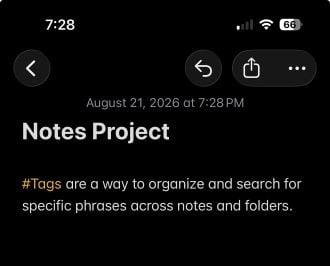
Image: Max McCaskill
Folders keep one note in one category, but tags let a note live in as many categories as it actually belongs to. That difference makes tags the more useful system for most people, especially once your total note count creeps into the hundreds.
To add a tag, just type a hashtag anywhere in a note, like #taxes or #recipes. Notes recognizes it automatically and adds it to your tag list in the sidebar.
Here are a few ways to get more out of tags:
- Combine tags in search: Tap two or more tags at once in the sidebar to see notes that contain both, like #work and #project-name together.
- Skip over-tagging: A smaller number of consistent tags you'll always remember are better than dozens of inconsistent ones. The system only works if you can remember what you tagged something.
That said, tags aren't a total replacement for folders. Consider keeping a small number of broad folders for structure, then use tags for the cross-cutting stuff that doesn't fit neatly into one category.
2. Build smarter folders
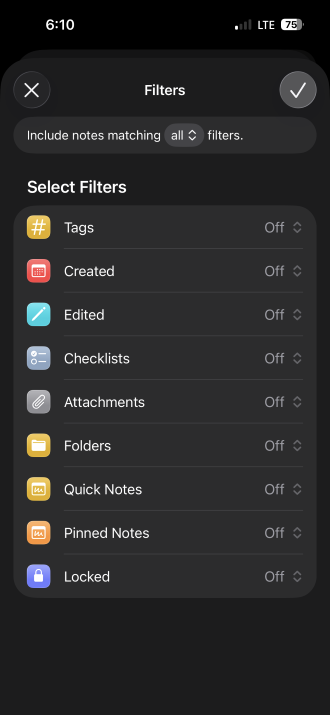
Image: Max McCaskill
Smart Folders automatically sort your notes based on pre-written rules. They gather and sort notes across the app using things like tags, creation dates, or attachments.
To create one, go to the folder list, tap New Smart Folder, and set your conditions. You'll choose from tags, the date a note was created or modified, or whether a note contains a specific attachment like a scan or image.
Here are a few practical setups worth stealing:
- A "This Week" smart folder that shows anything created or edited in the last 7 days, so you're not hunting for a note you know you made recently.
- A "Scans" smart folder that pulls in every note containing a scanned document, regardless of which folder it originally landed in.
- A tag-based smart folder for a specific project, so every note tagged #project-x shows up in one place automatically as you keep adding to it.
Within folders themselves, you should also consider pinning important notes. Swipe right on the most important notes in a list view and pin them to the top of that folder for easy access. It's the best way to prevent important notes from being buried in large folders.
Smart Folders and pinning help sort multiple notes, but they aren't as helpful if the note itself is extremely long. If you want built-in structure within a note, like one-tap headers and tags that make a long note easy to skim later, the Bear app is a solid third-party replacement.
3. Scan documents and handwriting like a pro
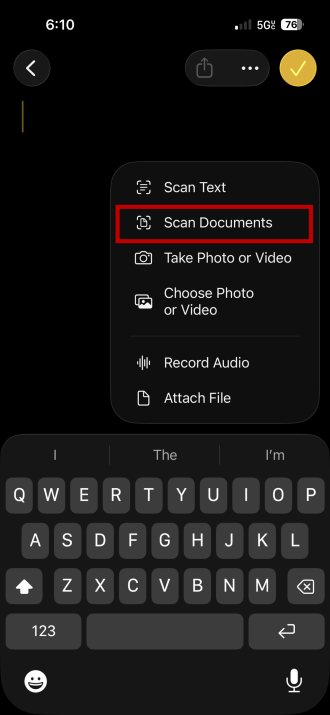
Image: Max McCaskill
The Notes app includes a genuinely good document scanner. It crops documents automatically, corrects for angle and lighting, and produces a clean PDF for you to store or share. It's a great alternative to downloading a third-party scanning app that might harvest your data as you use it.
To scan, tap the Attachment button (it's a paperclip symbol) in a note and choose Scan Documents. Line up the page, and Notes captures it automatically once it's in frame. You can scan multiple pages into a single document before saving.
For the full walkthrough, including tips on lighting and multi-page scans, we've got a dedicated guide to scanning documents with your iPhone.
Thanks to Live Text, Notes can also automatically read the text in your scans, so a search for a word buried in a scanned receipt or contract will actually surface it. The app can also read and search scanned handwritten notes, provided that the writing is clear enough.
If you also capture quick thoughts by talking instead of writing them down, it's worth knowing that Notes isn't your only option there. Voice Memos has its own transcription feature, and our guide to Voice Memos app transcription walks through how that works if audio capture fits your workflow better than typing or scanning.
4. Collaborate on shared notes
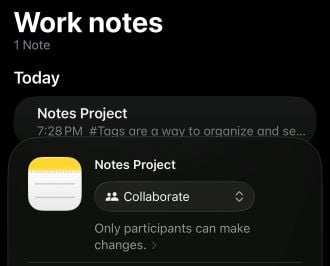
Image: Max McCaskill
Notes handles real-time collaboration well enough for most everyday use. Multiple people can edit the same note at once, and you'll see their changes appear live.
To share a note, it must be saved and synced with your iCloud account. From there, tap the share icon in a note or folder to invite collaborators by Messages, Mail, or a shareable link.
You can share a single note or an entire folder:
- Share a note when it's a one-off task, like a packing list for a trip.
- Share a folder when you want everything added to it going forward to stay shared automatically, like a running household to-do list or group project for school.
You also control permissions of the notes and folders you create. That means you get to choose whether collaborators can make changes or only view, and check the Activity view to see who added or edited what.
5. Export a note as a PDF
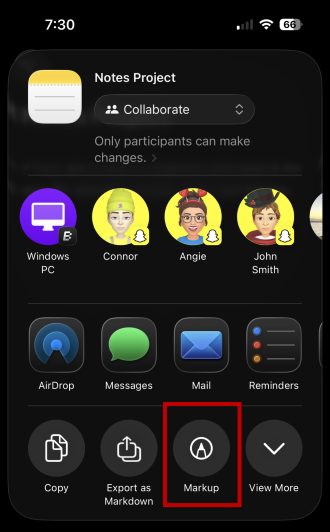
Image: Max McCaskill
The Notes app can turn any note into a standalone PDF, which is useful for sending something outside the Apple ecosystem or archiving it elsewhere. While Macs have a dedicated export button, this happens through the Markup tool on iPhones and iPads.
To export a note as a PDF in the Apple Notes app:
- Open the note
- Tap the Share icon.
- Tap Markup.
- Once you're on the markup screen, tap Done.
- Choose Save File To and pick a location to save your PDF.
Keep in mind that if a note contains a multi-page scanned document or PDF attachment, this method only exports the first page. For a full multi-page export, you'll need to open and export each page separately.
Apple Notes: FAQ
Does Apple Notes support tags?
Yes, Apple Notes supports tags for easy organization. Simply type a hashtag anywhere in a note—like #work—and Notes automatically adds it to your tag list in the sidebar. You can then search using tags to find any notes that contain them, no matter what folder they're in.
Can I scan documents directly in Notes?
Yes, you can scan documents directly into the Notes app. Once you open a note, select the Add Attachment option, and select Scan Documents.
Can multiple people edit the same note at once using Apple Notes?
Yes, multiple people can edit the same note if it has been shared through iCloud. Share a note or folder using the share icon, set permissions to allow editing, and collaborators' changes appear in real time. The Activity view then shows who changed what.
Can I lock an individual note on iPhone?
Yes, you can lock notes on iPhone. Long-tap a note, then tap the lock icon. You can set it to require Face ID, Touch ID, or a custom password to unlock.
Max McCaskill
Sr. Staff Writer

Find a better phone plan
Thousands of cell phone plans unpacked. All the facts. No surprises.