Eight Android AI features, rated by how creepy they feel and how useful they actually are.
Most smartphones picked up new AI features during recent software updates, and most new features switch on without you even knowing. Gemini can now read notifications, Pixel phones can search every screenshot you've ever saved, and Samsung's Galaxy S26 will answer calls from unknown numbers before your phone even rings.
Some of those features are genuinely useful, and some feel like a stranger reading over your shoulder at a coffee shop. The hard part is figuring out which features you want to keep, and which ones to turn off.
I ranked eight AI features on Android phones by how creepy they feel and whether they're actually worth using, and ended each feature with the exact steps to turn the AI perk off if you find yourself too creeped out.
Does my phone have AI?
Your phone almost certainly has AI features built-in if it was released in the last three years, but the features you have depend heavily on the brand and the model. Samsung splits its tools between Galaxy AI and Google's Gemini, and Pixel phones run Gemini throughout the system.
Which phones have built-in AI features
| Phone | AI platform | What you get |
|---|---|---|
| Galaxy S23 series and newer, Galaxy Z Fold5 and Z Flip5 and newer | Galaxy AI and Gemini | Call transcripts, Live Translate, Generative Edit, Writing assist, Circle to Search |
| Galaxy S26 series | Galaxy AI and Gemini | Everything above, plus Call screening and Gemini task automation |
| Google Pixel 8 and newer | Gemini | Call Screen, Magic Editor, Circle to Search |
| Google Pixel 9 and newer | Gemini | Everything above, plus Pixel Screenshots and Call Notes |
| Google Pixel 10 and newer | Gemini | Everything above, plus Voice Translate and Gemini task automation |
| Most other Android phones | Gemini app | The Gemini assistant and, on many models, Circle to Search |
The fastest way to confirm what's running on your own phone is to open Settings and look for a menu named Galaxy AI on a Samsung, Apple Intelligence & Siri on an iPhone, or the Gemini app on a Pixel.
What about AI on iPhone?
iOS 27 runs on iPhone 11 and newer, but Apple Intelligence requires an iPhone 15 Pro or later, so older iPhones get the update without most of the AI features. Older models still get Call Screening and Live Voicemail. To see what your iPhone supports, open Settings and look for the Apple Intelligence & Siri menu.
How we ranked these AI phone features
I gave each feature a creep factor from 1 to 5, where 1 means it barely touches your personal data and 5 means it has access permission I'd hesitate to give a close friend. I also gave each feature one of three worth-using verdicts, based on how much it actually helps when I'm using my phone day to day:
- Yes: I'd leave this feature on, because it saves me time or solves a real problem often enough to justify what it can access.
- Situational: I'd keep this feature for specific tasks, like hands-free texting while driving, and turn it off if that situation never comes up for you.
- Not yet: I'd skip this feature for now, because it either works with too few apps or doesn't save enough time to be worth turning on.
I ordered the list from the creepiest feature down to the least creepy, so the features at the top are the ones I'd check first on your own phone.
Gemini reading your notifications and messages
Gemini's connected apps let Google's assistant send texts, place calls, and read and reply to notifications on your behalf through four extensions: Phone, Messages, WhatsApp, and Utilities. Google changed the rules in July 2025 so those connections keep working even when Gemini Apps Activity is turned off, and the Utilities extension reads your notifications, including those from WhatsApp.
The retention window bothers me most and makes this feature earn the top creepy spot on the list. Google keeps your Gemini conversations saved to your account for up to 72 hours even with Gemini Apps Activity switched off, and leaving Activity on means Google can have human reviewers look at those conversations to improve its AI models.
But the tricky thing is, having Gemini read a text aloud and reply by voice is genuinely helpful when you're driving, or when your hands are full with a toddler who's decided halfway through your bike ride she doesn't want to ride her bike anymore. The problem is that most people never chose to turn this on, and the access goes well beyond reading a text while you're behind the wheel.
Worth using: Situational. Keep the Phone and Messages connections if you rely on hands-free voice commands often, and turn off Utilities and WhatsApp if you don't.
How to turn off Gemini's notification access: In the Gemini app, go to your profile picture > Apps and switch off Utilities, WhatsApp, Messages, and Phone, then go to your profile picture > Gemini Apps Activity > Turn off and delete activity.
On-screen awareness: Circle to Search and Pixel Screenshots
On-screen awareness lets your phone's AI see and understand what's on your display, and Google offers two very different versions of it on Android.
Circle to Search is the simpler of the two, since it only looks at your screen when you long-press the navigation bar and circle something, though it still sends your selection to Google to pull up results.
What about Siri AI on iPhone?
Apple's version of on-screen awareness arrived with Siri AI, which launched as an English-language beta in iOS 27 on September 14. Siri AI can read what's on your screen and pull personal context from Messages, Mail, Photos, and Calendar to answer questions, and the indexing behind that runs in the background while your iPhone is locked, charging, and on Wi-Fi. Siri AI requires an iPhone 15 Pro or newer and isn't available in the European Union or China at launch. To turn it off, go to Settings > Siri and tap Turn Off Siri.
For the full picture on Apple's AI, read our Apple Intelligence guide, and see how it stacks up in Apple Intelligence vs. Google Gemini and Apple Intelligence vs. Galaxy AI.
Pixel Screenshots, which arrived with the Pixel 9, saves your screenshots into a searchable library and uses on-device AI to read what's in them, so you can ask where you saved a Wi-Fi password or a confirmation number weeks later. The creepy part of Pixel Screenshots is realizing how much personal information you've been screenshotting for years, from bank balances to group chats and your kid's school schedule.
Worth using: Yes, because Circle to Search and Pixel Screenshots only work with what you choose to circle or screenshot, which makes them far easier to trust than features that scan your phone in the background.
How to turn off on-screen AI: On a Samsung Galaxy, go to Settings > Display > Navigation bar and switch off Circle to Search; on a Pixel, go to Settings > System > Navigation mode to turn off Circle to Search, and disable the Pixel Screenshots app under Settings > Apps.
AI agents that tap through apps for you
AI agents are the newest category on this list, and they let your phone's assistant open other apps and complete multistep tasks inside them. Gemini's version is called task automation, and it can order food through DoorDash, Uber Eats, and Grubhub, book rides through Uber and Lyft, and place Starbucks orders. The feature reached the Galaxy S26 series and the Pixel 10 series in March as a beta but is starting to roll out more broadly on all Android phones.
Watching Gemini work inside a delivery app feels a little like handing your phone to a babysitter you met five minutes ago, and quite frankly, it's unnerving. Google built in an important safeguard, though, because Gemini stops right before payment and sends you a notification to review and confirm the order yourself.
My skepticism here is mostly practical. Reordering last week's meal in DoorDash already only takes about three taps, so an AI agent that fills the cart and then hands the phone back to you for payment saves less time than the demos suggest.
Worth using: Not yet. The feature works with a short list of food, coffee, and rideshare apps, and doing the task yourself is usually just as fast.
How to turn off Gemini task automation: Gemini's task automation is a beta you have to switch on, so if you never enabled it, nothing is running; if you did, open the Gemini app settings and turn off task automation.
Galaxy AI call transcription and recording
Galaxy AI call transcription lets your Samsung phone record a phone call, turn it into text, and summarize what was said. Samsung phones on One UI 7 and newer pair call recording with Transcript Assist, which can also translate the transcript into other languages, although Transcript Assist isn't available on budget models like the Galaxy A56, A36, A26, and A17. Pixel's Call Notes works similarly on the Pixel 9 and newer.
What about call recording on iPhone?
iPhones running iOS 18.1 and newer can record calls straight from the Phone app, and everyone on the call hears a notice that the call is being recorded. The recording and transcript save to the Notes app, and iPhone 15 Pro and newer models can also generate an Apple Intelligence summary of the call.
How to turn off call recording on iPhone: Go to Settings > Apps > Phone and switch off Call Recording.
The creepiness is lower than you'd expect because Samsung tells everyone on the line. Your Galaxy plays an announcement to both people on the call as soon as recording starts, though Samsung's support documentation notes that anyone added to a group call afterward won't hear it. Consent laws vary by state, so the person who added a caller to the conversation is the one responsible for letting them know they're being recorded.
I'd use call transcripts for any call where someone gives me details I'll need later, because a searchable transcript beats trying to remember what was said or digging for notes I scribbled mid-conversation.
Worth using: Yes, for calls with your carrier, insurance company, doctor's office, or anyone else giving you information that you'll need easy access to later.
How to turn off Galaxy AI call transcripts: Call recording only starts when you tap the record button during a call, and you can switch off the AI summaries by opening the Phone app, tapping the three-dot menu, then Settings > Record calls, and turning off Transcript assist.
Generative AI photo editing
Generative photo editing lets you erase, move, or resize objects in a photo and have AI fill in what was never there. Google offers Magic Editor in Google Photos, and Samsung offers Generative Edit in the Gallery app.
The creep factor here comes less from what the feature does to your photos and more from what other people can do with it. Samsung and Google both tag AI-edited photos with Content Credentials metadata (a fancy way to say backend code that computers can read), starting with the Galaxy S25 and Pixel 10. But testers have found that the AI label is easy to strip out, so a missing label doesn't prove a photo is real.
On the plus side, I've used Object Eraser to remove a car from the background of a photo, so it does have some helpful uses.
Worth using: Yes, for cleaning up your own photos, with the understanding that any photo you see online could have been edited the same way.
How to turn off AI photo editing: Generative editing only runs when you open the editor and choose it, and on a Samsung Galaxy you can remove the suggestions entirely by going to Settings > Galaxy AI > Photo assist and switching it off.
AI call screening and voicemail answering
AI call screening answers calls from unknown numbers for you, asks the caller who they are and why they're calling, and shows you a live transcript before you decide to pick up. Pixel phones have offered Call Screen for years, and Samsung finally caught up with the Galaxy S26 with an Auto Screen Calls option that automatically handles suspected spam and unknown numbers.
AI voicemail answering works the same way after the fact. Pixel's Call Screen can take a message and show you the transcript instead of sending the caller to a standard voicemail box, so you can see what the caller wanted without listening to a recording.
However, not every version is equally smart, and side-by-side reviews of the Galaxy S26 Ultra and Pixel 10 Pro XL consistently put Google's Call Screen well ahead because its responses actually react to what the caller says. Robocalls are still a massive problem in every state, and our robocall epidemic report shows how many of those calls people dodge each month.
The only real downside is the occasional legitimate caller who hangs up on a robot, like the pharmacy or your kid's school calling from a number you've never saved. Checking the transcript and voicemail after a screened call solves most of that problem.
Worth using: Yes. AI call screening is one of the few features on this list that saves you time every single week.
How to turn off AI call screening and voicemail:
- On a Galaxy S26: open the Phone app, go to Settings > Call assist > Call screening, and switch it off.
- On a Pixel: open the Phone app, go to Settings > Call Assist > Call Screen, and change the settings to Ring.
AI message rewriting and writing assist
AI writing assist rewrites, proofreads, or changes the tone of text you've already typed. Samsung puts Writing assist in the Samsung Keyboard, and Google offers proofreading tools inside Gboard.
Writing assist only reads what you type when you ask it to, which keeps the creep factor low, although some Galaxy AI writing features send your text to Samsung's servers by default. Samsung lets you keep everything on the phone through Settings > Galaxy AI > Process data only on device, but turning that on means losing a few more advanced Galaxy AI features that rely on the cloud.
Writing assist is great, but my advice as a writer is to avoid overusing it and to double-check any AI-assisted writing to make sure the revision didn't change the original meaning of your message.
Worth using: Situational. Use it for emails and formal messages, and skip it for anything personal.
How to turn off AI writing assist:
- On a Samsung Galaxy: Go to Settings > Galaxy AI > Writing assist and switch it off.
Live translation mid-call
Live translation turns your phone into an interpreter during a call, so you speak your language and the other person hears theirs. Samsung offers Live Translate in its Phone app, Apple offers Live Translation in Phone, FaceTime, and Messages, and Google's Pixel 10 goes one step further with Voice Translate.
Voice Translate is the one feature on this list that sounds creepy and turns out to be the opposite. Pixel's version translates what you say in a voice that sounds like your own, processes everything on the phone, and doesn't store the call audio or transcript afterward.
Hearing your own voice speak a language you don't know is a little eerie at first, but overall, I didn't find the feature to be overly creepy.
Worth using: Yes, for international travel, family calls, or any conversation with someone who speaks a different language.
How to turn off live translation:
- On a Samsung Galaxy: go to Settings > Galaxy AI > Live Translate and switch it off.
- On a Pixel 10: open the Phone app, go to Settings > Voice Translate, and turn off Use voice translate.
How to use AI on your phone, and when it's time to upgrade
The newest smartphones are the only phones that get every AI feature on this list, while older phones won't have every feature available to use. The Galaxy S26 series and the Pixel 10 series both support a version of all eight features, including Gemini task automation and the newest AI call screening, which older models don't get.
If you've read this far and found yourself wanting call screening or live translation more than you expected, upgrading is the most straightforward way to use AI on your phone. Here are some of our favorites right now:
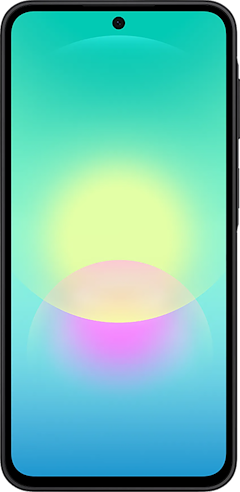
Galaxy A27 5G 128GB
- 6.7 inch display
- Rear Cameras: 50MP, 5MP, 2MP
- Front Camera: 12MP
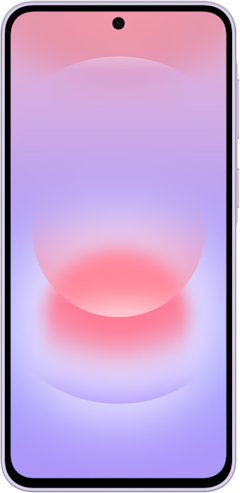
Galaxy A37 5G 128GB
- 6.7 inch display
- Rear Cameras: 50MP, 8MP, 5MP
- Front Camera: 12MP
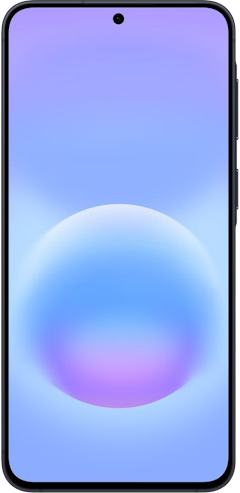
Galaxy A57 5G 128GB
- 6.7 inch display
- Rear Cameras: 50MP, 12MP, 5MP
- Front Camera: 12MP
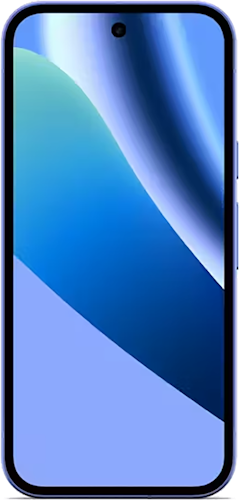
Pixel 10a 128GB
- 6.3 inch display
- Rear Cameras: 48MP, 13MP
- Front Camera: 13MP
Pixel 11 256GB
- 6.3 inch display
- Rear Cameras: 48MP, 13MP, 10.8MP
- Front Camera: 10.5MP


AI on your phone: FAQ
Does my phone have AI?
Your phone has AI features if it's a Samsung Galaxy S23 or newer, a Galaxy Z Fold5 or Z Flip5 or newer, or a Google Pixel 8 or newer. Most other Android phones also include the Gemini assistant through the Gemini app, and many support Circle to Search. On the iPhone side, the iPhone 15 Pro and newer models have built-in AI through Apple Intelligence.
Can you turn off AI on your phone?
You can turn off most AI features on your phone, but neither Samsung nor Google offers a single switch that removes AI completely. Samsung lets you disable individual Galaxy AI tools and limit processing to the device, and Google lets you disconnect Gemini from your apps and turn off Gemini Apps Activity.
Can you disable AI on a Samsung phone?
You can disable most AI features on a Samsung phone by opening Settings > Galaxy AI and switching off each feature you don't want. Galaxy AI is built deep into One UI and can't be fully removed, so the best approach is to turn off individual features and switch on Process data only on device to keep the rest off Samsung's servers.
How do I use AI on my phone?
The easiest way to use AI on your phone is to open your phone's assistant and ask it to do something specific, like summarize a long email or translate a sign. On most Android phones, long-press the power button to open Gemini. Many AI features also live inside apps you already use, like Generative Edit in Samsung's Gallery app or call screening in your Phone app.
Does AI have access to the data on my phone?
AI on your phone has access to whatever data each feature needs, and some features reach much further than others. Gemini can read your notifications through its Utilities extension, and Pixel Screenshots reads everything you've saved as a screenshot. Features like live translation and call screening mostly process data on the phone itself, which is why they rank as the least creepy features on this list.
Scott Houghton
Jr. Staff Writer

Thousands of cell phone plans unpacked. All the facts. No surprises.

.png?w=160&h=160&usm=20&usmrad=0.8&fit=crop "Cell Coverage Near You: Who Has the Best 5G Network?")