
Google is making some big changes to how sideloading works, and the news has sparked plenty of headlines claiming Android is about to get locked down for good. The reality is a lot less dramatic, because Google isn't banning sideloading at all. Instead, a new program called Android developer verification requires app developers to verify their identity with Google, and apps from developers who skip verification will take a few extra steps to install once the rules reach the U.S. in 2027.
I'll walk you through how to sideload apps on Android safely, including the new steps you'll need for apps from unverified developers.
What is sideloading an app on Android?
Sideloading an app on Android means installing the app yourself from an APK file instead of downloading it through an app store like the Google Play Store or the Samsung Galaxy Store. An APK (Android Package Kit) is the file format Android uses to install apps, so an APK file does the same job on Android that an .exe file does on a Windows PC.
Apps from the Play Store go through Google's review process and Google Play Protect scanning before they reach your phone, and the Play Store updates them automatically. A sideloaded app skips the Play Store entirely, so you're trusting whoever provided the APK file, and you're responsible for keeping the app updated yourself.
Many modern apps are built as several smaller APK files instead of one, so download sites package those pieces together into a single bundle file with an extension like .apkm, .xapk, or .apks. Android can't install a bundle file when you tap on it the way it can with a regular APK, so you'll need a separate installer app to open the bundle, like the APKMirror Installer app for .apkm files from APKMirror.
Google's Android app sideloading changes and the new verification rules
Google announced in August 2025 that apps installed on certified Android devices would need to come from developers who have verified their identity with Google, including apps distributed outside the Play Store. Google calls the program Android developer verification, and Google says the goal is to stop malware distributors from staying anonymous and pushing out a new harmful app every time an old one gets taken down.
Developer verification applies to every app installed on a certified Android phone, including apps you sideload, so developers who share apps outside the Play Store now also need to register with Google.
Developers who want to share apps with the public must register with Google to prove they're trustworthy and pay a one-time $25 fee to get verified, while students and hobbyists who share apps only with a small group can get verified for free.
Apps from verified developers install normally, and only apps from developers who skip verification need the extra steps covered later in this guide.
Google is rolling out the Android sideloading changes in phases:
Android developer verification rollout timeline
| Date | What changes |
|---|---|
| August 2026 | Google began rolling out the "advanced flow," a new way to install apps from unverified developers, through a background system service called Android Developer Verifier |
| September 30, 2026 | Verification protections took effect in Brazil, Indonesia, Singapore, and Thailand on certified Android devices running Android 7 or newer |
| 2027 | Google plans to expand Android developer verification globally, including the U.S. |
The first phase of Google's verification rules only applies to apps installed through these participating app stores in Brazil, Indonesia, Singapore, and Thailand:
- Google Play Store
- Samsung Galaxy Store
- OPPO App Market
- HONOR App Market
- vivo V-Appstore
- Transsion Palm Store
- Xiaomi GetApps
APK files downloaded from anywhere else, like a developer's website, still install normally in those four countries for now, according to Mishaal Rahman, Google's Android community engagement manager.
Once the rules expand globally in 2027, apps from unverified developers are expected to need one of two workarounds Google built into the new rules:
- The advanced flow: A new phone setting that lets you install apps from unverified developers after a one-time 24-hour waiting period.
- Android Debug Bridge (ADB): A free Google tool that lets you install apps on your phone from a computer, with no waiting period.
Sideloading on a U.S. Android phone still works the same way it always has for now, and Google hasn't announced a specific date for when the new rules will reach the U.S.
Before you sideload, check these settings
Android blocks apps from installing through APK files by default, which keeps malicious downloads off your phone but also blocks the app you're trying to sideload. Every Android phone controls sideloading through a permission called "Install unknown apps," and Samsung Galaxy phones add a second layer of protection called Auto Blocker, so it's worth understanding both settings before you start.
Install unknown apps permission
Android won't install an APK file until you give permission to the app you're installing it from, like Chrome or your file manager. Android calls this permission "Install unknown apps," and it prompts you to turn it on the first time you open an APK file, so you don't need to find the setting in advance.
Make sure to turn the permission off again after you're finished sideloading your app. Turning the permission back off adds an extra layer of protection against malicious downloads. The setting lives in a slightly different place depending on your phone:
- Google Pixel: Settings > Apps > Special app access > Install unknown apps
- Samsung Galaxy: Settings > Apps > three-dot menu > Special access > Install unknown apps
Samsung Auto Blocker
Samsung Galaxy phones running One UI 6 or newer include a security feature called Auto Blocker, which stops APK files from installing when it's turned on. Samsung owners can work around Auto Blocker in a few steps:
- Open Settings > Security and privacy > Auto Blocker.
- Turn Auto Blocker off.
- Install your app.
- Turn Auto Blocker back on.
Again, make sure you turn this back on again after you finish because Auto Blocker also protects your phone against malicious USB connections and sketchy app installs you never meant to start.
Keep Google Play Protect turned on
Google Play Protect scans sideloaded apps for known malware during installation, so leave Play Protect turned on the whole time you sideload. Play Protect may pause an installation to scan an app or warn you about a harmful app, and the warning gives you a chance to back out before anything lands on your phone.
How to install an APK on Android
Sideloading an app takes just a few minutes once you've found a trusted APK file. The steps below use the Chrome app on your phone to download the APK, and the process works the same way on Pixel phones, Samsung Galaxy phones, and most other phones running Android 8 or newer.
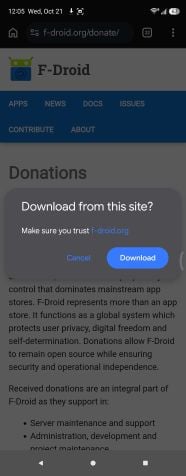
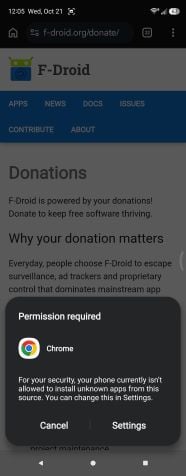
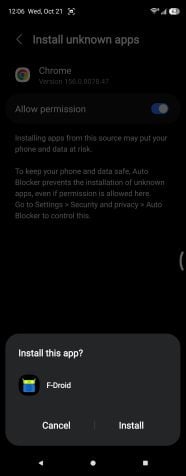
Image: Scott Houghton | WhistleOut
- Download the APK file in Chrome. Go to the developer's website, the developer's GitHub page, F-Droid, or APKMirror and tap the download link for the APK. Some APK files are hundreds of megabytes, so download big files over Wi-Fi, and check out our guide on how to speed up internet on your Android if the download is slower than expected.
- Open the APK file. Tap the download notification when the download finishes, or open the Files by Google app on a Pixel or the My Files app on a Samsung phone and tap the APK file.
- Tap Settings on the warning message. The first time you sideload an app from Chrome, Android shows a message saying Chrome isn't allowed to install unknown apps, and tapping Settings takes you straight to the permission.
- Turn on "Allow from this source." Turning on the toggle gives Chrome permission to install APK files.
- Tap the back arrow, then tap Install. Google Play Protect may take a few seconds to scan the app before the installation starts.
- Tap Open. The app also shows up in your app drawer like any other app on your phone.
- Turn off "Allow from this source." Open the Install unknown apps setting, tap Chrome, and turn the toggle off so Chrome can't install any more APK files without your permission.
How to sideload apps from unverified developers with Google's advanced flow
The advanced flow is a new Android setting that lets you install apps from developers who haven't completed Android developer verification. U.S. Android users won't need to go through the advanced flow until Google's new rules reach the U.S. in 2027, but the setting may already appear on your phone because Google started rolling it out worldwide in August 2026.
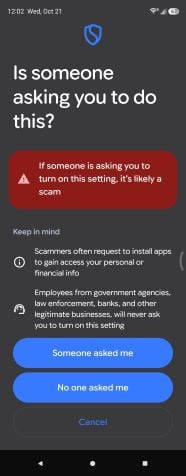
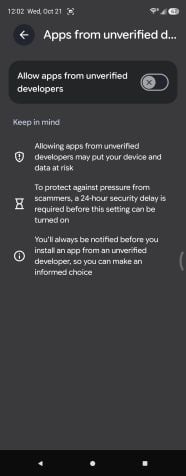
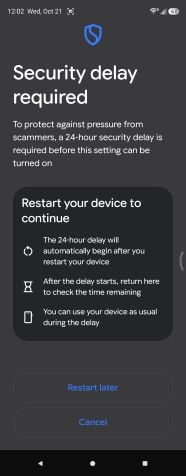
Image: Scott Houghton | WhistleOut
The advanced flow takes a full day to finish because Google designed it to stop phone scams. Scammers often stay on the phone with victims and pressure them into turning off security settings, so the advanced flow adds a restart and a one-time 24-hour wait to give you time to think before anything gets installed.
- Turn on Developer options. Developer options is a hidden settings menu on every Android phone, and our guide on how to unlock Developer options on Android walks you through turning it on.
- Open "Apps from unverified developers." On a Pixel, go to Settings > System > Developer options. On a Samsung phone, "Developer options" appears near the bottom of the main Settings menu.
- Turn on "Allow apps from unverified developers." Android will ask you to confirm that nobody is pressuring or coaching you, then ask for your screen lock.
- Restart your phone and wait 24 hours. You can use your phone normally during the wait, and the waiting period only happens once per phone.
- Go back to "Apps from unverified developers" and confirm. Verify your identity with your fingerprint, face, or PIN, then choose to allow apps from unverified developers for seven days or indefinitely.
- Install your APK and tap "Install anyway." Android shows a warning every time you install or update an app from an unverified developer, and tapping "Install anyway" finishes the installation.
You can turn Developer options back off after finishing the advanced flow without losing your sideloading permission. Keep "Allow apps from unverified developers" turned on for as long as you use apps from unverified developers, though, because turning the setting off blocks updates for those apps.
How to use Android Debug Bridge to sideload apps on Android
Android Debug Bridge (ADB) is a free tool from Google that lets you install apps on your Android phone from a Windows, Mac, or Linux computer. ADB lets you type short commands on your computer and sends them to your phone.
Apps installed through ADB skip both developer verification and the advanced flow's 24-hour wait. ADB takes a few more setup steps than other sideloading methods, but you only do the setup once; after that, installing a new app means connecting your phone to your computer and typing a short command.
- Download Android SDK Platform-Tools on your computer. Platform-Tools is Google's free download that includes ADB, and Google offers versions for Windows, Mac, and Linux. Unzip the download somewhere easy to find, like your desktop.
- Move your APK file into the platform-tools folder. Keeping the APK in the same folder as ADB lets you install the app by typing just the file name.
- Turn on USB debugging on your phone. Turn on Developer options, then open Developer options and turn on USB debugging.
- Connect your phone to your computer. Plug your phone in with a USB cable, and tap Allow when your phone asks if you want to allow USB debugging from that computer.
- Open a command window in the platform-tools folder. On Windows, open the platform-tools folder, click the address bar, type cmd, and press Enter. On a Mac, open Terminal, type cd followed by a space, drag the platform-tools folder into the Terminal window, and press Enter.
- Make sure ADB can see your phone. Type adb devices (or ./adb devices on a Mac) and press Enter, and your phone's serial number should show up in the list.
- Install the APK. Type adb install followed by the APK's file name, like adb install myapp.apk (or ./adb install myapp.apk on a Mac), and ADB shows "Success" when the app finishes installing.
When you're done, turn USB debugging back off, because leaving it on lets any computer you plug into request access to your phone.
Safety checks for Android sideloading
Sideloading is safe as long as you're careful about where your apps come from. A few habits before and after you install an app go a long way toward keeping your phone safe.
Before you install
- Download from trusted sources: Stick to the developer's official website, the developer's GitHub releases page, F-Droid, or APKMirror, which checks that APK files are signed by the same developer as the Play Store version.
- Skip modded and cracked apps: Modified versions of paid apps are a common way malware gets onto Android phones, because whoever modified the APK can add any code they want.
- Ignore install requests from calls and texts: Banks, carriers, and government agencies won't ask you to install an app from a link in a text message or during a phone call, so treat any request like that as a scam.
After you install
- Check the app's permissions: A flashlight app has no reason to ask for your contacts, text messages, or accessibility services, and accessibility access is especially risky because it lets an app read your screen and tap buttons for you.
- Update the app yourself: Sideloaded apps don't update through the Play Store, so check the app's source regularly for new versions and install updates the same way you installed the app.
- Clear the cache if the app misbehaves: Clearing a sideloaded app's cached data is a good first fix if the app starts crashing or acting strangely.
- Delete apps you don't use: Removing sideloaded apps you no longer trust or need keeps your phone cleaner and safer, and our guide on deleting apps on Android walks you through the process.
Android phones worth sideloading on
Every Android phone supports sideloading, so any Android phone you pick up will work with the steps in this guide. If you're in the market for a new phone, though, a newer model gets you faster performance and years of security updates, which help protect your phone from malicious apps. Here are some of the best Android phones you can buy right now.
- 6.7 inch display
- Rear Cameras: 50MP, 8MP, 2MP
- Front Camera: 13MP
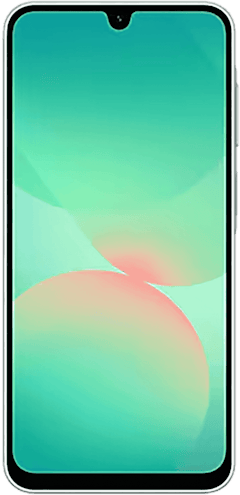
- 6.7 inch display
- Rear Cameras: 50MP, 5MP, 2MP
- Front Camera: 12MP
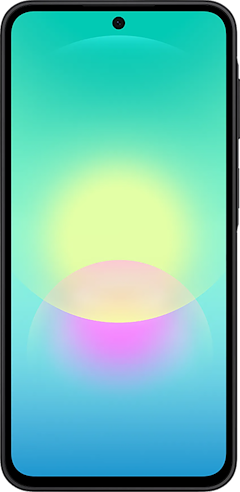
- 6.7 inch display
- Rear Cameras: 50MP, 8MP, 5MP
- Front Camera: 12MP

Android sideloading: FAQ
What is sideloading on Android?
Sideloading on Android means installing an app yourself from an APK file instead of downloading it through an app store like the Google Play Store or the Samsung Galaxy Store. Android allows sideloading, though you'll need to grant an app like Chrome or your file manager permission to install unknown apps the first time.
Is sideloading apps safe?
Sideloading apps is safe when the APK comes from a trustworthy source like the developer's official website, F-Droid, or APKMirror. The risk comes from unknown websites and modified APK files, which skip the review that Play Store apps go through and are a common way malware reaches Android phones. Keeping Google Play Protect turned on adds a malware scan to every sideloaded install.
Is sideloading legal?
Sideloading apps is legal in the U.S., and installing an app from outside an app store is no different legally from installing a program on a Windows PC. The legal problems come from what you sideload, because pirated copies of paid apps and apps that infringe on copyrights stay illegal no matter how you install them. Google's developer verification rules don't make sideloading illegal either, since the rules only change which developers' apps install without extra steps.
Is Google banning sideloading?
Google is not banning sideloading on Android, despite headlines describing the new rules as an Android sideloading ban. Google's developer verification program requires developers to verify their identity so their apps install normally, and Google kept the advanced flow and ADB as official ways to install apps from unverified developers. The rules started in four countries on September 30, 2026, and Google plans a global rollout, including the U.S., in 2027.
What's the difference between adb sideload and adb install?
The adb install command installs an APK app on a phone that's turned on and running normally, while the adb sideload command sends a system update file to a phone booted into recovery mode. Most people sideloading apps only ever need adb install. The adb sideload command is for manually flashing official Android updates, such as Google's full OTA images for Pixel phones, by choosing "Apply update from ADB" in recovery mode.
Scott Houghton
Jr. Staff Writer

Thousands of cell phone plans unpacked. All the facts. No surprises.
Related Articles


Related Topics
AndroidPopular Topics
Featured App Reviews iOS News Coverage Device Reviews Device Explainers Carrier Explainers App Roundups T-Mobile