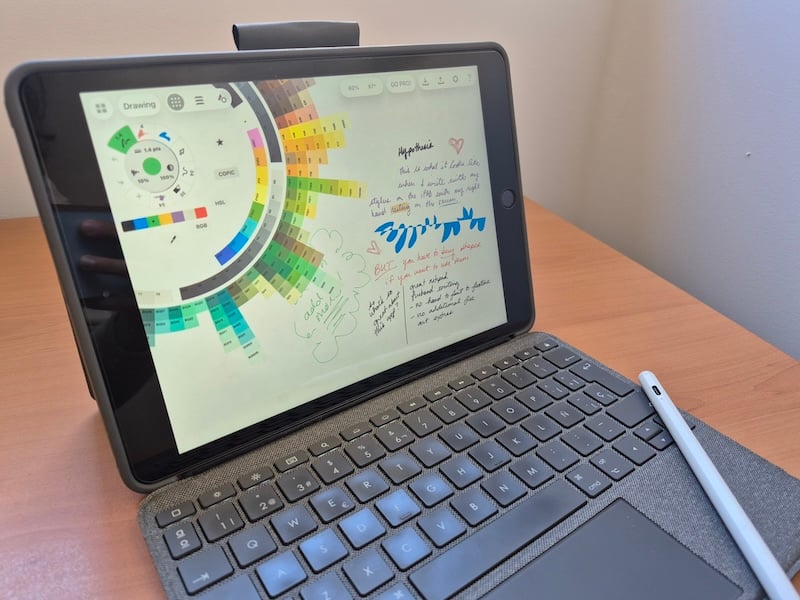
I've been using Goodnotes for almost a decade. It got me through two master's degrees, a massage therapy certification course, and years of lesson plans as a high school teacher. But there are tons of note-taking apps built for specific purposes now, and it was high time I put them to the test.
If the built-in Notes app on your iPad isn't cutting it anymore, one of these apps will. I tested seven of the top note-taking apps for iPad. And I didn't just download and test them for 5 minutes. I used them over a week of statistical research in marketing classes.
Goodnotes is still my favorite all-around note-taking app, but CollaNote is the best pick if you need math tools built right into your notes.
Quick glance at the best note-taking apps for iPad
| App | Best for | Available on | Price |
|---|---|---|---|
| Goodnotes | All-around note-taking | iPhone, iPad, Mac, Android | Free, paid plans available |
| CollaNote | Math notes | iPhone, iPad | Free, $13.90 one-time for the full app |
| Notability | Students who switch up their note styles | iPhone, iPad, Android | Free, paid plans available |
| Concepts | Concept maps and visual notes | iPhone, iPad, Android | Free, paid upgrades available |
| LiquidText | PDFs and research | iPhone, iPad | Free, paid plans available |
| Freeform | Free, quick visual notes | iPhone, iPad | Free |
| Zinnia | Planners and journaling | iPhone, iPad, Android | Free, Premium is $34.99/year |
The best features for note-taking
Whether you're taking notes for class, planning your week, or digging through research, a good note-taking app for iPad needs to:
- Let you switch paper styles and tools without digging through menus.
- Give you enough free features to actually test it before you pay.
- Offer fair pricing, ideally with a one-time purchase option.
Every app on this list lets you write, type, and draw. What makes one app better than another is how easy it is to change things up while you're working, like going from lined paper to a grid in the middle of a lecture.
With subscription culture on the rise nowadays, I took a close look at how each app was sold. Switching from one note-taking app to another isn't my style, so I want an app I can keep for years. A yearly subscription adds up fast, and a few apps on this list lock almost everything behind a paywall.
The best note-taking apps for iPad (tried and tested)
Goodnotes: Best overall note-taking app
5 out of 5 overall
- Keeping notebooks, planners, and flashcards in one app
- Switching between handwriting and typed text
- Long-term users who want an all-in-one note-taking app
Goodnotes is available on iPhone, iPad, Mac, and Android, and it keeps all of your notebooks, planners, and flashcards in one app.
Goodnotes is a note-taking app built for handwritten notes. You can scan images, draw, and switch from handwriting-to-font or font-to-handwriting. You can create notebooks, collections, flashcards, calendars, and planners all in one single app. The templates are decent, and there are cute designs you can add to your notebooks.
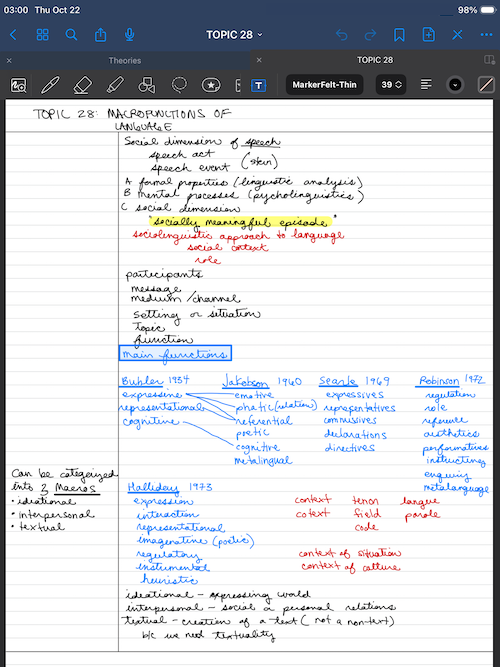
Image: Jessica Santero | WhistleOut
I've been using Goodnotes for years. It was one of the first apps I downloaded when I got my iPad in 2018. I was a full-time teacher looking for a device that could work as a notebook, a lesson planner, a portable laptop (when combined with the right keyboard), and a home desktop replacement.
I needed a note-taking app that could track lesson plans as well as homework assignments for the two different master's degrees I've done since then. Goodnotes is the only app that can handle literally everything. It's my go-to, and it's honestly worth every penny.
It's super intuitive with a stylus, and you can also summarize and clarify with AI, or ask it to make a base graphic for you to add onto. My notes were automatically updated with the new AI features and integrations, too.
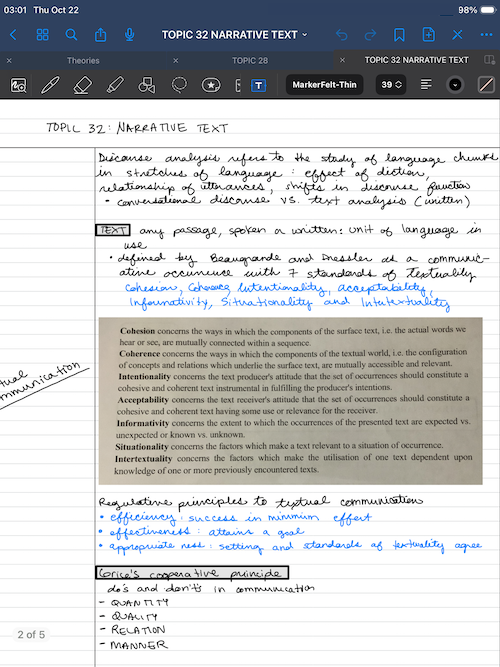
Image: Jessica Santero | WhistleOut
However, it looks like Goodnotes has changed a lot as far as pricing is concerned since I bought it as a one-time purchase in 2018. The pricing has switched to a subscription, which is a big hit for such a great app.
CollaNote: Best for the everything notetaker
4.5 out of 5 overall
- Turning handwriting into calculations
- Using ChatGPT or Gemini right in your notes
- Language learners who want built-in translation
CollaNote is available on iPhone and iPad, and it's the only app I tested with a calculator built into your notes.
CollaNote is the superior note-taking app for anyone in high school, college, or a higher-education program. It lets you make notebooks, blank pages, boards, or planners. Plus, CollaNote has AI integration, a built-in calculator that works with your handwriting, and a translation tool for language learners.
I was blown out of the water.
There are some free images, which are really nice, but if you buy the full app, there's a really big library of images you can add. You have AI integration right in the left-hand toolbar, and you can use ChatGPT or Gemini. You can even sync them with your own personal accounts, so if you're working on something on your desktop and want to switch over to your iPad, your chat will be right there.
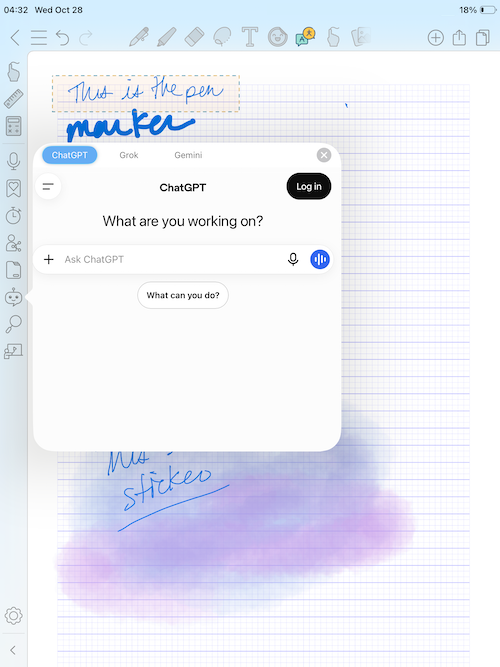
Image: Jessica Santero | WhistleOut
The calculator function is absolutely stunning. You can even turn handwriting into calculations, so if you need something quick on the go, you're good to go. I hate that if I'm working on my desktop computer, I have to type a calculation into Google or pull up another app.
I also hate doing calculations on my phone. I'm currently in a behavioral statistics course within a marketing program, and it's absolutely annoying when you have to switch apps. This has the calculator already integrated, which is fantastic.
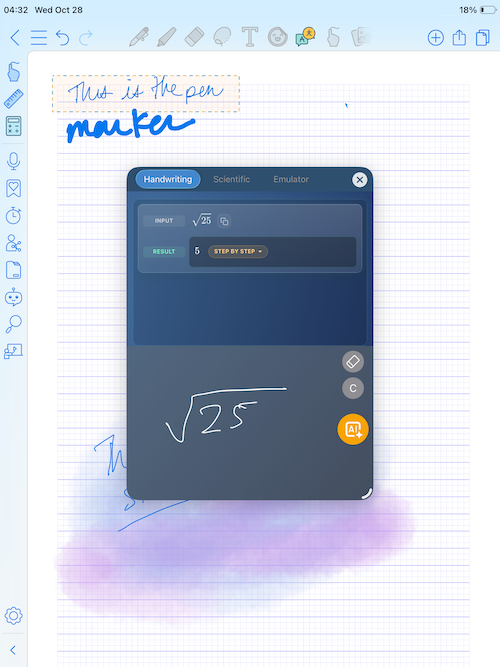
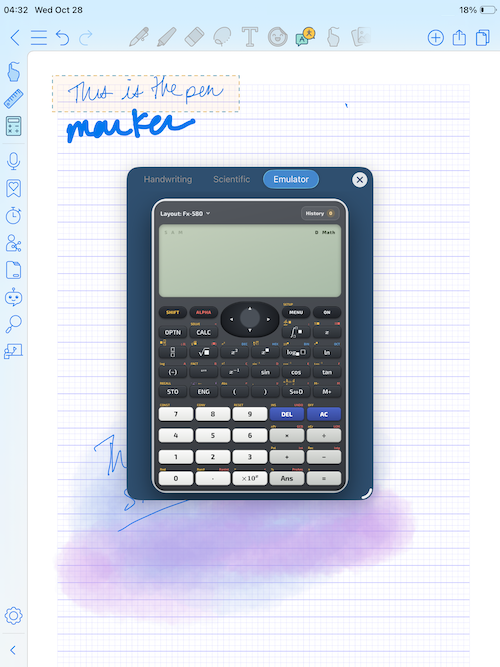
Images: Jessica Santero | WhistleOut
But that's not all. If you have to learn another language, or you want to, there's a really cool drag, highlight, and automatic Google Translate function. It shows you the language the text was written in, and you can hear the pronunciation in whatever language you're trying to learn. This is fantastic for advanced learners, but it's amazing for beginners.
You can practice your writing independently and then translate it to see if it worked out, or write in your own language and see what a good translation would be. Honestly, this app is hands down amazing. I've been a Goodnotes defender for a very long time, but these new integrated functions are stunning, and I'm seriously considering switching.
Save on your phone plan while you study
Your note-taking setup is only half the story if you're in high school, college, or a master's program. A cheaper phone plan leaves more money for textbooks, apps, and everything else on your list. Check out our picks for the best apps for students too, so you can build your full study toolkit.
Compare cheap phone plans for students.



Notability: Best for students
4 out of 5 overall
- Switching between grid, lined, and blank paper on the fly
- Quick access to tools like a laser pointer and washi tape
- Artistic notetakers who like to decorate their notes
Notability is available on iPhone, iPad, and Android, and it puts your most-used settings right on the screen.
Notability is a note-taking app that mixes handwriting, typing, and audio recording in one notebook. You can record a lecture while you write, then use AI to transcribe and summarize it and turn those notes into flashcards. It has a free version, and paid plans are available as either a yearly subscription or a one-time purchase.
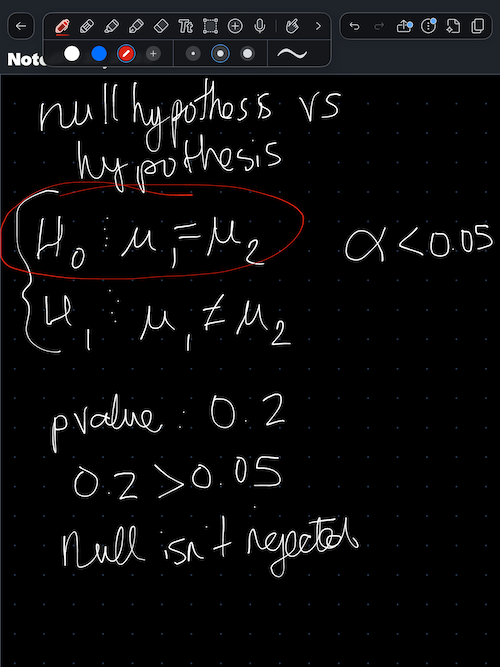
Image: Jessica Santero | WhistleOut
I have a love-hate relationship with Notability. I love that you have quick settings right there on your screen as soon as you open it. In my long time using GoodNotes, you basically pre-program the settings you like so they automatically appear in a notebook, but sometimes you just want to change them. For example, I'm in a statistics in behavioral marketing course right now. Sometimes I want a grid, sometimes I want lines, and sometimes I want blank paper so I can write clear hypotheses. It's really nice having the option to switch right there on the screen.
I also really like the different tools in the top toolbar. You can write with a pen, a pencil, and all the usual standards you find in a note-taking app, but you also have a laser pointer if you're trying to point something out to someone. There's also something like washi tape so you can decorate your notes, which is actually really fun if you're more of an artistic notetaker like I am. There's even a little Brain Break game, a slider puzzle you can play between study sessions.
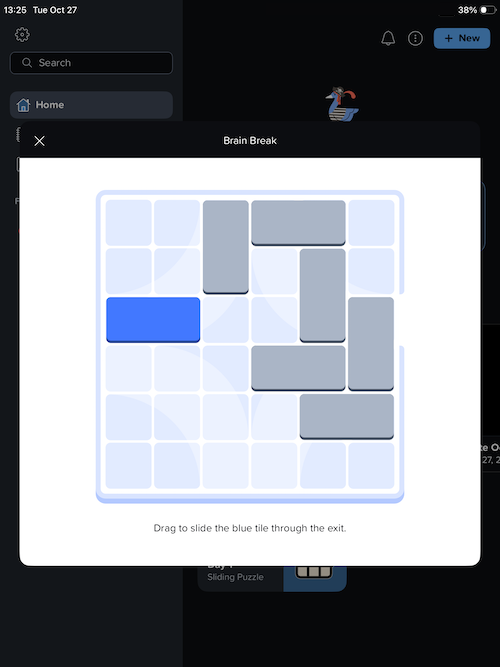
Image: Jessica Santero | WhistleOut
But (and this is a big one), the coolest feature I was really looking forward to was an absolute bust. You can record notes and have AI transcribe and summarize them, which you can then turn into flashcards. I couldn't get this feature to work for the life of me. After an hour of dedicated troubleshooting, I gave up and deemed it bugged.
I uninstalled and reinstalled the app and checked my settings. Everything was working properly. My Wi-Fi was connected and my cloud settings were fine. It just didn't work.
So here's my dilemma. Notability is great, but is it reliable?
iPad essentials for better work
If you take a lot of typed notes, you need a few essentials to stay connected. My top recommendations are a hardy keyboard and an unlimited cell phone plan with hotspot. That way, you can comfortably work through sketchy school Wi-Fi. Both are non-negotiables for students and workers alike.
Check out the Logitech keyboard case I use every day, and the most popular unlimited cell phone plans so you can hotspot anywhere.


LiquidText: Best for PDFs and research
4 out of 5 overall
- Pulling text straight out of long documents
- Comparing pages side by side with pinch and compare
- Teams that review reports together
LiquidText is available on iPhone and iPad, and it's built for research and comparing long documents.
LiquidText is a PDF and document app built for research. You can pull text out of a document, compare pages side by side, and write directly on your files. The free version covers the basics, and you can choose a one-time purchase or a subscription for premium features like AI integration and collaboration.
Where was this app when I was going through my two master's degrees? There are some super cool features, especially if you're doing research or even comparing market projections within a corporate company.
The first feature I absolutely love is pulling text straight out of a document. If you have a PDF or a doc open in LiquidText, you can select text and isolate it just by dragging it into the app's workspace. Then you can pop it into any other doc or compare it directly. That may not seem major, but if you've read through long documents, done research, or gone through any sort of data projections or analysis, it's really handy. You can pull that text physically outside the doc instead of highlighting it and having to flip back to find it.
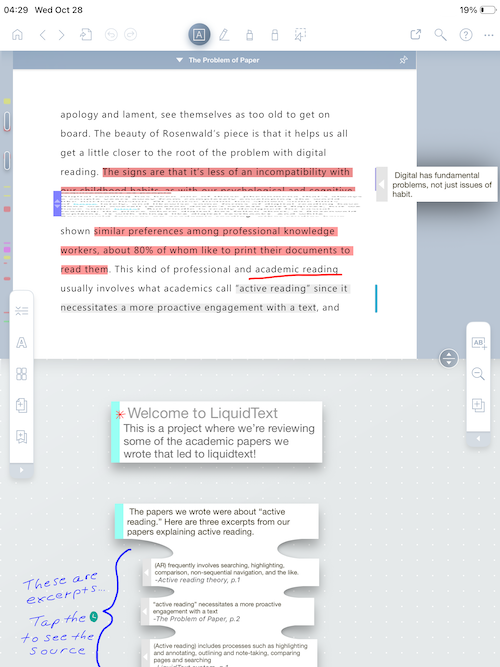
Image: Jessica Santero | WhistleOut
The next super cool thing is the pinch and compare feature. If you have multiple pages open in a PDF, you can hold your thumb on one page and pinch down with your index finger as you go through the other pages. That way, you can match up excerpts right next to each other for a literal side-by-side comparison within a multi-page document. You can also write directly on the docs themselves, which is a basic feature, but absolutely necessary.
There are also a ton of other features that would be really useful in a corporate workspace. You can make a one-time payment that gives you about half of the premium features, or you can pay for the annual subscription, which gives you the coolest premium features, including ChatGPT integration and collaboration.
If you're working on strategy for the next year and have reports to compare, your team can add their own opinions straight into the same file you're working on. The ChatGPT integration is in beta testing right now if any iPhone user wants to try it. So this isn't strictly a note-taking app. However, it's an amazing storehouse, assistant, and interface for a more corporate setting.
Concepts: Best for creative and visual notes
4 out of 5 overall
- Building concept maps on an infinite canvas
- Visual learners who draw icons and comics in their notes
- Picking from a huge color palette
Concepts is available on iPhone, iPad, and Android, and it lets you grow your notes in any direction on one giant canvas.
Concepts is a sketching app with an infinite canvas, which makes it a great fit for concept maps and notes that grow in a non-linear format. Every stroke stays editable, and you get a huge color palette to work with. The basic version is free, and you can upgrade to unlock extras like shapes and other add-ons.
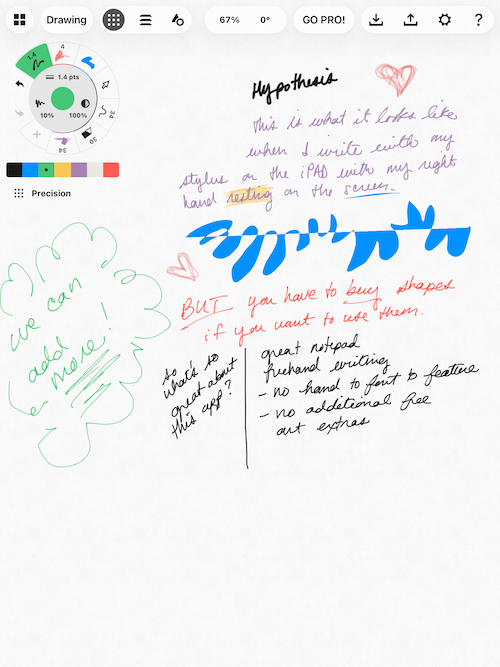
Image: Jessica Santero | WhistleOut
Concepts is fantastic if you're a creative analytical, or an analytical creative just like me. By that I mean you can start a page, take notes on a topic, then zoom out and write around your main topic with adjacent subtopics. You can keep zooming out until you make a gigantic map, or go to the right, the left, up, or down.
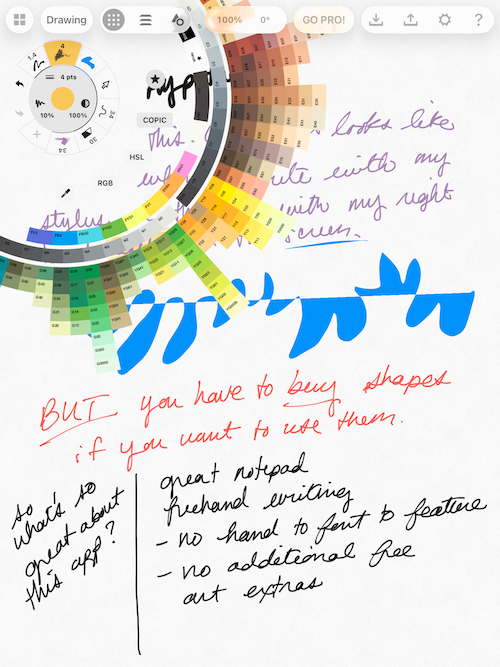
Image: Jessica Santero | WhistleOut
I do have to say it's really amazing that you have an incredible color palette to choose from. It's super easy to swap your colors, and you can even spin the whole color wheel. I'm a visual learner, so I like to draw little icons or draw out main concepts instead of adding questions for Cornell-style notes.
If you like to make your notes into comics like I do, this app is honestly the best. Unfortunately, you have to upgrade to a paid subscription if you want to add shapes and other cool additions to your mega canvas. But if you don't mind drawing by hand or a bit of doodling, you really won't need it.
Protect your screen while you write
If you're drawing concept maps or doodling in your notes every day, your iPad screen takes a lot of wear. A screen protector keeps it safe from scratches, and it's one of the essentials I've used with my iPad since 2018.
Freeform: Best free option
3.5 out of 5 overall
- Quick notes when you don't have a notebook on hand
- Visual people who want to replace the Notes app
- Sharing boards with other Apple users
Freeform is available on iPhone and iPad, and it's a completely free whiteboard app from Apple.
Freeform is Apple's free whiteboard app, and it's already on most iPads. It gives you boards with sticky notes, sheets, different pens, a typical color wheel, and handwriting-to-text. Freeform also gets extra premium features with Apple Creator Studio, Apple's subscription bundle for its creative apps. There are student and teacher discounts, but you don't need to pay anything to use the freemium version of Freeform.
Even if you don't pay for a subscription, it's still a solid note-taking app with features that can be pretty handy. I really love the settings. It's minimalistic, so it's just the paper with very small toolbars of options that pop up as you select them. You can't make notebooks because it's limited to boards only, but it was solid. It works well for jotting down notes, but I wouldn't say it's a long-term note-taking solution.
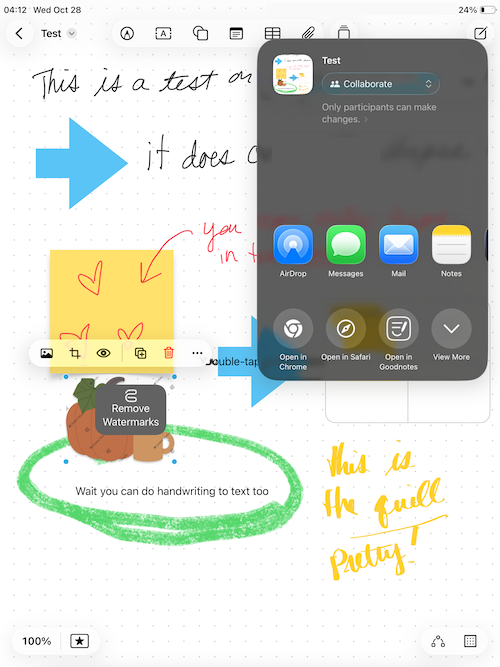
Image: Jessica Santero | WhistleOut
It's nice that you can easily share from the app itself, given that it's an Apple creation. So maybe if you had an iPhone Duo, you could easily share your notes with your classmates. However, we all know the iPhone Duo has been a major flop for Apple, so I wouldn't bet on that being available or even the best option for most people.
In my testing, all the images I added had watermarks on them unless you pay for the subscription. That's very distracting and it defeats the purpose of even using images. The quill tool was really nice though, but I'm not going to select an app based on one tool I liked.
I could see this being useful for someone who doesn't have a notebook on hand, has an iPhone, and needs to take some notes, or someone who has an iPad and just needs to jot some stuff down. Honestly, if you're a visual person like me, I'd probably get rid of the Notes app and just use Freeform.
Zinnia: Best for planners and journaling
3.5 out of 5 overall
- Bullet journaling with cute, colorful templates
- Detailed digital planners
- Making an online scrapbook with your photos
Zinnia is available on iPhone, iPad, and Android, and it has the best templates ever.
Zinnia is a digital journal and planner app made for bullet journaling, planning, and scrapbooking. It has colorful templates, stickers, washi tape, and photo uploads, and you can import your own PDF planners too. There's a free version with limited content, and Zinnia Premium unlocks everything.
It has the best templates I've ever seen in any app. They're cute and colorful, and I can see myself bullet journaling with them. The planners are extremely detailed, and you can even upload your own PDF template if you find something really niche that you like.
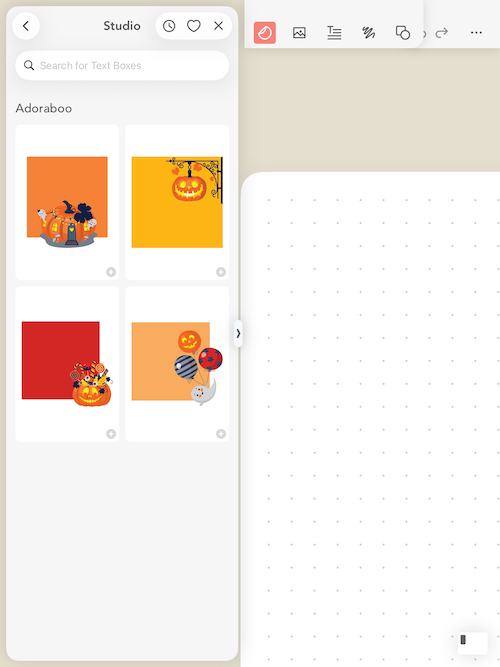
Image: Jessica Santero | WhistleOut
Unfortunately, almost everything is limited in the free version. You can start a blank page, but that's about it. If this app were a one-time purchase, I'd definitely consider it and probably add it to my list of premium apps that I pay for.
I do a lot of journaling on the road or out and about, and I check my planner multiple times a day. I'm still a paper spiral planner girly because I like to take it with me everywhere. If you're like me and want to go digital without carrying a full laptop or looking at a super small phone screen, this app would be a super great alternative.
Realistically, I couldn't try much. Everything looked absolutely adorable, and I was clicking like mad to try and get anything going on my blank notebook page with the dot grid. There were so many cute seasonal templates and additions to add in. The washi tape was amazing. You can insert pictures as well and make it like an online scrapbook.
If you're struggling to find wall space for your printed pictures or you're tired of printing them out, this keeps them all in one space. It has major potential for doodlers, checklist fans, and organizational fans.
 How I tested the best note-taking apps for iPad
I put these apps through the wringer during my statistical research into marketing course, including:
- How easy it is to switch paper styles, pens, and colors while taking notes
- Templates, notebooks, planners, and canvas options
- Special tools like AI, audio transcription, calculators, and translation
- What you get for free and what's locked behind a paywall
- One-time purchase and subscription pricing
Best note-taking apps for iPad: FAQ
What is the best note-taking app for iPad?
The best note-taking app for iPad is Goodnotes, but CollaNote is a close second.
What is the best free note-taking app for iPad?
The best free note-taking app for iPad is Freeform. It's Apple's free whiteboard app, and it comes with sticky notes, sheets, different pens, and handwriting-to-text. In my testing, images had watermarks unless you paid for an Apple Creator Studio subscription.
What is the best note-taking app for math on iPad?
The best note-taking app for math on iPad is CollaNote. It has a calculator built right into your notes, and it can turn your handwriting into calculations so you don't have to switch apps.
Which note-taking apps for iPad offer a one-time purchase?
The note-taking apps for iPad on this list that offer a one-time purchase are CollaNote, Notability, and LiquidText.
Is Notability good for students?
Yes, Notability is good for students. You can switch between grid, lined, and blank paper right on the screen, and the toolbar includes extras like a laser pointer and washi tape. Its AI transcription feature didn't work in my testing, though.
Why you can trust WhistleOut
.svg)
15+
years of mobile industry experience

900+
published wireless guides

35+
firsthand carrier reviews
We've been around since the birth of the iPhone. Along the way, we've learned how to spot the best deals for your wallet (and your sanity). We spend our days researching informative guides and writing insightful reviews on every kind of wireless plan, distinguishing what matters from what doesn't. We played around with these plans before recommending them, ensuring they're worth your hard-earned money.
Want to know more? Check out how we review every cell phone plan we rank.
Jessica Santero
Staff Writer

Thousands of cell phone plans unpacked. All the facts. No surprises.

Related Articles


Related Topics
App Roundups FeaturedPopular Topics
Featured App Reviews iOS News Coverage Device Reviews Device Explainers Carrier Explainers App Roundups T-Mobile