The price you see on a store's app at home isn't always the price you'll see once you're standing in the aisle. Some retailers can use your phone's location to tell when you've arrived, and the app may show you a higher price once it knows you're there and ready to buy.
It's a form of surveillance pricing, and it's frustrating precisely because it's so easy to miss. Most people don't realize that some stores adjust pricing based on your location, meaning you may see a lower price on the app across the street versus going inside the store.
The good news is that your phone gives you a way to fight back.
Why your phone matters when you shop in person
Most people think of surveillance pricing as an online problem. A website watches what you click or determines the location of your IP address, and the price shifts in response. Walking into a physical store should be safe from those kinds of tactics.
Unfortunately, it isn't that simple. If you carry a phone with a store's app installed, there's a good chance that the app knows you’ve arrived. Location access powers handy features like store mode, aisle maps, and in-store deals, but it can also tell the app to match the prices found in the building. That means if you see a great deal on a last-minute holiday gift on an app while at home, the price may jump when you go to pick it up in person.
The best-known example is Target. In 2019, Minneapolis TV station KARE 11 found the Target app listed a 55-inch Samsung smart TV for $499.99, then showed $599.99 once reporters pulled into a store's parking lot. Business Insider ran its own test and found prices changed on nearly half of the 20-plus items it checked, and they were almost always higher inside the store.
Unfortunately, most states have not passed laws addressing surveillance pricing, so few customers have protections. For most of the country, protecting yourself is up to you and your smartphone’s settings.
1. Turn off location access for retail apps
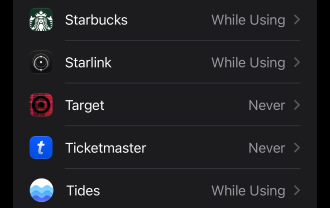
Image: Max McCaskill
If a store's app can't see your location, it can't tell that you've walked through the door. You don't have to turn off location services for your whole phone. You can cut off just the physical retail apps and leave things like Maps, Weather, and Find My alone.
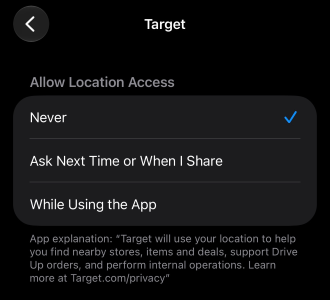
Image: Max McCaskill
To turn off location access for a retail app on iPhone:
- Open Settings.
- Tap Privacy & Security.
- Tap Location Services.
- Scroll down and select the store's app.
- Choose Never.
If you'd rather not dig through every app one by one, iPhone's Safety Check tool lets you review which apps have access to your location from a single screen.
To turn off location access for a retail app on Android:
- Open Settings.
- Tap Apps and select the store's app.
- Tap Permissions.
- Tap Location.
- Choose Don't allow.
Menu names can vary slightly depending on who made your phone, but the path is similar on most Android devices. While you're in there, it's a good time to review your other Android app permissions, too.
Cutting off location does come with trade-offs. Features like in-store mode, aisle maps, and "deals near you" may stop working or ask you to pick a store manually. If you rely on those, set the app to Ask Next Time or When I Share on iPhone, or Ask every time on Android. That way, the app only gets your location when you decide it should, and you can check the price before you say yes.
2. Check prices with a neutral scanner instead of the store's app
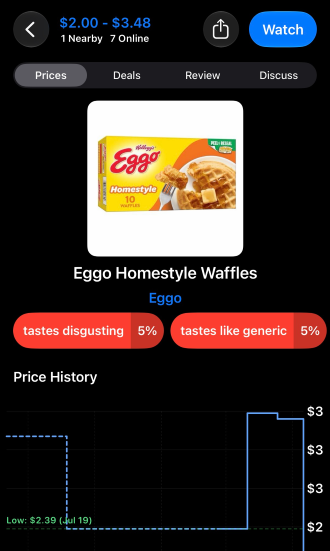
Image: Max McCaskill
When you check a price in a store's own app, you're asking the store what it wants to charge you. A third-party price checker doesn't have that conflict of interest. It has no reason to bump the price because you walked in, and it shows you what other retailers are charging for the same item.
ShopSavvy is one of the most popular app options. It lets you scan a barcode to see a product's price across tens of thousands of stores, sorted lowest first, and it's free on iPhone and Android.
To check a price with a barcode scanner app like ShopSavvy:
- Download the app from the App Store or Google Play.
- Open the app and tap the scan button.
- Point your camera at the product's UPC barcode.
- Review the list of prices from online and nearby stores.
Use AI to look up products with your camera
If you'd rather not install another app, your phone may already have a way to search for products just by pointing the camera at them.
On iPhone, Visual Intelligence can identify an item and run a Google search on it, which is a quick way to see what the product sells for elsewhere. It works on the iPhone 15 Pro and newer models that support Apple Intelligence.
To look up a product with Visual Intelligence:
- Press and hold the Camera Control button. On iPhones without one, use the Action button or the Visual Intelligence option in Control Center.
- Point your camera at the product or its packaging.
- Tap Search to see matching results from Google.
Android users can do the same thing with Google Lens, which is built into the Google app and the camera on many phones. Circle to Search also works if you've pulled up a photo of the product on your screen.
Just remember prices can lag behind what a store is charging right now, and an image search may land on a similar product rather than the exact one you want. Treat the results as a reference point, then use them to ask for a price match or decide whether to buy somewhere else.
3. Screenshot the price before you walk in
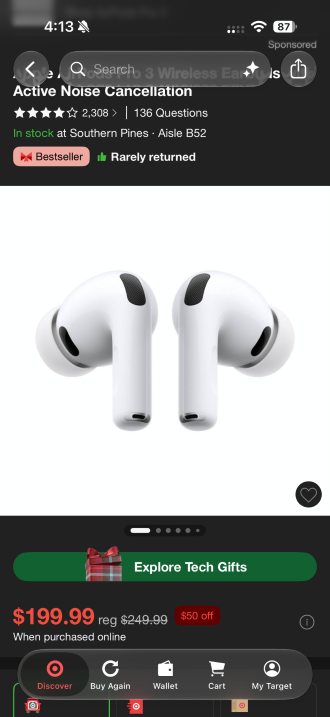
Image: Max McCaskill
A quick screenshot gives you proof of the price you saw at home, making it obvious if something changes by the time you reach the aisle.
To capture prices before you shop:
- Open the store's website or app before you leave.
- Pull up each item you plan to buy.
- Take a screenshot that shows the product name, model number, and price.
- Save the screenshots to a dedicated album so you can find them quickly at checkout.
The button combo depends on your phone, whether you're taking a screenshot on an iPhone, a Samsung phone, or another Android phone.
Unfortunately, a screenshot isn't a guaranteed discount. Price-match policies vary from store to store, and some of them won't match their online or app pricing. Most also require the lower price to be a live deal when you ask, meaning you can’t get the store to match a time-limited deal that ended days ago.
If a store does require you to use an app or website for specific pricing, you may be able to order the product online and use an in-store pickup method instead, which still avoids lengthy shipping times.
4. Compare prices in a private browser tab with location blocked
A retailer's app has been collecting data about you since the moment you downloaded it. It has your account, purchase history, IP address, and location. A private browser tab with location access blocked strips most of that away. You're not logged in, there's no browsing history or cookies tied to you, and the site can't ask your phone where you are.
That gives you a cleaner baseline price to compare against what the app or shelf is showing you. It's also the easiest way to pull up a live online price at checkout when a store requires one for a price match.
To open a private tab with location blocked on iPhone:
- Open Settings.
- Tap Privacy & Security, then Location Services.
- Tap Safari Websites and choose Never.
- Open Safari and tap the tabs button.
- Switch to Private and open a new tab.
To open an incognito tab with location blocked on Android:
- Open Chrome and tap the three-dot menu.
- Tap Settings, then Site settings.
- Tap Location and turn off location access.
- Go back to the three-dot menu and tap New Incognito tab.
Once you're in, search for the product and don't sign in to your account. Logging in hands the stores your profile, which defeats the whole point.
To be clear, a private tab doesn't make you invisible. Your IP address may still give a website a rough idea of where you are, even with location access turned off. That's especially true if you're connected to the store's Wi-Fi, which can tell the retailer exactly which building you're in.
At minimum, switch to cellular data before you check a price in the store. If you want to go a step further, a VPN also masks your IP address so the site sees the VPN server's location instead of yours.
Just remember when you use a VPN, some retail sites will ask you to pick a store or enter a zip code before showing any price. That's normal, since prices and product availability can legitimately vary by region. Just choose the store manually rather than letting the site detect it.
Surveillance pricing smartphone protections: FAQ
What is surveillance pricing?
Surveillance pricing is when a company uses your personal data to decide what price to show you. That can include your location, browsing history, purchase history, items left in your cart, and demographic information.
Is surveillance pricing legal?
Yes, surveillance pricing is legal in most of the U.S. Only a handful of states have passed laws addressing it so far, and they're narrow, limited to specific types of stores and data practices.
Does incognito mode get you lower prices?
Incognito mode can sometimes get you lower prices, but it's not a guarantee. A private tab keeps you logged out of accounts and clears cookies, so a site has less personal data to work with. That said, your IP address still gives away your general location, so pair it with blocked location access and cellular data, or a VPN, if you want a truly clean comparison.
Should I avoid store apps when shopping?
No, you should not completely avoid all store apps when shopping. Some stores offer special deals for in-app customers. The key is to ensure that stores aren’t using their app to increase prices for products you want, which you can usually prevent with screenshots or by disabling location settings.
Max McCaskill
Sr. Staff Writer

Thousands of cell phone plans unpacked. All the facts. No surprises.

Related Articles


Related Topics
General Mobile ExplainersPopular Topics
Featured App Reviews iOS News Coverage Device Reviews Device Explainers App Roundups Carrier Explainers T-Mobile