
Image: Max McCaskill
Visual Intelligence on iPhone has been around since iOS 18, but it's finally gotten a massive update with Siri in iOS 27. Apple put it right in the Camera app with a new Siri mode. Just point your camera at something, tap the shutter button, and ask Siri about it.
It's one of the more fun new Siri AI features, and it's genuinely useful for all kinds of things, from identifying plants to translating text and even doing math. Here's how to open Siri mode on your iPhone and what it's actually good for.
Siri mode and Visual Intelligence: What's the difference?
Visual Intelligence is an Apple Intelligence feature that uses your iPhone's camera to identify and learn about what's around you. Apple introduced it in iOS 18, but its early versions have been somewhat slow and relied on passing off images to ChatGPT for help.
Siri mode is a new camera mode in iOS 27 that sits alongside Photo, Video, and the Camera app's other modes. It's the newest way to use Visual Intelligence, and it's powered by Siri AI. Now, instead of needing to leave your Camera, Siri can identify the things in your image and instantly have a conversation about them.
In other words, Visual Intelligence is the feature, and Siri mode is the new way to get to it. Because Siri AI now handles your questions directly instead of handing them off to another service, you can have deeper conversations about what your camera sees and keep asking follow-up questions.
How to open Siri mode in the Camera app
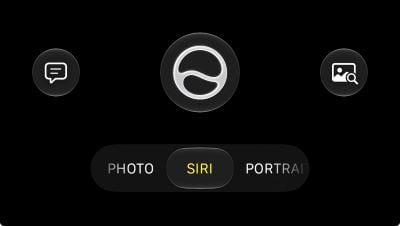
modes in the Camera app.
Image: Max McCaskill
To open Siri mode in the Camera app:
- Open the Camera app.
- Swipe through the camera modes to Siri.
- Point your camera at whatever you have questions about.
- Tap the shutter button and ask your question.
You'll know you've activated Siri mode when the shutter button takes on the new Siri symbol.
Tip: If your iPhone has a Camera Control button, you can get to Siri mode even faster by simply pressing and holding it.
What Siri mode is actually good for
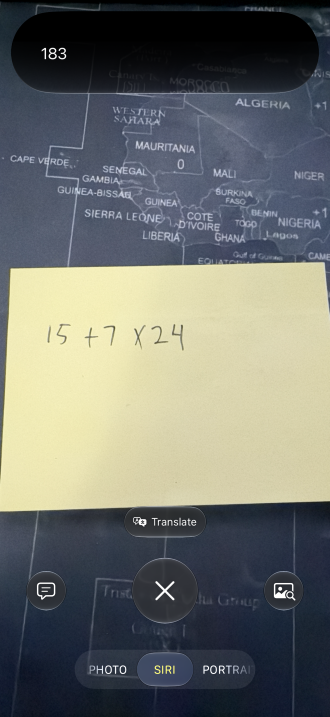
Image: Max McCaskill
Siri mode is handy any time you'd otherwise have to describe something to Siri or type it into a search bar. You can use it to:
- Identify things around you
- Ask how to use something
- Translate text
- Solve math problems
- Split a bill based on a receipt
For some things, you don't even need to ask a question. When Siri mode recognizes certain items, a yellow suggested action button appears. Point your camera at a check, for example, and you'll see an option to split the bill with Apple Cash. If Siri recognizes a math problem, it'll automatically get to work solving it.
Limitations: Siri mode photos don't save to Photos
Even though Siri mode uses your camera, it doesn't save your pictures to the Photos app. They're saved in the Siri app instead, and the system may eventually delete them to free up space if you haven't accessed them lately.
If you're taking a picture of something you want to keep, like a receipt or set of instructions, take a regular photo first. Then open it in Photos and use Visual Intelligence on it there.
Siri mode on iPhone: FAQs
How do I get to Visual Intelligence on iPhone?
To get to Visual Intelligence on iPhone, enable Apple Intelligence and press and hold the Camera Control button. If you have Siri AI enabled in iOS 27, you can also open the Camera app and swipe through the camera modes to Siri mode.
What's the difference between Siri mode and Visual Intelligence?
Siri mode is Visual Intelligence built into the Camera app in iOS 27. It's powered by Siri AI, so you can ask questions about what your camera sees and keep the conversation going with follow-up questions.
Where are photos from Siri mode saved?
Photos taken with Siri mode in the Camera app are saved in the Siri app, not the Photos app. They may be deleted automatically over time, so take a regular photo if you want to keep a copy.
Which iPhones support Visual Intelligence?
As an Apple Intelligence feature, Visual Intelligence requires an iPhone 15 Pro or newer device. That includes the iPhone 15 Pro and Pro Max, every iPhone 16 and iPhone 17 model, the iPhone Air, the iPhone 18 Pro and Pro Max, and the iPhone Duo.
Max McCaskill
Sr. Staff Writer

Thousands of cell phone plans unpacked. All the facts. No surprises.

Related Articles


Related Topics
iOS FeaturedPopular Topics
Featured App Reviews iOS News Coverage Device Reviews Device Explainers Carrier Explainers App Roundups T-Mobile


Free iPhone 18 Pro, up to $1,200 off, with a trade-in in any condition or a line switch on Experience Beyond


.png?w=280&h=280&usm=20&usmrad=0.8&fit=crop "Best Cell Phone Deals for October 2026: Get the New iPhone 18 Pro for Free")