Private Space is a built-in Android feature that hides sensitive apps behind a separate lock, like a phone within your phone. It arrived with Android 15, and it's the cleanest way to keep banking, dating, and other apps out of sight without installing a third-party app locker.
Anything you put in Private Space disappears from your main app drawer, recent apps, notifications, and search results while the space is locked. It's a second, sandboxed profile living quietly on your device, with its own app data and even its own optional Google account.
Samsung owners get the same idea under a different name. Secure Folder is Samsung's built-in vault that locks away apps, photos, and files, and it comes baked into Samsung's operating system, One UI, on every recent Galaxy.
Unlike Private Space, Secure Folder isn't new. It's been part of Galaxy phones for years, powered by the same Samsung Knox security layer that guards the rest of your device. The payoff is the same, though. Anything you move in disappears from your app drawer, notifications, and gallery until you unlock it.
Get the full security checklist
This guide covers one of the five settings from our complete Android Privacy and Security Guide. The full checklist takes about an afternoon and handles the rest of your phone's weak spots, including: your Google account, app permissions, hidden apps, public Wi-Fi habits, and lost-phone protection. None of it requires downloading a thing, and most fixes take a minute or two each.
How to set up Private Space on a Pixel
Here's the process on a Pixel and most stock Android phones:
- Open Settings > Security & privacy.
- Under Privacy > Private space, authenticate with your screen lock.
- Sign in with a separate Google account (optional). This is the move if you want true separation, because the apps inside get their own account, browsing history, and app data.
- Set a lock for the space. I'd use a different PIN or your fingerprint.
- Add apps by installing them from the Play Store inside the space.
To open it, scroll to the bottom of your app drawer and tap the lock icon. To really make it disappear, go into the Private space settings and turn on Hide private space. After that, it won't appear in your drawer at all, and you'll need to search for Private Space in your settings to restore it.
The separate Google account is an optional step most people skip, but it is worth looking into. Without it, apps inside the space still tie back to your main account. With it, the space has its own identity end to end.
Secure Folder is Samsung's version, and One UI 8 finally fixed it
Secure Folder is Samsung's encrypted space for apps and files, locked with its own PIN or biometrics and sealed by Samsung Knox. Anything you move inside, from apps and photos to files and notes, stays hidden from the rest of your phone. Apps inside also run as separate copies, so you can clone a messaging app and keep a second, work-only account without carrying a second phone.
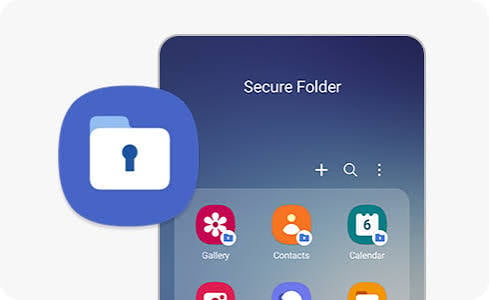
Image: Samsung
For years, Secure Folder was built on Android's old work profile system, which meant system tools like Google's Photo Picker could preview photos stored inside a locked Secure Folder. With One UI 8, Samsung rebuilt Secure Folder on the same private-profile architecture that powers Private Space, closing that hole for good.
One thing to mention is the full protection only kicks in when you hide Secure Folder, not just close it. Hiding it removes the icon, silences its notifications, and encrypts everything inside. One UI 8 also added a Lock and exit option in the folder's menu and lets you enroll a separate fingerprint just for the folder.
Set it up under Settings > Security and privacy > More security settings > Secure Folder. Sign in with your Samsung account, pick a lock method, then open the folder and tap the plus icon to add apps.
Upgrading your phone
If you're still using a phone that doesn't have Private Space or Secure Folder, it might be time for a new phone. Here are some of our favorite Android phones right now:
Galaxy A26 5G
- 6.7 inch display
- Rear Cameras: 50MP, 8MP, 2MP
- Front Camera: 13MP
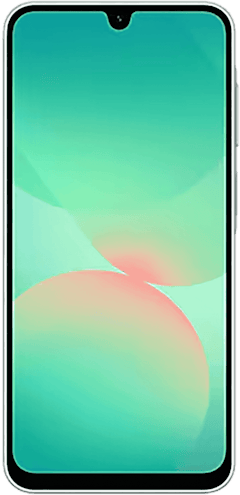
Galaxy A27 5G 128GB
- 6.7 inch display
- Rear Cameras: 50MP, 5MP, 2MP
- Front Camera: 12MP
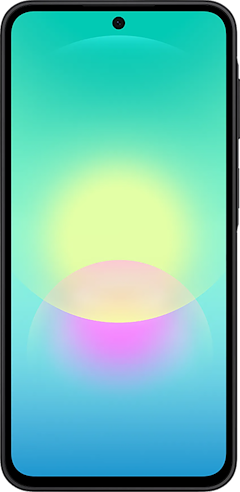
Galaxy A37 5G 128GB
- 6.7 inch display
- Rear Cameras: 50MP, 8MP, 5MP
- Front Camera: 12MP
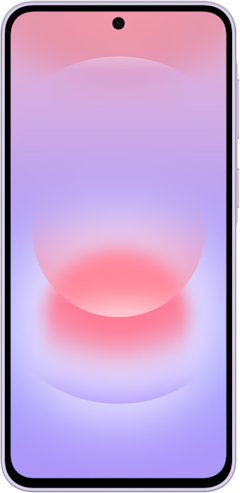
Pixel 10a 128GB
- 6.3 inch display
- Rear Cameras: 48MP, 13MP
- Front Camera: 13MP
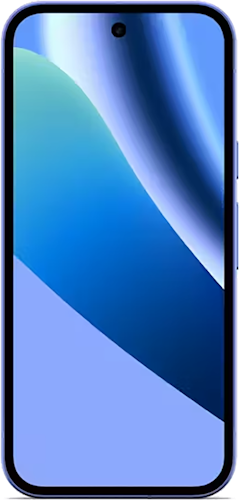
Galaxy A57 5G 128GB
- 6.7 inch display
- Rear Cameras: 50MP, 12MP, 5MP
- Front Camera: 12MP
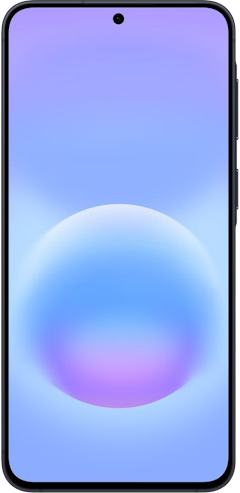
Pixel 10 128GB
- 6.3 inch display
- Rear Cameras: 48MP, 10.8MP, 13MP
- Front Camera: 10.5MP
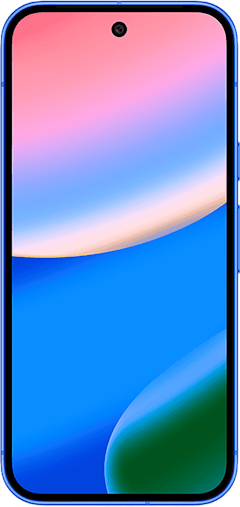
Pixel 11 256GB
- 6.3 inch display
- Rear Cameras: 48MP, 13MP, 10.8MP
- Front Camera: 10.5MP
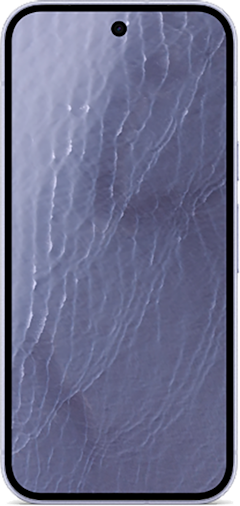
Galaxy S26 5G 256GB
- 6.3 inch display
- Rear Cameras: 50MP, 10MP, 12MP
- Front Camera: 12MP
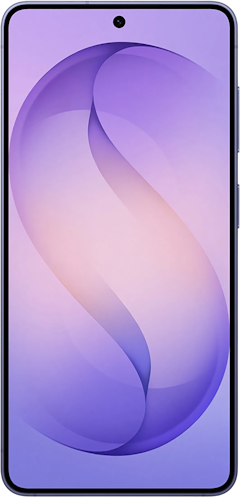
Pixel 11 512GB
- 6.3 inch display
- Rear Cameras: 48MP, 13MP, 10.8MP
- Front Camera: 10.5MP
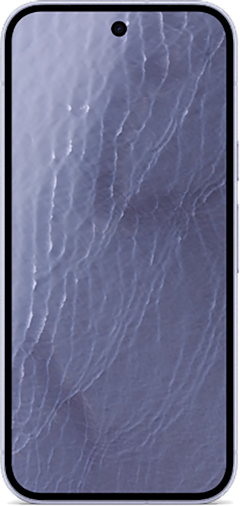
Pixel 11 Pro 256GB
- 6.3 inch display
- Rear Cameras: 50MP, 48MP, 48MP
- Front Camera: 42MP
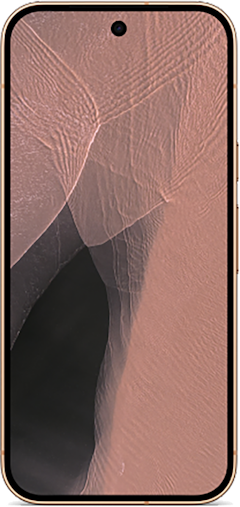

These phones go on sale often, so be sure to check our Google Pixel and Samsung deals pages. We update them weekly so you won't miss the best deals on these phones.
Private Space and Secure Folder: FAQ
Is Private Space the same as Secure Folder?
Private Space is Google's built-in feature on Android 15 and later, while Secure Folder is Samsung's version, backed by Knox. The gap between them has mostly closed because One UI 8 rebuilt Secure Folder on Google's private profile technology, so they now behave the same way underneath. The main difference left is that Private Space can be linked to a separate Google account, while Secure Folder can't.
Does hiding apps in Private Space actually hide them from everyone?
Once hidden, Private Space won't appear in your app drawer, and its apps won't show up in notifications, recent apps, or search results while it's locked. Someone would have to know the feature exists and search for it by name in your settings to even find the entrance.
Does Secure Folder work with third-party launchers?
Secure Folder's hiding features don't fully work with third-party launchers like Nova or Niagara, even after the One UI 8 update. If you run a custom launcher, stick with Samsung's One UI Home when you need Secure Folder to reliably disappear.
Scott Houghton
Jr. Staff Writer

Find a better phone plan
Thousands of cell phone plans unpacked. All the facts. No surprises.


.png?w=280&h=280&usm=20&usmrad=0.8&fit=crop "Best Cell Phone Deals for October 2026: Get the New iPhone 18 Pro for Free")