Apple offers three privacy features that lock individual apps on your iPhone with either your face biometrics, fingerprint, or a passcode. That way, you can rest easy handing over your device because the apps you care most about stay closed and the ones you don't mind sharing remain accessible.
I’ve rounded up every built-in trick Apple offers for keeping prying eyes out of your private apps, and I’ve included a couple of alternative app options if you want even more control than iOS gives you.
Worried about digital security? A VPN keeps you protected
A VPN encrypts your internet traffic and routes it through a private server, so your internet provider, the coffee shop Wi-Fi, and anyone else on the network can't see what you're doing online. Extra safety precautions are necessary in today's digital age.
Keep yourself protected with one of these VPNs:
Why lock or hide apps on your iPhone?
Locking or hiding apps on your iPhone gives you more privacy and control. I personally lock apps on my iPhone for these reasons:
- My messages, emails, and photos are locked if someone accidentally (or intentionally) picks up my phone around the house.
- No one can sneak a peek at my messages in my home screen notifications.
- Just in case my phone gets stolen, my banking and shopping apps are protected.
By no means does a locked app mean you’re guilty or hiding information. You can easily avoid accidental taps on sensitive apps (especially when kids are tapping away) by adding a passcode or ID lock. A locked app also blocks notifications from appearing in your previews, so no one can read your messages right on your screen, or even when your phone is connected to CarPlay.
Looking for a new phone with better built-in privacy?
The latest iPhones offer more privacy features than ever. With the most recent models, you get message encryption, private cloud compute, and limited location sharing.
Check out the newest iPhones to upgrade to for the best iOS features:
iPhone 18 Pro 256GB
- 6.3 inch display
- Rear Cameras: 48MP, 48MP, 48MP
- Front Camera: 18MP
iPhone 18 Pro Max 256GB
- 6.9 inch display
- Rear Cameras: 48MP, 48MP, 48MP
- Front Camera: 18MP
iPhone 18 Pro 512GB
- 6.3 inch display
- Rear Cameras: 48MP, 48MP, 48MP
- Front Camera: 18MP

How to lock an app on iPhone (with Face ID, Touch ID, or a passcode)
Follow these steps to lock an app right on your iPhone:
- Find the app you want to lock on your Home Screen.
- Press and hold the icon until the quick-action menu pops up.
- Tap Require Face ID (or Require Touch ID or Require Passcode depending on your model).
- Tap the same option again to confirm your choice.
- Authenticate with your face, fingerprint, or passcode to complete the setup.
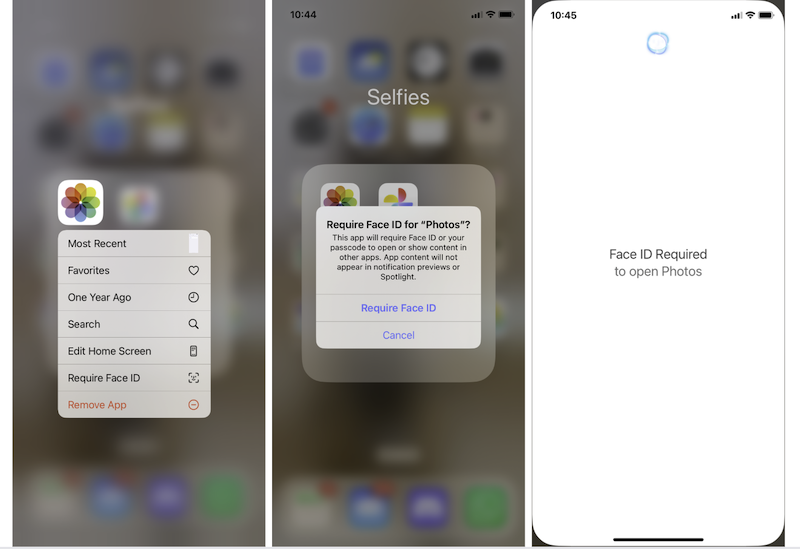
Image: Jessica Santero | WhistleOut
It’s important to know that a few of Apple’s apps can’t be locked, including Camera, Clock, Contacts, Find My, Maps, Shortcuts, and Settings. But you can lock any other app on your iPhone, including your Messages app, with Face ID, Touch ID, or a Passcode.
Can I lock Notes and Photos on my iPhone?
Yes, you can lock both Notes and Photos on your iPhone. The steps are exactly the same; all you have to do is press and hold the icon and tap Require Face ID.
How to hide an app on your iPhone
Locking an app keeps people out of its contents, but the icon still sits there on your Home Screen. Anyone who picks up your phone can see exactly which apps you have—even if they can’t open them. Hiding an app removes it from view entirely and moves it into a folder that only you can unlock with your biometrics or passcode.
Here is how to hide an app from your Home Screen without deleting it altogether:
- Find the app you want to hide on the Home Screen.
- Press and hold the app icon until the quick-action menu appears.
- Tap Require Face ID from that menu.
- Tap Hide and Require Face ID when it appears.
- Confirm that you actually want to hide the app.
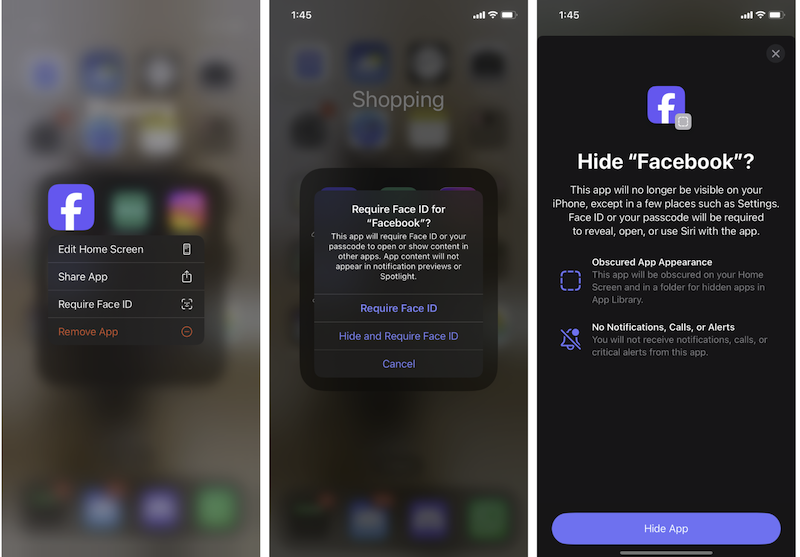
Image: Jessica Santero | WhistleOut
Once you hide an app, it moves to a folder labeled Hidden at the bottom of your App Library. That folder stays locked, so anyone who opens your App Library can't see what’s inside unless they authenticate with your face, your finger, or your passcode.
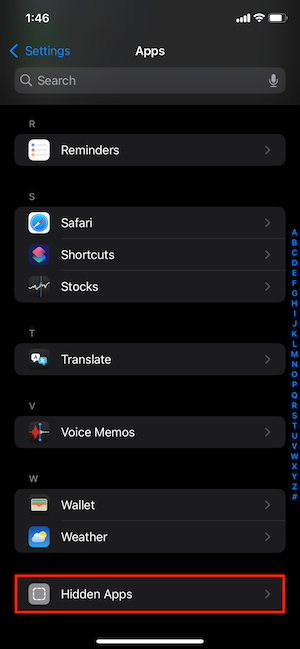
Image: Jessica Santero | WhistleOut
Hidden apps stop sending you notifications. So if you hide your bank app, don’t forget to log in if you need a temporary code or specific notice.
Parental control on your (or your kid’s) iPhone
Whether you’re hiding apps on your phone or a family member’s device, make sure the littlest ones are safe from cyber dangers. You already have several parental control features on your iPhone you can use, or you can choose one of the best parental control apps on the market. Make sure the information that reaches your device is safe for the whole family.
How to restrict app access with Screen Time
If you want more control over how much time you spend on apps, set up Screen Time on your iPhone. Screen Time lets you set time limits and content restrictions that require a separate passcode to override. That means you can set daily or weekly limits on your device or your kid’s iPhone.
Follow these steps to set up Screen Time on a specific app or category of apps:
- Open Settings and tap Screen Time.
- Tap App Limits, and then tap Add Limit.
- Select the app or category you want to restrict.
- Set the amount of time you want to allow each day.
- Alternatively, you can tap Customize Days if you want different limits on different days.
- Tap Add to save your limit.
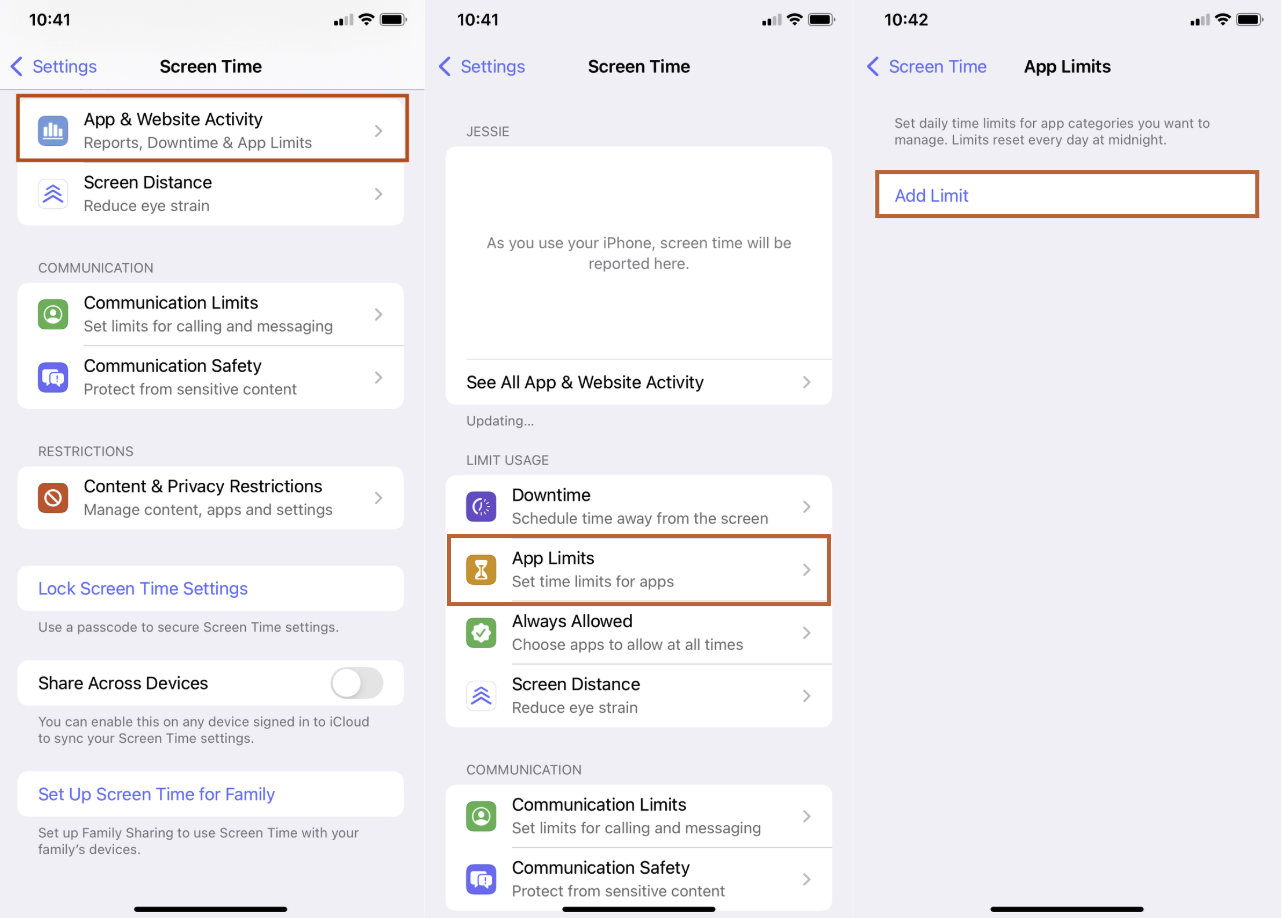
Image: Jessica Santero | WhistleOut
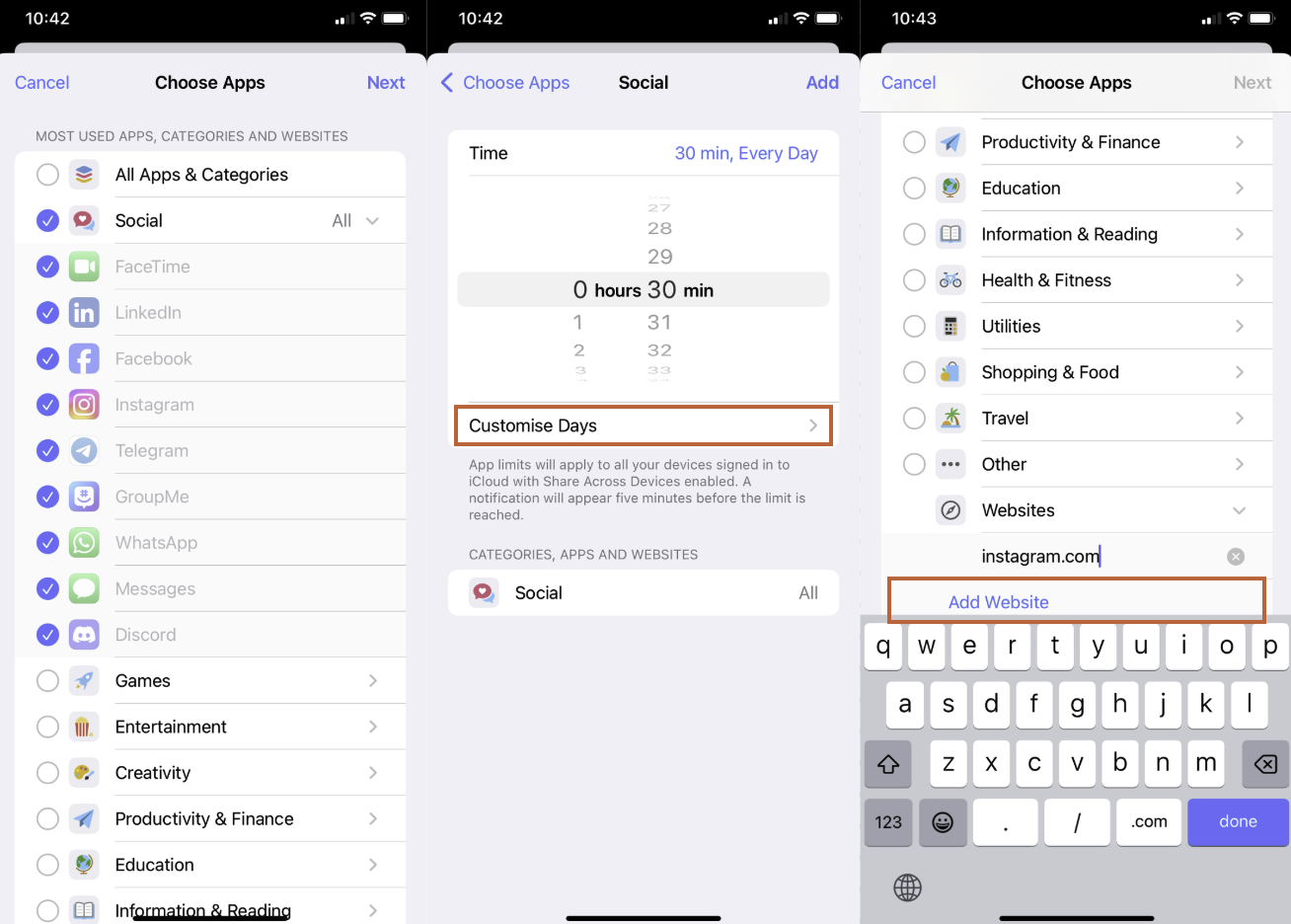
Image: Jessica Santero | WhistleOut
To completely block an app without having to uninstall it, go to Screen Time under Settings and tap Content & Privacy Restrictions. Toggle it on, and then tap Allowed Apps to choose which apps you can still access. Anything you toggle off disappears from the Home Screen completely until you switch it back on.
Screen Time offers many more customization options. Check out WhistleOut’s guide to setting screen limits for more details.
Get a dumbphone to limit doomscrolling
If you find yourself stuck in endless scrolling more often than you’d like, opt for a dumbphone to break the habit. You can still access your favorite features, but you won’t find yourself mindlessly tapping TikTok or Instagram out of muscle memory.
WhistleOut rated them all, so make sure to check out the best dumbphones of the year in our guide.
Other alternatives to lock apps on iPhone
Apple's built-in tools allow you to lock, hide, and set usage limits on apps. As an iPhone user who uses locks and limits daily, I can confidently say that they work really well. But they might not be your best option, especially considering you can easily break restrictions and find a workaround for Face ID too.
I tested eight third-party screen time management apps in case you need even more restriction features than Apple currently provides.
Shift: Unbreakable lockdowns with limited emergency PINs
Shift is a completely foolproof option that won’t let you use locked apps—no matter what. Once a block session starts in Shift, there is no PIN override and no sneaky emergency unlock button that you use to bypass your own restrictions. Unlike Apple’s native method, you can’t just change the restriction settings. Shift is expensive at $150 as a one-time purchase, but its unbreakable design is extremely efficient.
ScreenZen: Stop and think before you break limits
ScreenZen takes a gentler approach to managing app usage, and it’s free to use. Instead of locking an app outright, ScreenZen adds a short pause before the app opens. That pause gives you a moment to reconsider whether you need to open that app or if you want to stick to your limits.
Brick: A physical key to lock multiple devices
And if you are trying to keep kids off specific apps across multiple devices, Brick is the best option available. This app uses a small physical device that locks blacklisted apps the moment your phone taps it, and it unlocks them the same way when you tap it again. It’s kid-proof, too, since you can’t unlock apps without the extra device.
Lock apps on iPhone: FAQ
Is there a way to lock individual apps on iPhone?
Yes, you can lock individual apps on iPhone by pressing and holding any downloaded app icon on your Home Screen and then tapping Require Face ID, Require Touch ID, or Require Passcode (your options will differ depending on your phone model).
Can I use a third-party app to lock apps on iPhone?
Yes, third-party apps like Shift and Brick can lock apps with fewer workarounds (and more restrictions) than Apple's native Face ID option. Some apps come with extra expenses, like Shift, which costs $150 as a one-time purchase, and Brick, which requires a device you can buy on Amazon to function.
Can I lock apps on my iPhone for a certain time?
No, Apple's native locking tools do not support temporary locks, so once you lock an app with Face ID or Touch ID, it stays locked until you unlock it. If you want an app to automatically relock after a set period, a third-party app like Shift is a much better fit.
How do you lock apps on iPhone without Screen Time?
To lock apps on iPhone without using Screen Time, tap and hold an app on the Home Screen, and select Require Face ID, Touch ID, or Passcode.
Jessica Santero
Staff Writer

Thousands of cell phone plans unpacked. All the facts. No surprises.




.png?w=280&h=280&usm=20&usmrad=0.8&fit=crop "The Best Cheap Phone Plans for 2026: We Tested Them All to Help You Save")