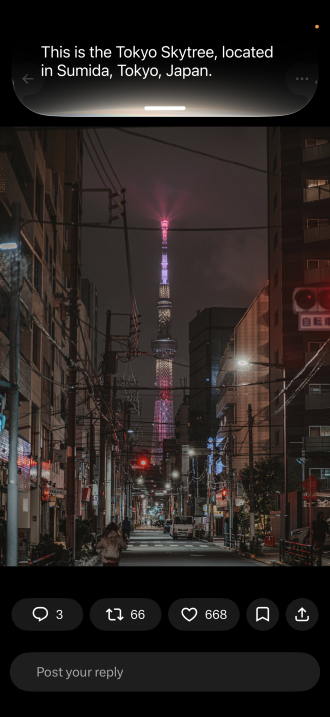
about a post on X.
Image: Max McCaskill
Siri AI can now see what's on your iPhone's screen. Instead of separately Googling a question about something you're seeing, you can simply bring up Siri and ask. It's one of the more practical new Siri AI features in iOS 27, especially when you're browsing recipes, scrolling social media, or planning an event.
Here's what to say to Siri using onscreen awareness, and where it still comes up short.
How Siri onscreen awareness works
Apple calls this feature "onscreen awareness." It's part of Apple's rebuilt Siri, and it allows you to simply ask questions instead of looking up something on your screen yourself.
To use it, activate Siri while something is on your screen and ask your question. You can say "Hey Siri," press and hold the side button, or swipe down from the Dynamic Island. Siri looks at what's currently visible and answers based on that.
Onscreen awareness is different from Siri's personal context feature. Personal context searches the texts, emails, and photos already stored on your iPhone. Onscreen awareness looks at what's on your screen right now, then uses the internet and potentially your personal context to answer questions.
What to say to Siri with onscreen awareness
The best uses are moments when you'd otherwise copy something, switch apps, or search for details yourself. A few easy examples include:
- Looking at a recipe: When you see a picture of a specific food or recipe, ask, "What should I eat with this?" Once Siri suggests a side dish, you can follow up with "Save both recipes to Notes."
- Looking at a photo on social media: Asking, "Where was this taken?" can help you easily plan trips or research where your friends are traveling.
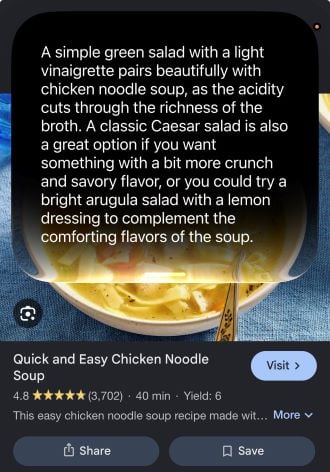
chicken noodle soup recipe on my screen.
Image: Max McCaskill
The recipe example is where onscreen awareness gets the most useful. Siri doesn't just answer a question about your screen. It can also take that information into other apps, so you can go from finding a recipe to saving it without copying and pasting anything yourself.
Limitations: Off-screen content and lesser-known places
Siri only looks at what's actually visible on your screen. It can miss details further down a page or inside an app, so make sure to scroll to the part you're asking about before you bring up Siri.
It also struggles to recognize locations that aren't famous tourist spots. During my testing, it easily identified the Tokyo Skytree from a post on X and Machu Picchu from a previous trip I took. However, it couldn't identify places like White Sands National Park or the Blue Ridge Parkway from the Photos app.
If you want to ask about something in front of you rather than on your screen, Siri mode in the Camera app is the better tool.
Siri AI onscreen awareness: FAQs
What is Siri onscreen awareness?
Onscreen awareness is a Siri AI feature in iOS 27 that lets Siri see what's currently on your iPhone screen and answer questions about it. For example, you can ask Siri what to serve with a recipe you're viewing or where a photo on social media was taken, without explaining the context first.
How do I use Siri onscreen awareness?
To use Siri onscreen awareness, open whatever you want to ask about, then activate Siri by saying "Hey Siri," pressing and holding the side button, or swiping down from the Dynamic Island. Then ask your question about what's on your screen.
Can Siri onscreen awareness identify where a photo was taken?
Siri onscreen awareness can identify where a photo was taken if it shows a well-known landmark, like the Tokyo Skytree or Machu Picchu. In my testing, it struggled with lesser-known places like White Sands National Park and the Blue Ridge Parkway.
Which iPhones support Siri onscreen awareness?
Siri onscreen awareness requires an iPhone 15 Pro or newer running iOS 27 with a supported language. That includes the iPhone 15 Pro and Pro Max, every iPhone 16 and iPhone 17 model, the iPhone Air, the iPhone 18 Pro and Pro Max, and the iPhone Duo.
Max McCaskill
Sr. Staff Writer

Thousands of cell phone plans unpacked. All the facts. No surprises.