Your Android phone can call 911 on its own, show a paramedic your blood type without your PIN, and tell your family where you are. All of it lives in one settings menu, and the parts that matter most start out empty.
I've opened that menu on my Galaxy Z Fold5 exactly twice. Once by accident, and once while writing this article.
That's the problem with emergency settings. They're the smoke detector of your phone. You don't think about them until you need them, and you won't want to tap through submenus during an emergency.
The whole setup takes about five minutes. Do yours first, then do your kid's before the school year gets rolling.
Where to find Android's safety and emergency settings
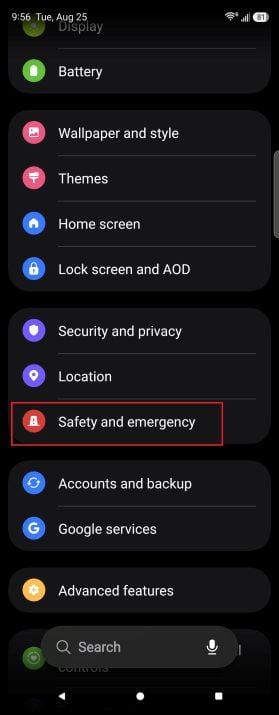
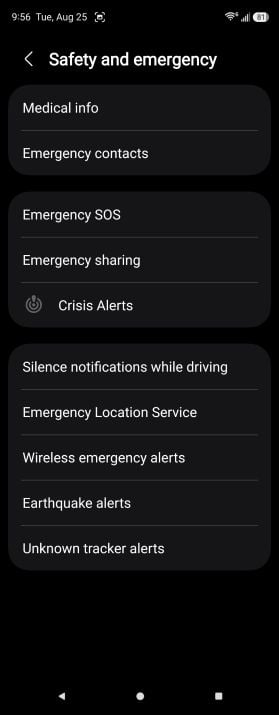
Go to Settings and tap Safety and emergency to find every feature in this guide.
Image: Scott Houghton | WhistleOut
Pixel and Galaxy phones keep this in the same spot: Settings > Safety and emergency.
- On Pixel, you also get the Safety app in the app drawer, which the Play Store lists as Personal Safety. It has the same features with a friendlier interface, and a few options live only there.
- On Galaxy, everything lives in the settings menu. Samsung also parks a couple of extras in there that Pixel handles elsewhere, including silencing notifications while driving.
Add medical info and emergency contacts
Every other security feature builds on having medical information and at least one emergency contact, and most won't turn on until at least one emergency contact exists.
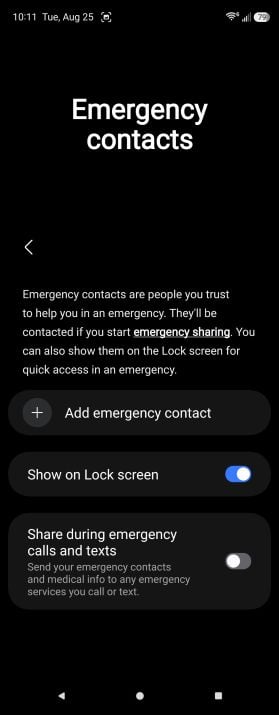
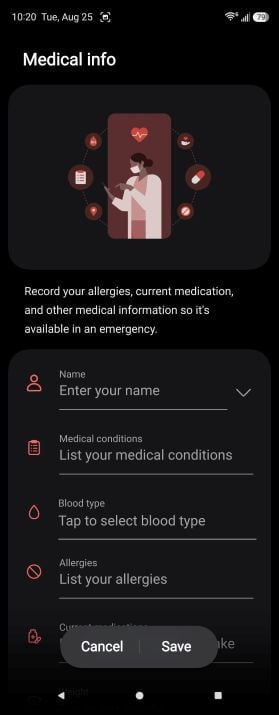
Fill in your medical info and add at least one emergency contact before anything else.
Image: Scott Houghton | WhistleOut
Settings > Safety and emergency > Medical info. Fill in blood type, allergies, medications, and conditions. Then back out to Settings > Safety and emergency > Emergency contacts and pull people from your contact list.
Both fields show up on your lock screen, which is the entire point. Anyone can swipe up, tap Emergency without your PIN, and see who to call and what you react to, and that includes people who aren't paramedics. If that bothers you, both phones let you turn it off:
- Pixel: Safety app > Your info > Emergency info access
- Galaxy: Settings > Safety and emergency > Medical info > Show on Lock screen
Just know that turning it off completely defeats the purpose of filling it in anyway. The whole feature is for when you can't unlock the phone yourself. By limiting access to the information, you essentially created a medical alert bracelet no one can read.
Turn on Emergency SOS and pick how it triggers
Emergency SOS calls 911 for you when you can't dial, and it fires off everything else you just set up along with it.
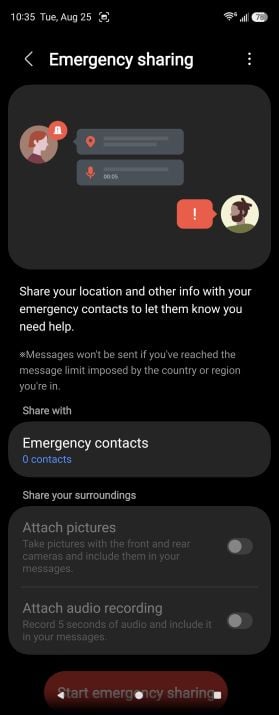
Add an emergency contact to unlock the photo and audio options for emergency sharing.
Image: Scott Houghton | WhistleOut
To find it, go to Settings > Safety and emergency > Emergency SOS, then fill in what you need. By default on both Samsung and Pixel, pressing the power button 5 times activates Emergency SOS.
Press the button five times, and your phone doesn't call immediately. It starts a countdown, which gives you a window to stop it if you press the button by accident.
- On Pixel, you can choose whether the call goes out automatically when the countdown ends, or waits for you to press and hold a button first.
- On Galaxy, it's the same two options, plus you can set how long the countdown runs.
When Emergency SOS won't work
Emergency SOS does not work in airplane mode or with Battery Saver running.
Battery Saver is the one that catches people, because it kicks in automatically at whatever threshold you set, and it stays on until you charge up. A phone that spent the afternoon at 12% is a phone with Emergency SOS switched off.
Set up emergency sharing and a safety check
Emergency sharing pushes your live location and battery percentage to your emergency contacts.
- On Pixel, it runs through the Safety app and shuts off automatically after 24 hours.
- On Galaxy, you can attach a photo and a five-second audio clip, and it keeps sending location updates every 15 minutes for a day.
Safety Check is a Pixel-only feature. You give your phone a reason and a duration of up to 24 hours, and it checks in when the time is up. Mark yourself safe and nothing happens. Ignore it for 60 seconds, and it starts an emergency share with your contacts.
Emergency Location Service is another feature that sends your location to first responders when you dial 911. It's usually on by default, but I recommend you confirm it's on.
- On Pixel, it's under Location, then Location services.
- On Galaxy, it's inside Safety and emergency.
How to manage wireless emergency alerts and AMBER alerts on Android
Wireless emergency alerts override silent mode and Do Not Disturb, which is why they wake you up at 3 a.m. Extreme threats, severe threats, AMBER alerts, and the monthly test each get their own switch.
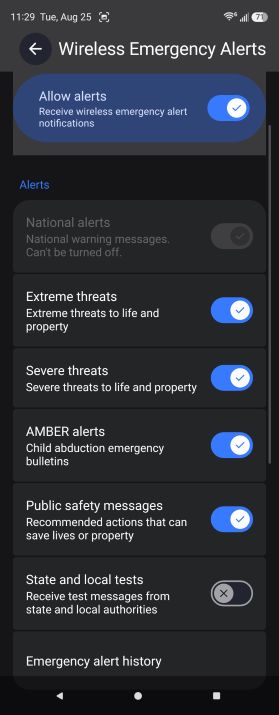
Turn off individual alert types instead of the Allow alerts toggle at the top.
Image: Scott Houghton | WhistleOut
- On both Pixel and Galaxy devices, go to Settings > Safety and emergency > Wireless emergency alerts.
There's also a master Allow alerts toggle at the top of that screen. Turning it off kills everything below it, which is how most people end up with no severe weather warnings when they only ever wanted the AMBER alerts to stop. The individual switches are right there.
National alerts are the only exception. You can't turn those off on any phone.
Earthquake alerts work differently
Earthquake alerts aren't part of the Wireless Emergency Alert system, so they have their own toggle. They're on by default where supported.
- On Pixel, go to Settings > Safety and emergency > Earthquake alerts.
- On Galaxy, go to Settings > Safety and emergency > Earthquake warnings.
- One UI 8 renamed the feature and added controls Pixel doesn't have, including separate day and night sensitivity thresholds and a history of past warnings.
Sometimes, these alerts don't come from your carrier. In California, Oregon, and Washington, they come from ShakeAlert's sensor network. Everywhere else, they come from Android itself, using phones' accelerometers to detect shaking and warn people farther from the epicenter before it arrives.
How to set up emergency features on your kid's Android phone
You can set up your kid's phone exactly the way you set up yours. The only difference is that a supervised Google account through Family Link locks some of these features based on your kid's age.
Emergency SOS, emergency recording, medical info, and emergency contacts all work on a supervised account, no matter how young the kid is.
What doesn't work are the location-based features. Emergency Sharing and Safety Check both require an unrestricted Google account, so for younger kids, those screens are simply gone.
However, Google doesn't leave you high and dry, with Family Link's location tools and Find My Android covered in more depth in our guide to the best parental control apps and features.
Still shopping for that first phone? Start with our picks for the best phones for kids and teens.
Best phone plans for kids
A child's phone still requires reliable service.
Our favorite cell phone plan for kids is from Mint Mobile and is appropriately called Mint Kids. This phone plan easily monitors your child's data usage so you don't overspend on their phone plan. We also like plans from Verizon, US Mobile, and Reach Mobile for the kiddos.
Alternatively, a family plan works well for bundling services and typically offers a competitive multi-line discount.
|
#1
|
Visible

$25 Visible Plan
$25.00/mo
Taxes & Fees included
|
|
#2
|
Mint Mobile

Unlimited Data Plan
$10.00/mo
$60 for 6 months of service
|
|
#3
|
Tello

Unlimited Text, Talk, and Data Plan
$25.00/mo
|
|
#4
|
Verizon

Simplicity Plan
$30.00/mo
+ Taxes & Fees. Price includes AutoPay & Bring a Number discount
|
|
#5
|
T-Mobile

Experience Beyond 2.0
$100.00/mo
with Auto-Pay + Taxes and fees
|
Android emergency and safety settings: FAQ
Does Emergency SOS work without a SIM card?
Calls to 911 generally go through without a SIM as long as there's a usable signal nearby. Reaching your saved emergency contacts and sending SOS alerts require an active SIM, and car crash detection does too.
Can people see my medical info when my phone is locked?
Yes, anyone can swipe up on the lock screen, tap Emergency, and view your emergency info without your PIN. You can turn off lock screen access in the Safety app, but responders lose it at the same time.
Does Emergency SOS work in airplane mode?
Emergency SOS is disabled in airplane mode and while Battery Saver is running. Turn both off if you need it.
Should I turn off AMBER alerts on Android?
You can turn off AMBER alerts, but I wouldn't. If the noise is the real problem, turn off test alerts specifically in your wireless emergency alert settings and leave the actual warnings on.
Scott Houghton
Jr. Staff Writer

Thousands of cell phone plans unpacked. All the facts. No surprises.





.png?w=280&h=280&usm=20&usmrad=0.8&fit=crop "The Best Cheap Phone Plans for 2026: We Tested Them All to Help You Save")