Image: Max McCaskill
- 1. Find old texts, emails, and photos just by asking
- 2. Ask Siri about whatever's on your screen
- 3. Pick up old conversations in the new Siri app
- 4. Get things done across multiple apps
- 5. Point your camera at something and ask about it
- 6. Let Siri write your texts and emails
- Which iPhones work with Siri AI?
- Siri AI features: FAQ
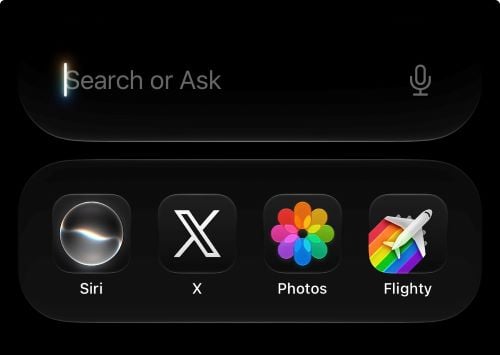
Siri AI is the biggest change to Apple's personal assistant since it launched in 2011. As part of iOS 27, Apple rebuilt Siri from the ground up as a true generative AI assistant, powered by the newest generation of Apple Intelligence capabilities. It holds real conversations, pulls answers from the web, and can sort through the data on your phone to complete complex tasks.
While there are a ton of new features, we’ve identified which parts of the Siri AI update actually change how you use your iPhone. Overall, the most useful Siri AI features aren't the chatbot answers. They're the tasks that tap into the stuff already on your phone to help make your life easier.
Below are the six Siri AI features worth trying first, what each one does, and where it still falls a little short.
1. Find old texts, emails, and photos just by asking
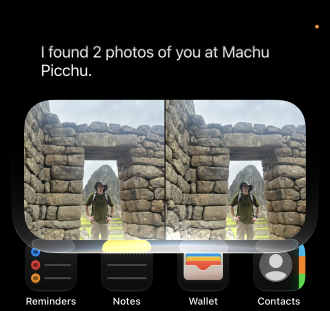
Image: Max McCaskill
Siri can now search through your personal data in messages, emails, photos, and more to find what you're looking for. This means you don’t have to scroll through individual apps to locate things.
Apple calls this personal context. In practice, it means you can ask for things like:
- "What was the restaurant Mary Beth recommended last month?"
- "What's my flight confirmation number for my trip to Dallas?"
- "Show me photos from my trip to the mountains."
All of that searching happens on your device using your iPhone's Spotlight index. It’s completed on-device, so none of your data is sent to an online server.
Searching does best with specific queries. You have to include enough details for Siri to know where to look, such as a contact’s name, a general timeline, or what app to search. For example, saying “Check my Messages for Mary Beth’s mailing address” should get you a solid result, while “What is Mary Beth’s address?” may get you nothing.
Third-party apps can also be searched by Siri if their developers have added support. So far, the number of apps that allow it is small, and during my testing, Siri AI could not search chats in apps like Snapchat or for travel information from apps like Flighty or Expedia.
2. Ask Siri about whatever's on your screen

Image: Max McCaskill
Siri can now see what's on your screen and answer questions about it. This feature is called onscreen awareness, and it removes the awkward step of explaining extra context to your AI assistant. You just need to activate Siri and ask a question.
For example, if you find a good recipe online, you can ask Siri what else you should eat with the meal and save both recipes to the Notes app. If you're looking at a photo on social media, you can ask where it was taken.
Unfortunately, there are some limitations. Siri only looks at what's actually visible, so it can miss details further down a page or inside an app. It also struggles to recognize locations that aren’t famous tourist spots. For example, it easily identified a photo of the Tokyo Skytree from X and Machu Picchu from a previous trip I took. However, it couldn’t identify places like White Sands National Park or the Blue Ridge Parkway from the Photos app.
3. Pick up old conversations in the new Siri app

Image: Max McCaskill
The new Siri app saves your conversation history, allowing you to start a new chat or go back to an old one instead of losing everything once your conversation ends.
Your history syncs through iCloud across your iPhone, iPad, Mac, Apple Watch, and Apple Vision Pro. That means you can start planning a trip on your Mac and pick up the same thread on your iPhone later without repeating yourself.
The Siri app works well for longer, ongoing conversations, like research, planning, or topics you'll want to come back to. However, not every conversation saves to the app. Based on my testing, it appears that quick questions where you don’t interact with Siri after getting the information you need are not always saved.
4. Get things done across multiple apps
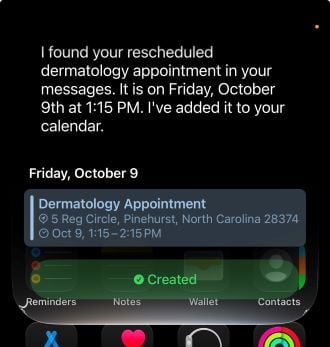
Image: Max McCaskill
Siri AI can work across multiple apps to chain tasks together. This means that you can ask for information from one app, then have Siri use it across other apps.
For example, you can ask Siri to find an address in your Messages, then enter it on Apple Maps before a trip. You can find information in Messages or Mail and have it added to your calendar or shared with other contacts.
The exciting thing is that Siri can generally complete these things in one request. It’ll automatically decide which apps to use and search for information without asking for confirmation at each step along the way. However, how well it works depends on the apps involved. As with the search feature, Apple's own apps get the deepest support, while third-party apps only work if developers allow them to.
5. Point your camera at something and ask about it

Image: Max McCaskill
Visual Intelligence has been part of Apple Intelligence since iOS 18, but iOS 27 adds Siri directly into the Camera app with a new Siri mode. You simply point your camera at something, tap the shutter button, and ask Siri about what it sees.
To use Siri in the Camera app:
- Open the Camera app.
- Swipe through the camera modes to Siri.
- Point your camera at whatever you have questions about.
- Tap the shutter button and ask your question.
The feature is handy for identifying things, asking how to use something, or even translating text. It can even help you do more complicated tasks, like math equations or helping you split a bill based on a receipt.
Despite Siri AI in Camera using photos as its basis, the feature does not actually save your pictures in the Photos app. They’re saved in the Siri app instead, and may eventually be automatically deleted by the system. If you’re taking photos of something that you want to have a record of, it’s best to take a regular photo and use Visual Intelligence on it instead.
6. Let Siri write your texts and emails

Image: Max McCaskill
Siri AI is now a generative AI feature, turning Apple's Writing Tools into something you can use almost anywhere you type. Describe what you want to say, and Siri will write a draft from scratch. Siri also proofreads automatically as you type across the system, including in most third-party apps, and it can suggest ways to improve something you've already written.
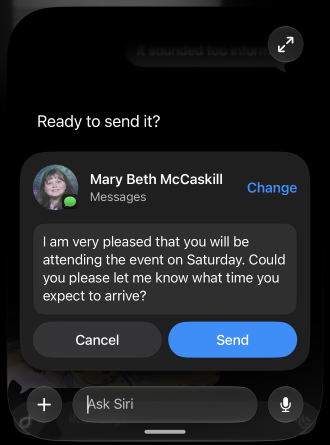
Image: Max McCaskill
If the text is not quite right, you can also tell Siri what to change ("make it shorter," "sound less formal") instead of rewriting it yourself. Siri is also supposed to match how you normally write to each person, including your usual tone and punctuation. If you send your boss short bullet points and your friends rambling texts with no capital letters, Siri should draft accordingly. I tried to do this by telling Siri to “make the message sound more like me” and was met with mixed results.
You should also treat anything Siri writes as a first draft and keep in mind it may not always understand what you want. Like any AI, it can struggle if you’re trying to be snarky or funny. My testing also showed it will write swear words if you ask it to. Overall, the feature can save you time on routine emails, but you should always read it over before you hit send.
Which iPhones work with Siri AI?
Siri AI has the same hardware requirements as Apple Intelligence. That means you'll need an iPhone 15 Pro or newer device, and your iPhone must be running iOS 27 with a compatible language.
Siri AI is supported by the:
- iPhone Duo
- iPhone 18 Pro and iPhone 18 Pro Max
- iPhone 17, iPhone 17 Pro, iPhone 17 Pro Max, iPhone Air, and iPhone 17e
- iPhone 16, iPhone 16 Plus, iPhone 16 Pro, iPhone 16 Pro Max, and iPhone 16e
- iPhone 15 Pro and iPhone 15 Pro Max
Other iPhones may be able to download iOS 27, but they will not have access to Siri AI. Instead, they retain the original form of the digital assistant that Apple has offered for years.
Some features—like more expressive Siri voices and more accurate dictation—also rely on Apple's most advanced processors. That means those features are currently locked to the iPhone Air, 17 Pro models, 18 Pro models, and the iPhone Duo.
Siri AI features: FAQ
Is Siri AI good?
Yes, Siri AI is an improvement over the old Siri, especially for finding personal information, answering questions about your screen, and completing tasks across apps. However, it still trails chatbots like ChatGPT and Gemini for complex research and reasoning.
How do I get the new AI Siri?
To get Siri AI, update a compatible iPhone (iPhone 15 Pro or newer) to iOS 27 by going to Settings > General > Software Update. Once downloaded, you must enable the feature under the Siri section of the Settings app. Siri AI is currently in a public Beta, so you must opt into it and understand it may have bugs.
Does the new Siri use Google Gemini?
The Apple Foundation Models that power Siri AI are based on Google's Gemini models, but they run on your iPhone or Apple's own Private Cloud Compute servers. You aren't chatting with Gemini directly, and Apple says your personal data isn't stored or shared with anyone else.
How do I use the new Siri AI features?
To use Siri AI, say "Hey Siri," press and hold the side button, or swipe down from the Dynamic Island, then speak or type your request. You can also open the Siri app to revisit past conversations or use Siri mode in the Camera app to ask about what's in front of you.
Is Siri AI now available?
Yes, Siri AI is now available on compatible devices running iOS 27.
Max McCaskill
Sr. Staff Writer

Thousands of cell phone plans unpacked. All the facts. No surprises.