As a Mississippi State grad and SEC football fanatic, I know how frustrating it is to have a great game ruined by an early notification. Even worse, it's something I experience frequently, since my YouTube TV stream generally runs a couple of minutes behind standard cable for live sporting events.
The good news is your iPhone gives you the controls to prevent these kinds of interruptions. Things like silencing notifications, turning off Live Activities updates, and pausing specific apps can keep your focus on the game, not your iPhone.
1. Turn on Silent Mode for the fastest fix
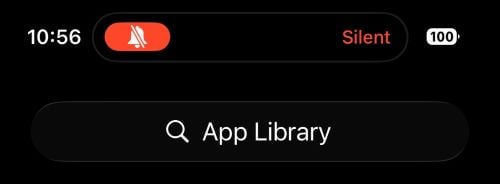
Image: Max McCaskill
If you just need a quick break from score alerts, Silent Mode is the quickest and easiest option. Just flip the physical switch or Action Button on the side of your iPhone, and it will no longer make audible notifications.
Silent Mode mutes the sound for incoming calls, texts, and notifications, including the ones from apps telling you who just scored.
However, it doesn't stop your iPhone's vibration or your notifications from popping up on your lockscreen. That means switching to Silent Mode lets you avoid game updates and spoilers for only a short time—and probably while your phone isn't in your pocket. If you automatically check your screen any time you feel your phone buzz, you may need to go a step further.
If you want a truly quiet iPhone, you can pull down your Control Panel and enable Airplane Mode. This swap cuts off your mobile data and Wi-Fi connection, meaning it'll delay or avoid all notifications on your iPhone until you reconnect to your mobile network or internet. Airplane mode is effective, but using it also means you aren't getting any messages or phone calls.
If you need to stay connected while avoiding game updates, just disconnecting from the web might not be right for you. Luckily, your iPhone gives you a few more options to limit notifications when it's game day.
2. Silence notifications for one specific app
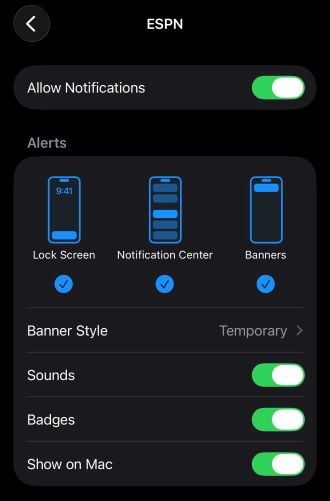
Image: Max McCaskill
If it's just one app that's causing problems, you can simply target its notifications instead of completely disconnecting your iPhone from the grid. Common culprits include the ESPN app, Apple Sports, Yahoo Sports, Apple News, and even sports betting apps.
To turn off iPhone notifications for a single app:
- Open Settings.
- Tap Notifications.
- Select the app that's sending score updates.
- Turn off Allow Notifications, or turn off Sounds if you want the alert to land silently in Notification Center without a banner or sound.
Turning off Sounds is the better option if you still want some notifications to browse after the game. For example, maybe you don't want to know the score of your favorite team, but you do want to keep up with the other games you aren't currently watching. Disabling notifications entirely means nothing will come through, and you won't have a record of any you missed.
Hide the app entirely for a quick shortcut that also kills notifications
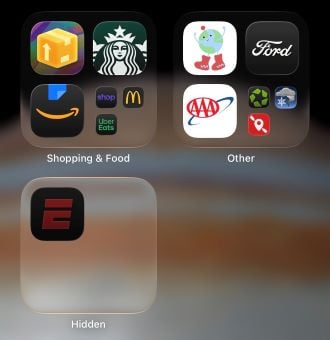
Image: Max McCaskill
If you want a quick fix for just one game, hiding the app on your Home Screen does the same job as disabling notifications without forcing you to dig through your settings. On iOS 18 and later, hidden apps stop sending notifications until you unhide them because your iPhone stops updating the app in the background. Simply pop the app in the hidden folder for the game, then pull it back out once it's over.
To hide an app on iPhone:
- Touch and hold the app's icon on your Home Screen.
- Tap Require Face ID.
- Choose Hide and Require Face ID.
- Authenticate to confirm.
To unhide it, simply find it in the hidden folder at the bottom of your App Library and select "Don't Require Face ID."
Hiding an app stops it from appearing in search or sending you notifications. This feature is built for privacy and secrecy, so you will briefly lose the icon and any quick access to the app. However, it's a fast way to make a spoiler-prone app disappear completely without actually deleting it and losing data. It's one of a handful of features most people don't realize their iPhone can even do.
3. Turn off Live Activities on the Dynamic Island and Lock Screen
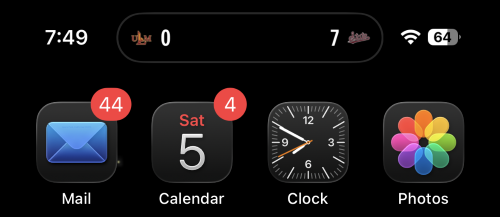
Image: Max McCaskill
Even with notifications silenced, your iPhone can still show a live score using the Live Activities widget on your Dynamic Island. That means anytime you use your iPhone, the score is sitting at the top of your screen. It'll also appear at the top of the notifications on your Lock Screen.
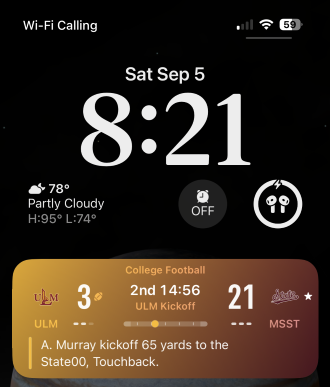
Image: Max McCaskill
Apps like Apple Sports and ESPN will automatically populate scores of live games on your Dynamic Island. Even if you close the app, the widget will still appear and update itself in the background. That's extremely helpful if you're trying to keep up with a game you can't watch live, but it's a nightmare if you don't want the ending spoiled.
Dismissing your iPhone's Live Activity sports scores will wipe these off your screen. To do that:
- Close the app your iPhone is using for its score information.
- On the lock screen, swipe left on the Live Activity, then tap Clear.
- On the Dynamic Island, swipe left across it to close it.
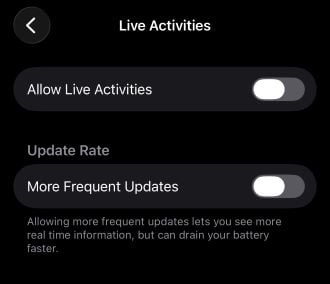
Image: Max McCaskill
Push notifications or reopening the app can restart Live Activities, so you may have to do this process multiple times. If you want to stop an app from starting Live Activities in the first place:
- Go to Settings.
- Tap Apps.
- Find your sports app.
- Select Live Activities.
- Toggle off.
4. Silence notifications from one person
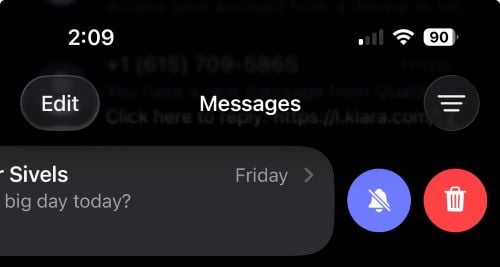
Image: Max McCaskill
Sometimes the problem isn't an app. Instead, it's your buddy who monitors every game and offers color commentary to your group chat. They'll fire off a "DID YOU SEE THAT" the second something happens, or give their personal opinion on why they disagree with a close call. Unfortunately, you're stuck dealing with constant spoilers just by being part of the message chain.
The easiest way to handle this is to simply mute the conversation. This stops all notification alerts from that iMessage thread until you unmute it. They won't appear on your Lock Screen or as previews. Texts will still arrive as usual, and you'll see how many unopened messages you have in the notification badge of the Messages app.
To mute a conversation in the Messages app:
- Open Messages.
- Swipe left on the conversation.
- Tap the bell icon to mute it, which turns on Hide Alerts.
This mutes the thread indefinitely until you go back and unmute it yourself.
5. Use a custom Focus mode for full game-night silence
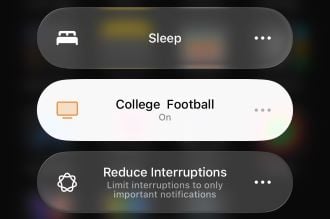
Image: Max McCaskill
If you've got a full slate of games every Saturday this fall, it might be worth building a Focus mode instead. This is basically a total notification blackout of anything that isn't on a preapproved list. It's perfect for a recurring setup that you can easily enable whenever you want.
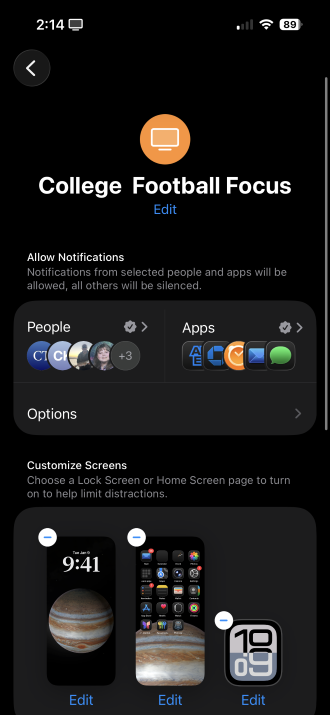
Image: Max McCaskill
To create a Focus mode:
- Open Settings.
- Tap Focus.
- Tap the + icon and choose a Focus type, or build a custom one.
- Under Allowed Notifications, choose which apps and people can still reach you.
- Under Focus Filters, restrict what specific apps show while the Focus is active.
- Tap Schedule if you want it to turn on and off automatically, which is great if you know exactly when a game starts.
Anything not on your Focus Mode's allowed list gets silenced completely while the setting is active. That means you can still get texts from your family or updates on your Uber Eats order, but none of your problematic apps can break the virtual firewall.
Some Focus filtering options depend on which iOS version you're running, so make sure you're on the latest version of iOS to develop custom modes.
How to silence notifications on your iPhone: FAQs
What does "notifications silenced" mean on iPhone?
Seeing "notifications silenced" on iPhone means that the person you're messaging has enabled a Focus Mode on their device. Your message went through normally and is sitting on their phone, but the recipient won't get an alert until the mode is deactivated. If the message is important, you can opt to "notify anyway," which forces the message through.
How do I turn notifications back on after the game?
If you turned off notifications for an app during a sporting event, you'll need to go back into your iPhone Settings and manually enable them. To turn notifications back on, go to Settings > Notifications > [the app you chose] and turn Allow Notifications back on.
How do I silence notifications for certain apps on my iPhone?
You can silence notifications for one app on your iPhone by going to Settings > Notifications, select the app, and either turn off Allow Notifications or choose Deliver Quietly to keep the alert out of sight without losing it entirely.
How do I turn off ESPN live scores on my iPhone?
To turn off ESPN live scores, first completely close the app. Then turn off notifications for the app under Settings > Notifications > ESPN. Then separately dismiss or disable its Live Activity under Settings > Apps > ESPN > Live Activities. Notifications and Live Activities are controlled separately, so you need to handle both if you want the ESPN app fully quiet.
Max McCaskill
Sr. Staff Writer

Thousands of cell phone plans unpacked. All the facts. No surprises.

Related Articles


Related Topics
iOSPopular Topics
Featured App Reviews iOS News Coverage Device Reviews Device Explainers Carrier Explainers App Roundups T-Mobile