Gemini has more access to your Android phone than most people realize, and most of that access is turned on by default. Four app extensions—Phone, Messages, WhatsApp, and Utilities—let Gemini place calls, send texts, and read your notifications, and those connections keep working even after you turn off Gemini Apps Activity.
In my ranking of the creepiest AI phone features, Gemini's notification access took the top spot with a 5/5 creep factor. Gemini's notification access is also one of the easiest features on that list to fix, because your Gemini privacy settings give each extension its own toggle, so you can keep the parts you actually use and shut off the rest.
Looking for a phone with the latest AI features?
The newest Android flagships come with the most complete set of AI tools, including Gemini task automation and AI call screening, which older phones don't get. Here are some of the best AI-ready Android phones available right now.
Galaxy A27 5G 128GB
- 6.7 inch display
- Rear Cameras: 50MP, 5MP, 2MP
- Front Camera: 12MP
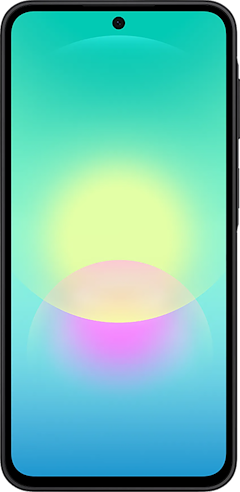
Galaxy A37 5G 128GB
- 6.7 inch display
- Rear Cameras: 50MP, 8MP, 5MP
- Front Camera: 12MP
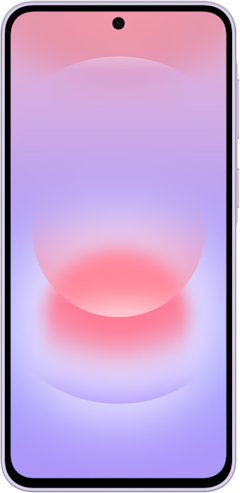
Galaxy A57 5G 128GB
- 6.7 inch display
- Rear Cameras: 50MP, 12MP, 5MP
- Front Camera: 12MP
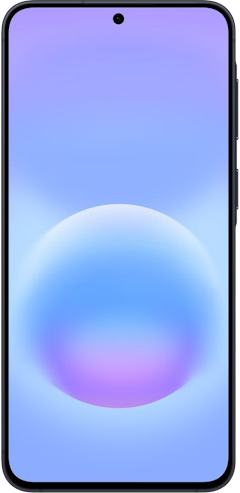
Pixel 10a 128GB
- 6.3 inch display
- Rear Cameras: 48MP, 13MP
- Front Camera: 13MP
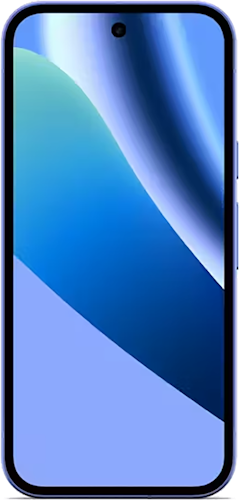

What each Gemini extension actually does
Each of Gemini's four extensions unlocks a different kind of access, and Utilities reaches the furthest by a wide margin:
- Phone: Gemini can place calls to your contacts when you ask, so saying "call Mom" dials her without you touching the screen.
- Messages: Gemini can send texts through Google Messages, which lets you dictate and send a message without opening the app.
- WhatsApp: Gemini can send WhatsApp messages and start WhatsApp calls, although Gemini can't open your WhatsApp chat history directly.
- Utilities: Gemini can control phone features like alarms, timers, and opening apps, and Utilities is also the extension that reads and replies to your notifications, including new WhatsApp messages.
The first three extensions mostly act on commands you give Gemini. The Utilities extension differs because it gives Gemini a window into content other people send you.
What reading notifications actually means
When Gemini reads your notifications, it's reading the same preview text that shows up in your notification shade, including sender names and message content from any app that sends alerts. Ask Gemini to read your new messages, and it reads them aloud and offers to send a reply for you.
The catch is that your notification shade holds a lot more than texts from friends. Bank alerts, delivery updates, appointment reminders, and two-factor login codes all show up as notifications, so Utilities gives Gemini access to every one of them. If sensitive notifications like login codes worry you, our Android security guide covers how to lock down what shows up on your phone.
I get the appeal of hands-free messaging when I'm driving and the back seat has turned into a loud negotiation over who gets the last granola bar. The problem is that most people never made a conscious choice to give Gemini that level of access, and the access stays on long after the drive is over.
The 72-hour window and whether Gemini trains on your data
Turning off Gemini Apps Activity doesn't fully stop Google from holding onto your conversations. Google keeps your Gemini conversations saved to your account for up to 72 hours even with Gemini Apps Activity switched off.
Leaving Gemini Apps Activity on goes much further. With Activity on, Google stores your Gemini conversations for up to 18 months by default, can have human reviewers look at them, and can use them to train and improve its AI models. Any time you ask Gemini to read or reply to a notification, that request becomes part of your Gemini conversation, so the notification content falls under the same rules.
Turning off Gemini Apps Activity is the only way to stop Gemini from using your data for training, which makes it the most important setting in this article. If you want to see how Google's approach to your data stacks up against Apple's, our Apple Intelligence vs. Google Gemini comparison breaks down both.
How to change your Gemini privacy settings
You can shut off each part of Gemini separately, so start with the ones you never use:
- Turn off notification reading: In the Gemini app, go to your profile picture > Apps, and switch off Utilities.
- Turn off messaging and calls: In the same Apps menu, switch off WhatsApp, Messages, and Phone.
- Turn off Gemini Apps Activity: Go to your profile picture > Gemini Apps Activity > Turn off and delete activity.
- Turn off Gemini in Google Messages: In Google Messages, go to your profile picture > Messages settings > Gemini in Messages and switch off Show Gemini button.
I recommend keeping Phone and Messages if you rely on hands-free voice commands, and turning off Utilities, WhatsApp, and Gemini Apps Activity if you don't. That setup keeps the most useful part of Gemini while closing the biggest window into your personal data.
Gemini privacy settings: FAQ
Can Gemini read my text messages and notifications?
Gemini can read your text messages and notifications through the Utilities extension, which reads the preview text that shows up in your notification shade, including sender names and message content. Turning off Utilities in the Gemini app's Apps menu stops Gemini from reading incoming messages and notifications, even if you leave the Messages extension on for sending texts.
Does turning off Gemini Apps Activity stop Google from keeping my chats?
Turning off Gemini Apps Activity doesn't stop Google entirely from keeping your chats. Google still saves Gemini conversations to your account, for up to 72 hours, to provide the service and process feedback. With Activity off, Google doesn't use those conversations to train its AI models or send to human reviewers.
How do I stop Gemini from using my data for training?
You can stop Gemini from using your data for training by turning off Gemini Apps Activity. In the Gemini app, go to your profile picture > Gemini Apps Activity > Turn off and delete activity, which also clears the conversations Google has already saved.
What is Gemini in Google Messages, and how do I turn it off?
Gemini in Google Messages is a chat button inside the Google Messages app that lets you talk to Gemini like any other contact, separate from your conversations with real people. To turn it off, go to your profile picture > Messages settings > Gemini in Messages and switch off Show Gemini button. Hiding the button doesn't remove Gemini from the app completely, since Gemini can still appear in your contact list when you start a new chat.
How do I turn off Gemini on my phone?
You can turn off Gemini on your phone by changing your default digital assistant in Settings > Apps > Default apps > Digital assistant app, then switching off every extension in the Gemini app's Apps menu. Gemini comes preinstalled on many Android phones and can't always be removed, but those two steps cut off nearly all of its access.
Scott Houghton
Jr. Staff Writer

Thousands of cell phone plans unpacked. All the facts. No surprises.