Nothing ruins football season faster than your phone buzzing with a final score before you even have a chance to watch the game. Depending on how your phone is set up, a news app or an automatic ESPN score update can push scores straight to your lock screen and spoil the game.
Fortunately, your Android device has several built-in tools designed to pause, block, or hide these alerts so you can watch your favorite team spoiler-free. Here is exactly how to lock down your apps, silence notifications, and keep your Android phone completely spoiler-free.
How to silence notifications on Android with Do Not Disturb
Do Not Disturb immediately mutes every incoming alert on your phone. It's the fastest way to protect yourself from spoilers, and you can easily customize the settings to let essential family calls through while keeping everything else blocked.
Because Android manufacturers use slightly different operating systems, the exact path to activate Do Not Disturb varies by device.
How to activate Do Not Disturb by phone brand
| Phone brand | Steps to activate Do Not Disturb |
|---|---|
| Samsung | Swipe down twice from top of screen > Tap Do Not Disturb icon |
| Google Pixel | Settings > Sound & vibration > Do Not Disturb > Turn on now |
| Motorola | Settings > Sound & vibration > Do Not Disturb > Turn on now |
| OnePlus | Settings > Sound & vibration > Do Not Disturb > Turn on now |
Putting your phone on Do Not Disturb is the most reliable way to silence notifications during a game, but keep in mind it will also block calls and texts. To make sure the people you want can still reach you, add them to your exceptions list:
- Samsung: Long-press the Do Not Disturb icon > Calls and messages > Add contacts
- Google Pixel: Settings > Sound & vibration > Do Not Disturb > People > Add contacts
- Motorola: Settings > Sound & vibration > Do Not Disturb > People > Add contacts
- OnePlus: Settings > Sound & vibration > Do Not Disturb > People > Allowed contacts
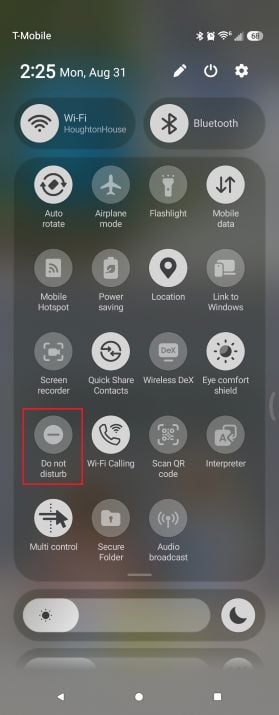
Image: Scott Houghton | WhistleOut
Recover accidentally deleted notifications
Aggressively clearing notifications to dodge spoilers can backfire if you swipe away a critical work email by mistake. If you use a Galaxy device, Samsung Good Lock NotiStar fixes this by logging a complete, searchable history of every alert that hits your phone—even after you delete it.
How to turn off Google sports notifications
Google uses your search history to automatically send live score updates for teams it thinks you follow. Because Google enables these alerts by default, you have to manually turn them off inside the Google app before kickoff.
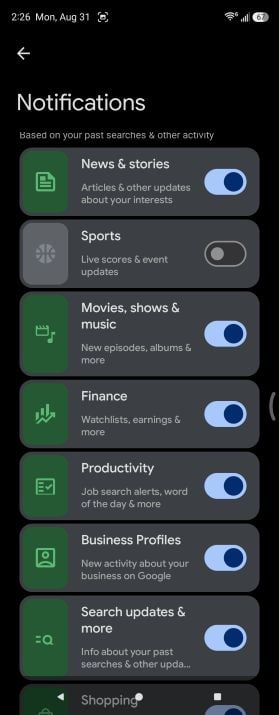
Image: Scott Houghton | WhistleOut
Since the Google app functions the same way on every Android phone, the steps are identical no matter which phone you use:
- Open the Google app.
- Tap your profile picture in the top-right corner.
- Select Settings > Notifications.
- Scroll down to Sports and turn off both Sports scores and Sports updates.
How to block notifications for specific apps
Disabling notifications for individual apps ensures that ESPN, Bleacher Report, or X can't push sports scores to your screen without completely disabling every notification on your phone. Choose this option when you want to block sports spoilers but still need to know the exact second your Five Guys delivery driver arrives with your Bacon Cheeseburger.
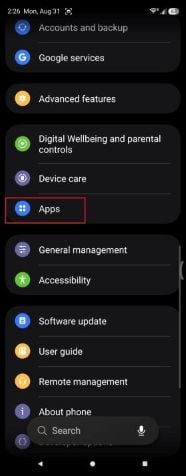
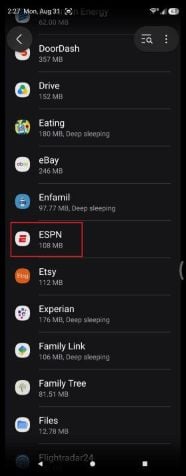
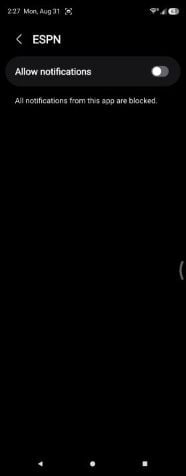
Navigate to Settings > Apps, select your sports app (like ESPN), and toggle off Allow notifications.
Image: Scott Houghton | WhistleOut
Each phone puts this option in a slightly different settings menu:
How to disable app notifications by phone brand
| Phone brand | Steps to disable specific app notifications |
|---|---|
| Samsung | Settings > Apps > [Select App] > Notifications > Toggle Allow notifications off |
| Google Pixel | Settings > Apps > See all apps > [Select App] > Notifications > Toggle All notifications off |
| Motorola | Settings > Apps > See all apps > [Select App] > Notifications > Toggle All notifications off |
| OnePlus | Settings > Apps > App management > [Select App] > Manage notifications > Toggle Allow notifications off |
Pro tip: If you want to stop sports notifications on Android completely without digging into the main settings menu, long-press any notification as it arrives. A menu will appear, letting you tap "Turn off notifications" right from the alert itself and immediately block that app from sending future spoilers.
How to prevent notifications from appearing on the lock screen
Hiding lock screen notifications stops texts from appearing on your display when your phone is sitting locked on the coffee table. Even if your phone is on silent, a screen lighting up with a message from your friend saying "Can't believe we lost!" will ruin the game.
Thanks to recent Android OS updates, you no longer have to choose between total silence and spoiled scores. You can set your lock screen to show that an app sent a notification while keeping the actual message hidden until you unlock your phone.
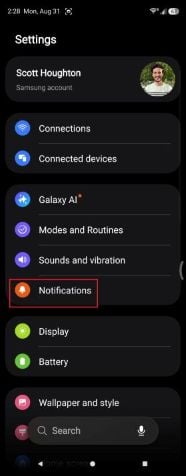
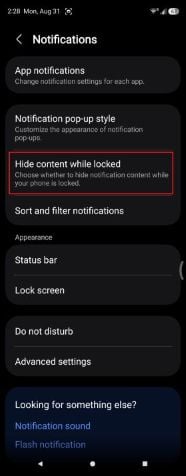
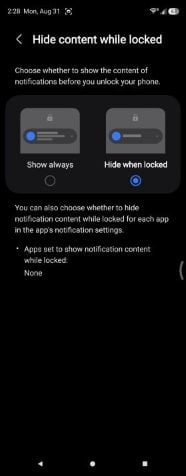
Set your lock screen privacy options to "Hide content while locked" to prevent incoming score text from popping up on display.
Image: Scott Houghton | WhistleOut
Here's how to turn it on depending on what phone you have:
How to hide lock screen content by phone brand
| Phone brand | Steps to hide lock screen content |
|---|---|
| Samsung | Settings > Notifications > Hide content when locked > Select Hide content |
| Google Pixel | Settings > Display > Lock screen > Privacy > Select Show sensitive content only when unlocked |
| Motorola | Settings > Display > Lock screen > Privacy > Select Show sensitive content only when unlocked |
| OnePlus | Settings > Notifications & status bar > Lock screen > Lock screen notifications > Select Show app only |
Lock-down more than just sports scores
Hiding lock screen alerts is good for more than just avoiding game-ending spoilers—it keeps nosy neighbors, coworkers, and friends from peeking at your personal life.
Taking a few extra minutes to review our full Android security guide can help you lock down sensitive data across your entire device. That way, you can keep high-priority apps like banking, email, and personal messages completely hidden until your phone is safely in your hands.
How to get ESPN+ through your phone plan
Streaming the game shouldn't cost a fortune on top of your monthly phone bill. While carriers rarely throw in standalone ESPN+ for free anymore, you can still land it at a steep discount depending on your provider:
Sports add-ons with Verizon
If you have a phone plan through Verizon, you can add the Disney Bundle Perk (Disney+, Hulu, and ESPN+) to any myPlan unlimited tier for $10/month, or keep it free if you are grandfathered into an older Play More/Get More plan.
Sports add-ons with T-Mobile
While T-Mobile doesn't offer an ESPN+ add-on, Go5G Plus and Next plans include free seasonal sports passes like MLB.TV and MLS Season Pass. Plus, T-Mobile customers also get Hulu with ads to stream sports games completely free with their plans.
Mobile virtual network operators (MVNOs)
While MVNOs like Mint Mobile, Visible, and US Mobile don't offer built-in sports perks, they offer the ultimate workaround: massive monthly savings. Switching from a major carrier's $90 unlimited plan to a $20–$30 MVNO plan instantly creates a $60/month "sports fund" in your budget—more than enough to fund an ESPN+ subscription.
Here are some of our favorite plan offerings from MVNOs:
|
Visible

$25 Visible Plan
$25.00/mo
Taxes & Fees included
|
|
Mint Mobile

Unlimited Data Plan
$10.00/mo
$60 for 6 months of service
|
|
US Mobile

Unlimited Starter Plan
$25.00/mo
|
|
Visible
$30 Visible+ Plan
$30.00/mo
Taxes & Fees included
|
|
Visible
$40 Visible+ Pro Plan
$40.00/mo
Taxes & Fees included
|
How to silence notifications on Android: FAQ
How do I stop Google from sending sports score notifications on Android?
To stop these alerts, open the Google app, tap your profile picture, go to Settings, select Notifications, and toggle off the specific "Sports scores" option.
How do I turn off notifications from only one app?
Go to your phone's main Settings app, tap Apps, select the app, and toggle off the "Allow notifications" switch to mute that single program.
How do I remove sports scores from my lock screen?
Changing your lock screen privacy settings to "Hide content" or "Show sensitive content only when unlocked" will mask the text of incoming alerts while your device is locked.
Can I silence notifications on my Android for a specific amount of time?
You can set Do Not Disturb to run on a timer by long-pressing the Do Not Disturb icon in your quick settings, selecting "For how long?" and choosing a specific duration.
Scott Houghton
Jr. Staff Writer

Thousands of cell phone plans unpacked. All the facts. No surprises.




.png?w=280&h=280&usm=20&usmrad=0.8&fit=crop "The Best Cheap Phone Plans for 2026: We Tested Them All to Help You Save")